

Roles and responsibilities
Creating a student
1
Open Students
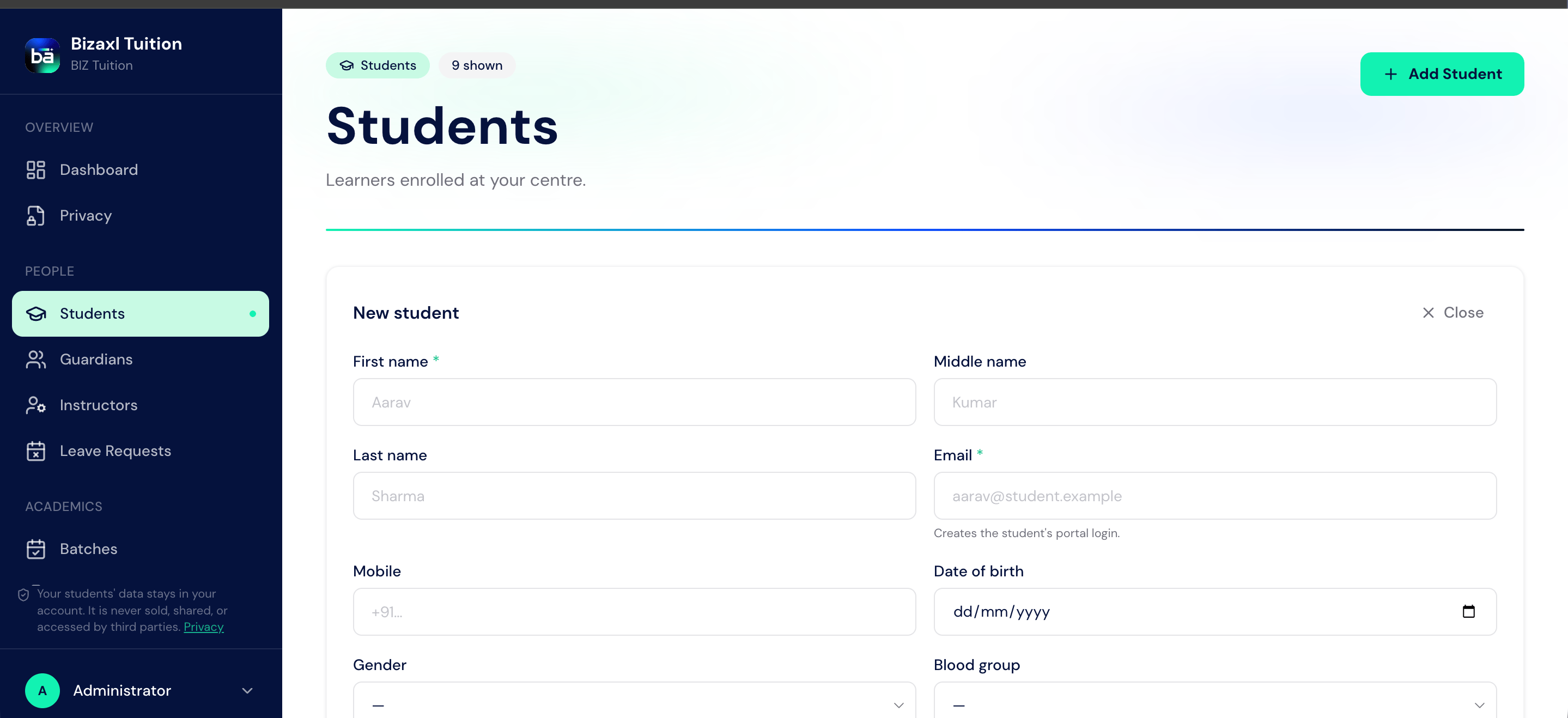
From the staff sidebar, choose Students, then New Student.
2
Enter the basics
Provide the student’s name and contact details. Save the record.
3
Portal access is provisioned automatically
When you save a new student, the system quietly creates a portal login for them and links them as a learner. You do not need to create logins by hand.
4
Link a guardian
Attach one or more guardians so parents can follow fees, attendance, and results.
Student field guide
Creating a guardian
A guardian is the parent or carer who receives communications and can pay fees. Create the guardian, then link them to one or more students.
When you save a new guardian, a parent portal login is provisioned automatically so they can sign in and see their children.
Linking families
Use the link guardian to student action so a guardian can view a child. A single guardian can be linked to several children, and a single child can have several guardians (for example, both parents).Instructors
Instructors are your teachers. Creating an instructor also provisions their staff portal login, and (when payroll is enabled) links them to an employee record for pay. See Instructor HR & Commission for the pay side.Upstream and downstream dependencies
- Upstream: a student can be created directly, or produced by converting an enquiry or applicant.
- Downstream: a student feeds batches, attendance, assessments, and fees. A guardian feeds all parent notifications and the parent portal.
Best practices
- Link a guardian before generating fees. Fee reminders and payment confirmations go to guardians, so an unlinked student means no one is told about the balance.
- Use one guardian record per real person. Do not create duplicate guardians for the same parent across siblings; link the one guardian to each child instead.
- Let the system make the logins. Portal access is created for you on save. Creating logins manually risks a mismatched or duplicate account.
- Keep contact details current. Reminders, results, and payment links all depend on a correct email and phone.