

Roles and responsibilities
The My Children view
A guardian opens My Children to see a card for each linked child, then clicks into a child for the detail: their fees, attendance, results, classes, and homework in one place.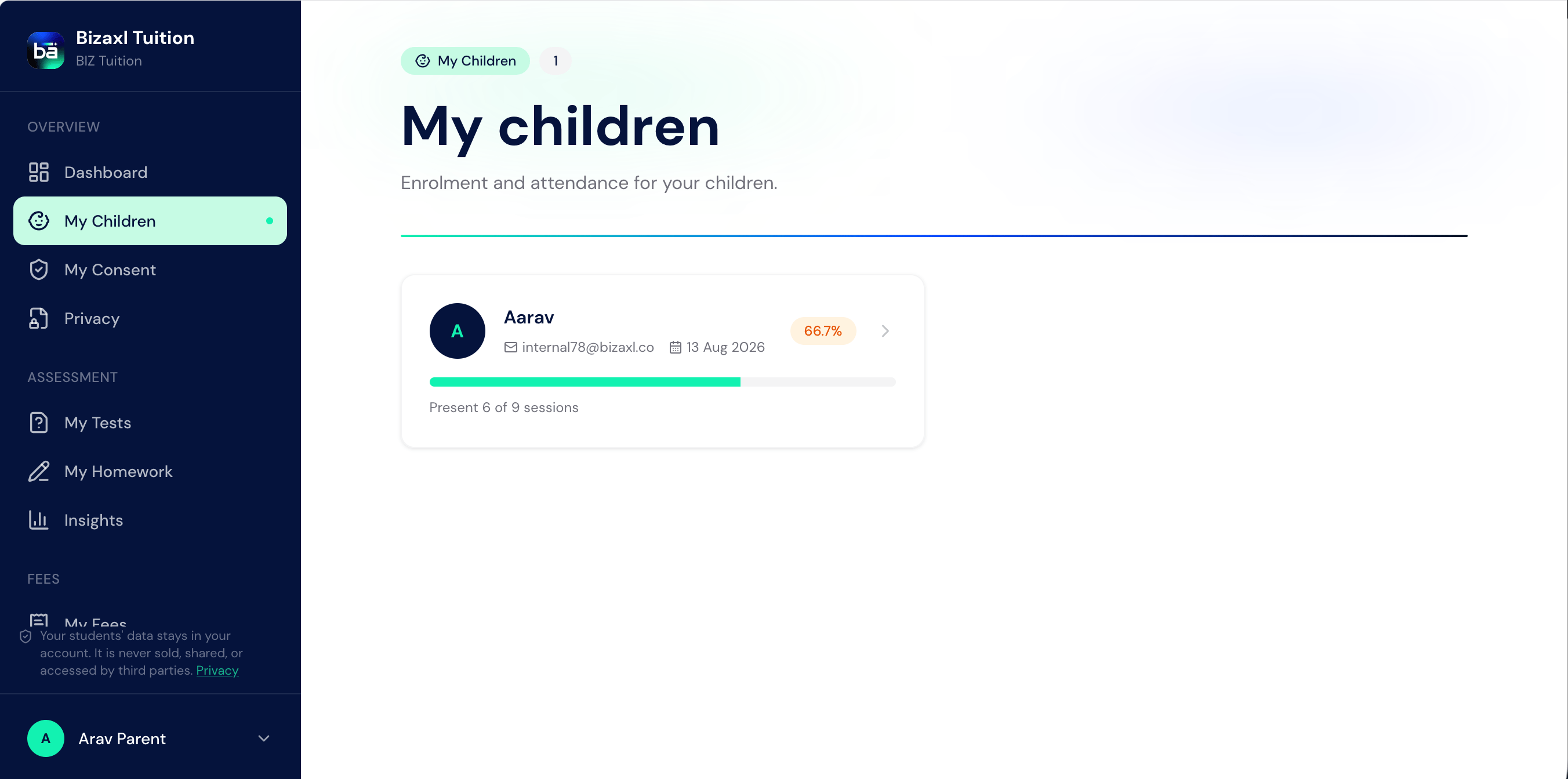
1
Open My Children
The guardian opens My Children from their sidebar.
2
Pick a child
They select a child to open the detailed view.
3
Follow along
From there they reach My Fees, attendance, results, My Classes, My Materials, and My Homework for that child.
Privacy consent
The centre asks guardians for consent about how it may use and share information, in line with its data-protection policy. Guardians manage this from My Consent.Guardian Consent status flow
Consent field guide
The privacy page
A public data privacy page explains, in plain language, what information the centre holds and how it is used. Both the in-portal Privacy page and the public page are available so families always know their rights.Upstream and downstream dependencies
- Upstream: the parent portal needs a guardian linked to a student.
- Downstream: consent governs which notifications the centre sends; a withdrawn consent stops the relevant communications.
Best practices
- Link guardians early. A parent cannot follow a child until the link exists.
- Respect a withdrawn consent immediately. When a guardian withdraws, the centre stops the related communications; do not work around it.
- Point families to the privacy page. It answers most questions about data use before they become complaints.