

Role: Legal Staff - Drafting legal notices and recording postal dispatch is done by Legal Staff. Legal Templates can be created by Legal Staff or an Administrator.
How Legal Documents Work
- Legal Template - a reusable draft for a common notice type, created once.
- Legal Notice - the actual notice for a specific matter, drafted from a template or from scratch.
- Postal Order - records how and when the notice was physically dispatched.
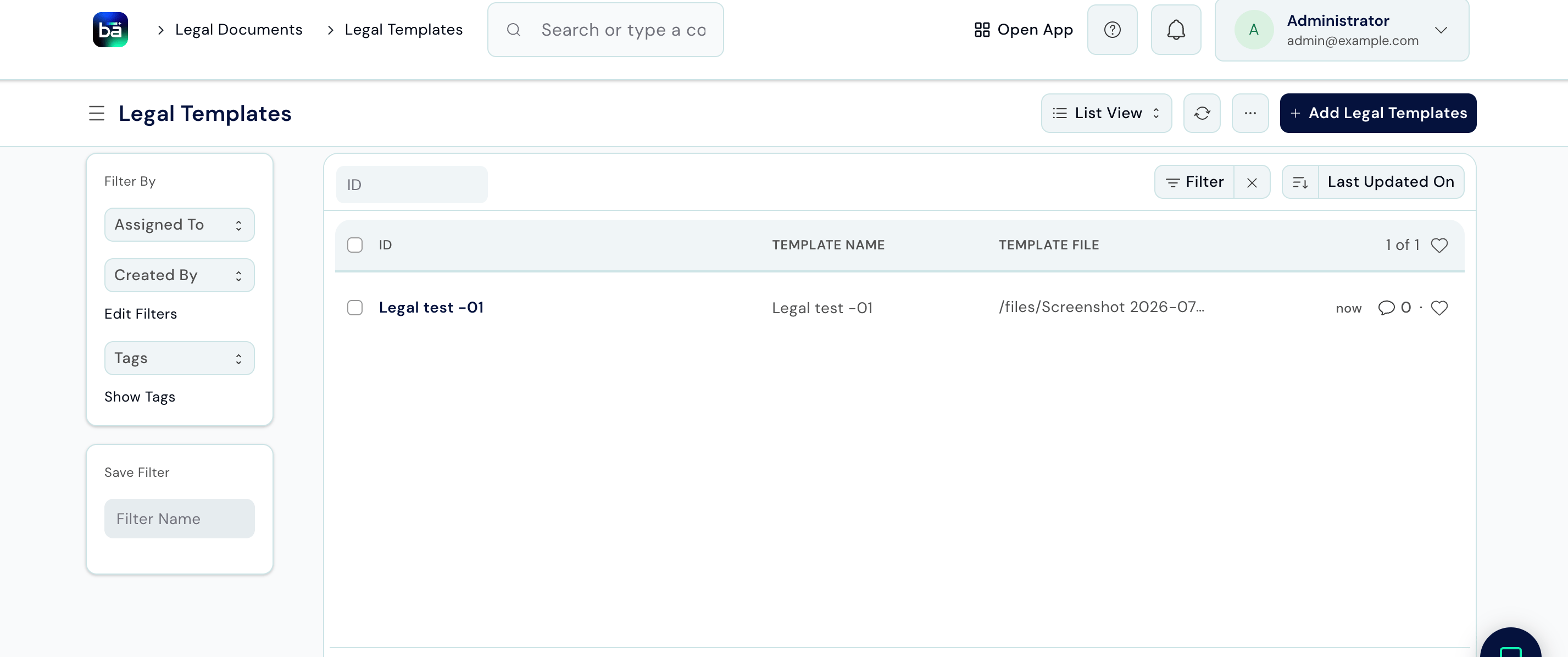
Legal Templates
Templates save time when you regularly send the same type of notice - for example, a Section 138 demand notice or a cheque-return notice. Path: Legal Documents → Setup → Legal Templates → New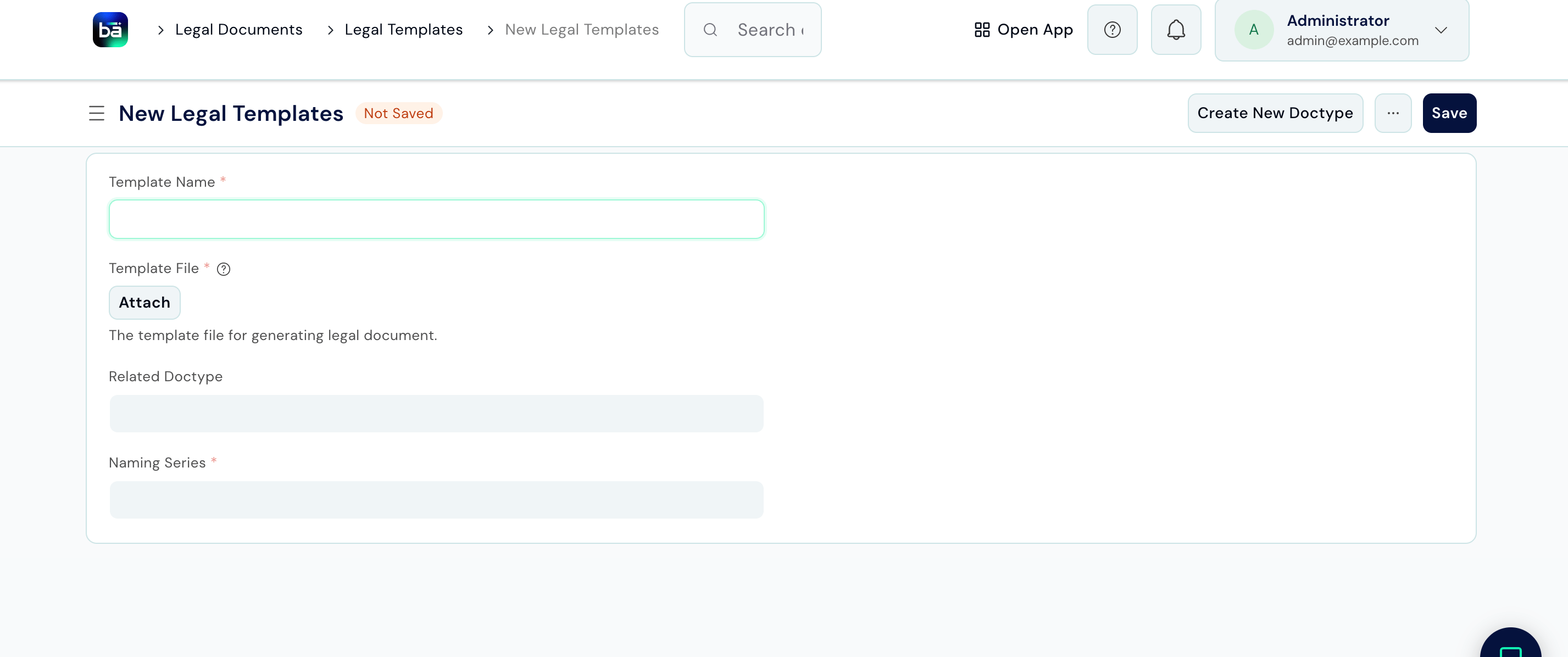
Draft a Legal Notice
Path: Legal Documents → Legal Documents → Legal Notice → New Requires: A matter or case should exist so the notice can be linked correctly.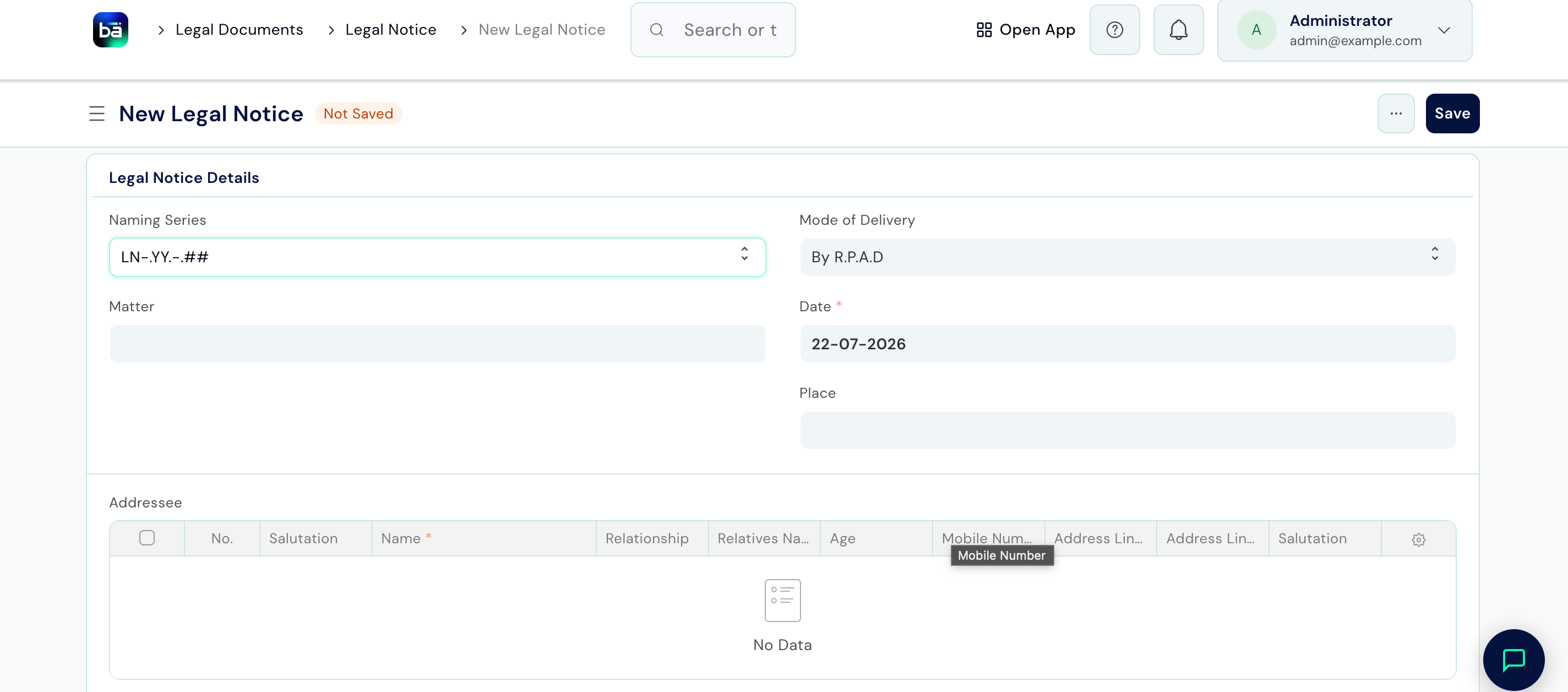
Addressee (one row per recipient):
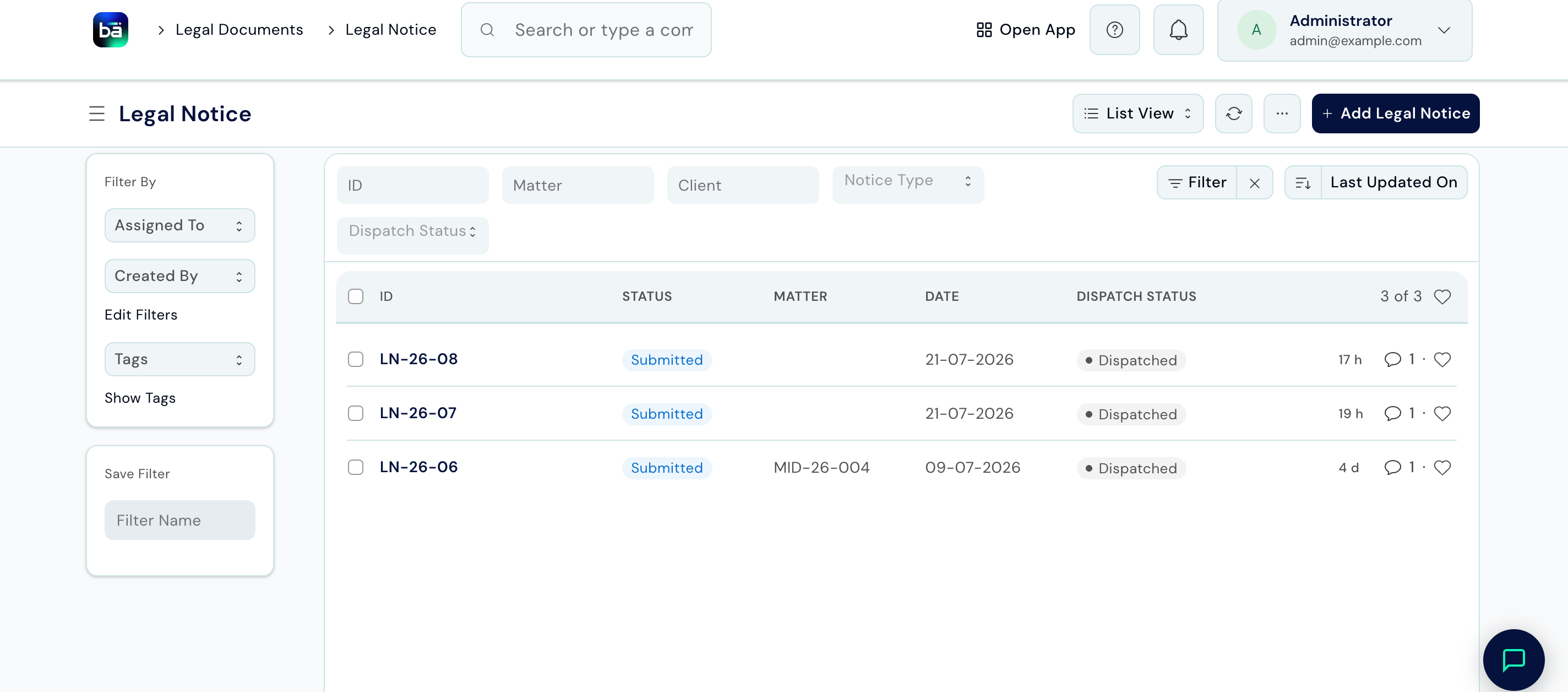
Record Postal Dispatch
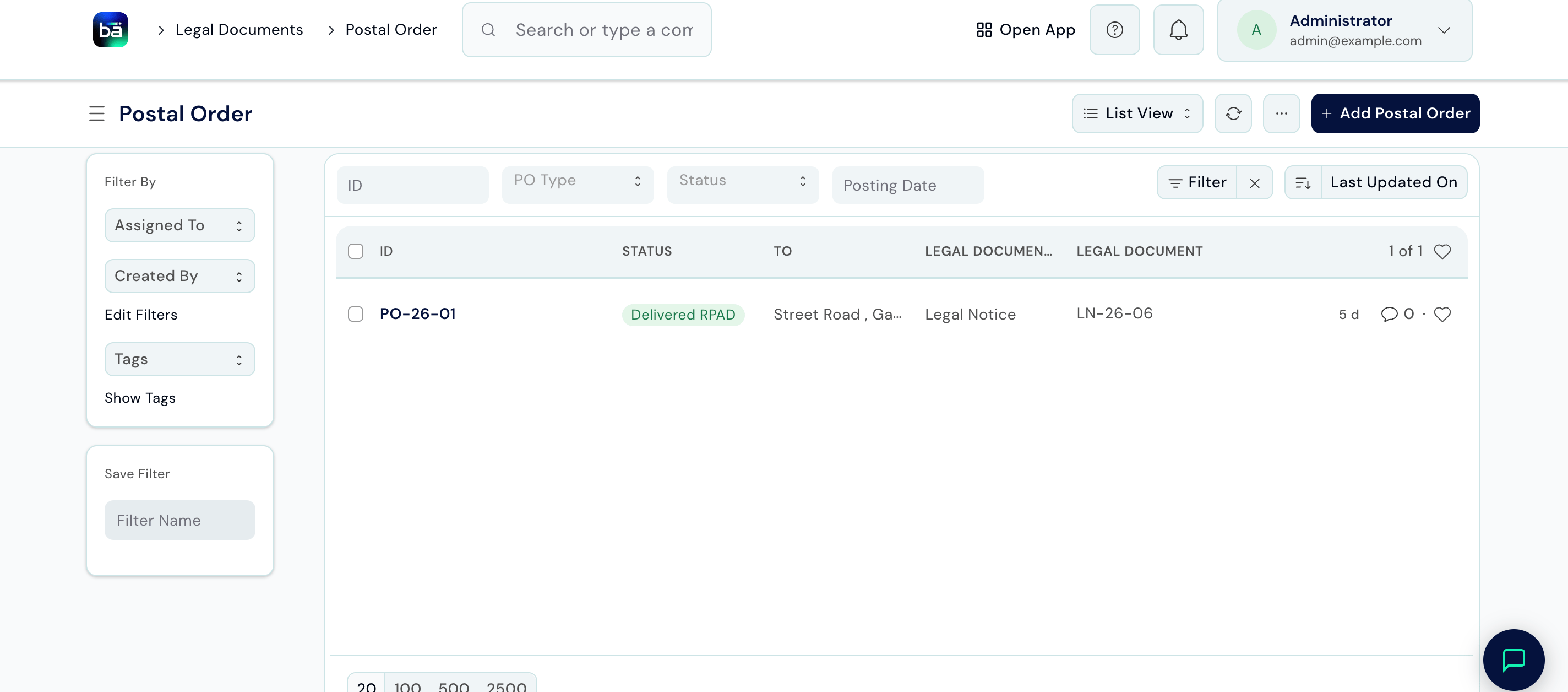
After a notice has been signed and sent, immediately record the dispatch details. This creates proof that the notice was sent, which may be required in court. Path: Legal Documents → Inwards / Outwards → Postal Order → New Requires: The Legal Notice must exist and be saved.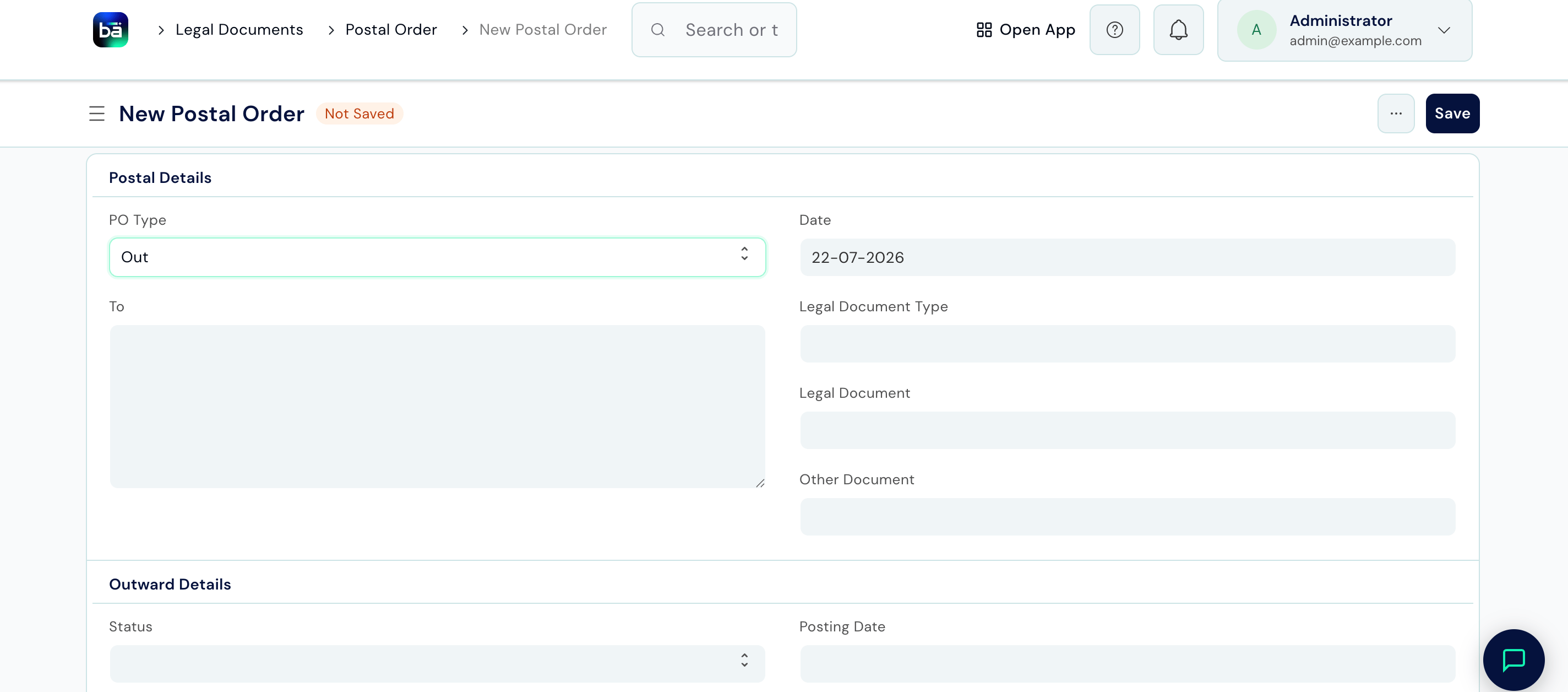
Tips
- Always link a notice to a matter - notices without a matter link cannot be retrieved from the client file and create orphaned records.
- Replace every placeholder before saving - a notice sent with a placeholder like
[Client Name]still in the text is unprofessional and potentially damaging. - Record the Postal Order on the day of dispatch - if the other side later denies receiving the notice, a same-day entry combined with a tracking number is strong evidence.
- Update Status to Delivered once you have tracking confirmation. This closes the loop on the dispatch record and makes it clear the notice reached its destination.
- For urgent matters where tracking is critical (e.g. Section 138 notices), use Speed Post or a reliable courier that provides online tracking, and copy the tracking URL into the Tracking Number field.