

Roles: Booking appointments and managing schedules is done by Legal Staff. Viewing and attending appointments is also available to Staff (front desk, support). Meeting Rooms and Appointment Types are configured by an Administrator - see Setup.
How Appointments Work
Before a client can be booked in, the following must be in place: Appointment Types and Meeting Rooms are set up once by an Administrator. Lawyer Schedules and Customer Appointments are managed by Legal Staff.Meeting Rooms
Meeting rooms define where appointments take place - physical rooms or virtual meeting links. Path: Law Management → Appointments → Meeting Room → New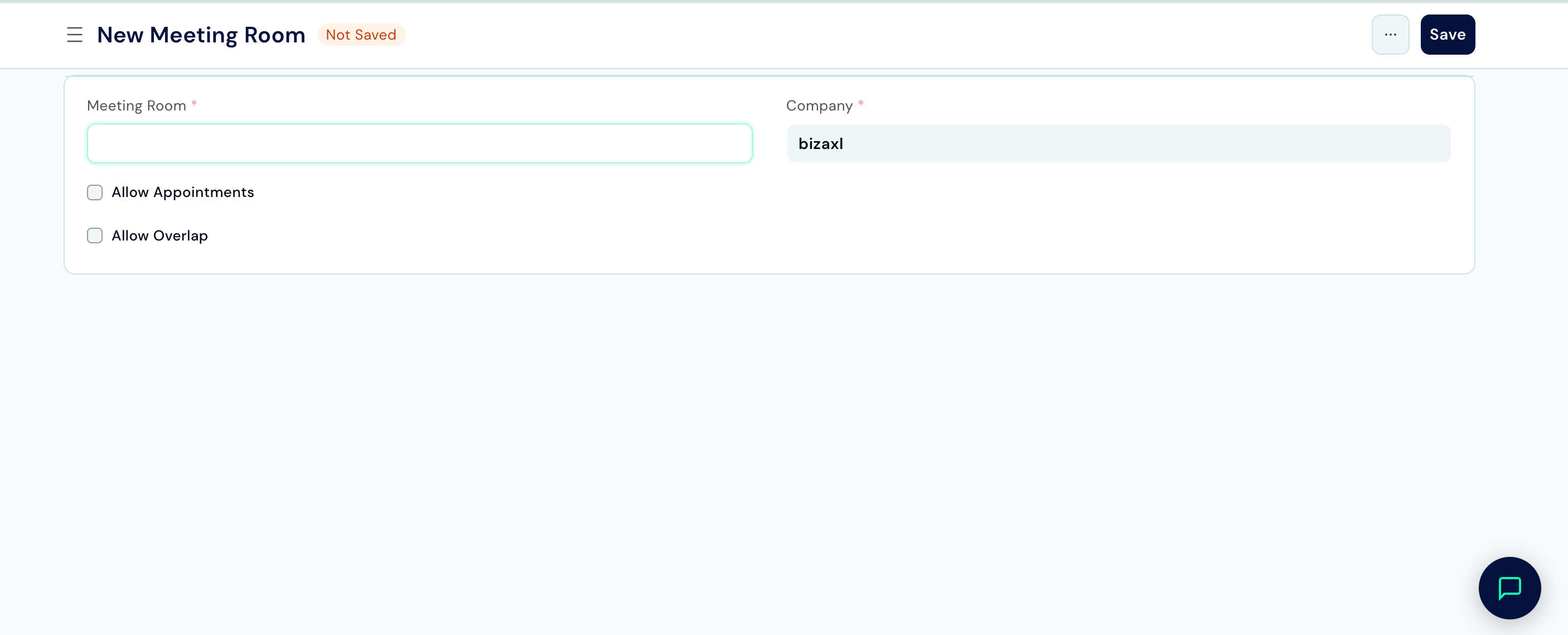
Lawyer Schedules
A Lawyer Schedule defines when a specific lawyer is available to meet clients. Path: Law Management → Appointments → Lawyer Schedule → New Requires: At least one Appointment Type must exist.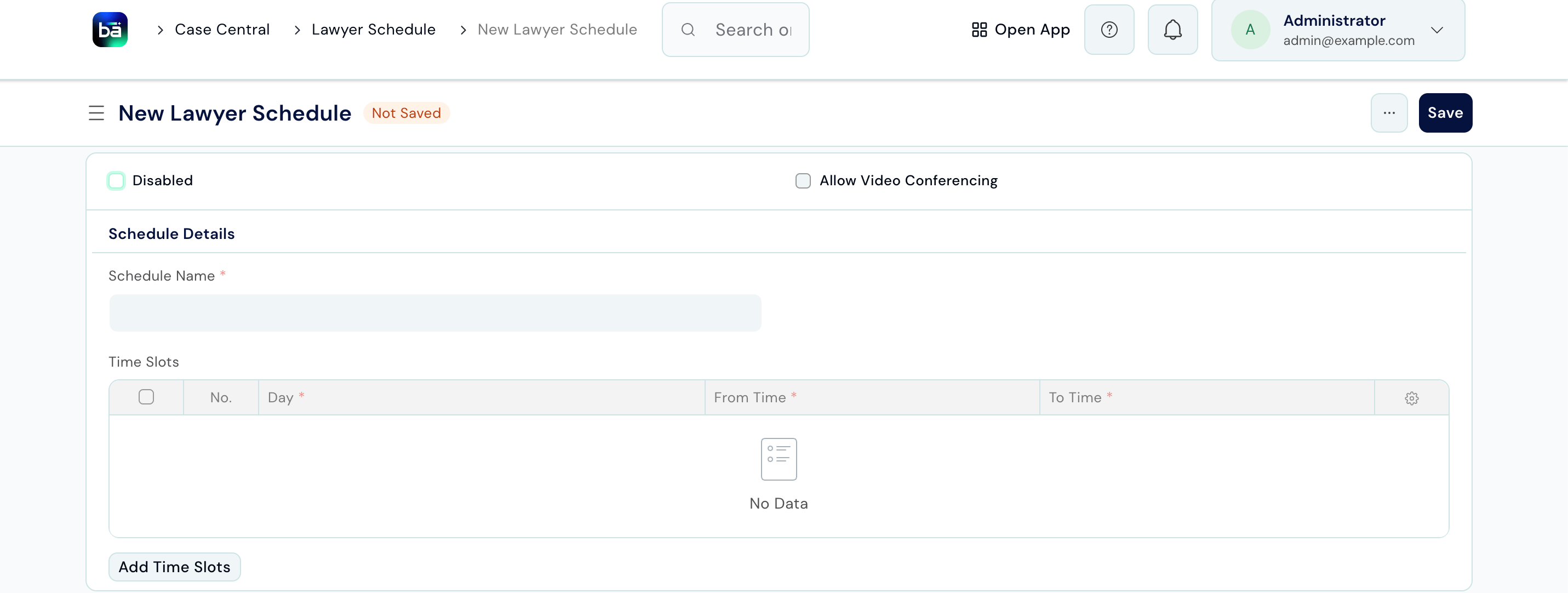
After saving, add Time Slots in the Time Slots table:
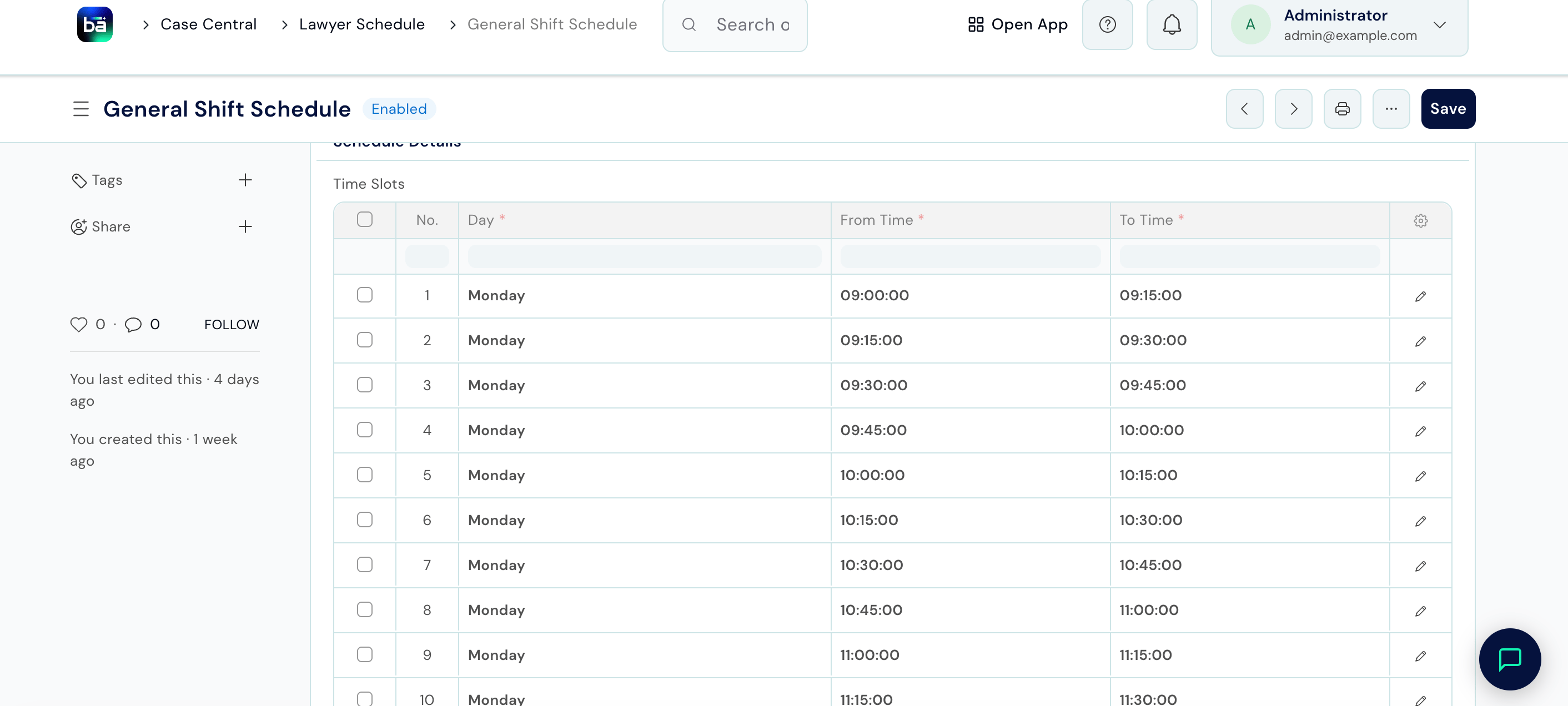
Add one row per availability window. A lawyer working mornings Monday–Friday would have five rows.
Book a Customer Appointment
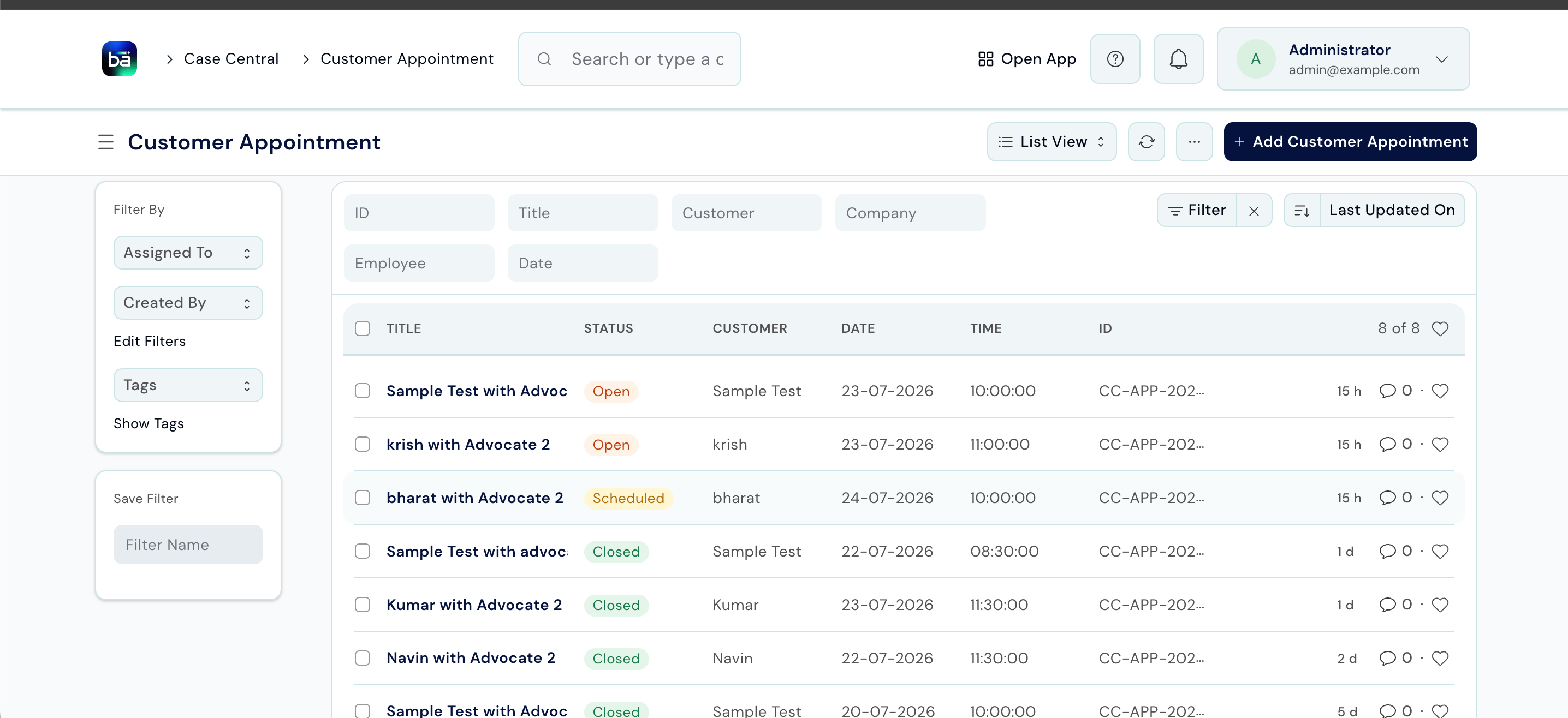
Path: Law Management → Appointments → Customer Appointment → New Requires: The client must exist. Appointment Type, Meeting Room, and the lawyer’s Schedule must be set up.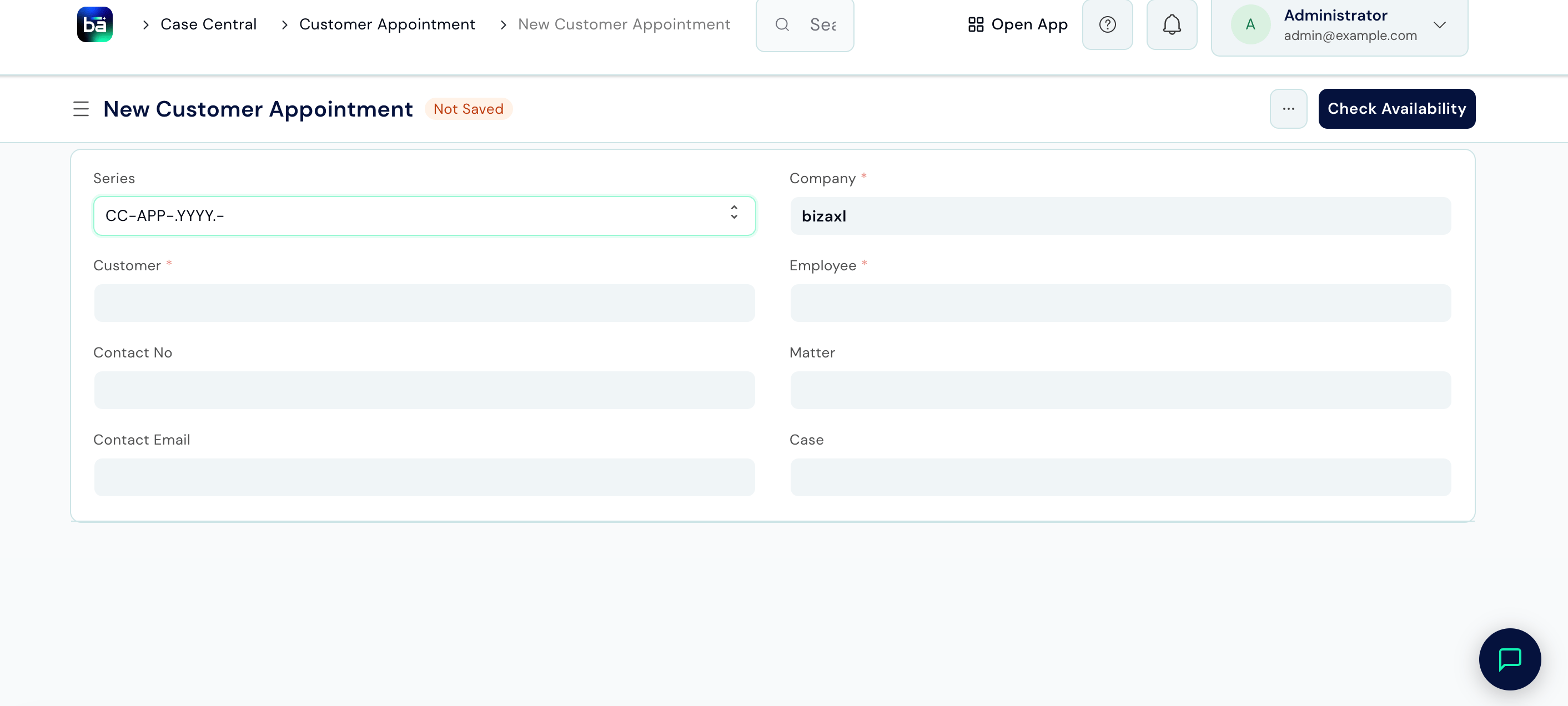
Timesheets
Timesheets let staff log the time they spend on matters and tasks. This feeds into BAS for payroll and client billing. Path: Law Management → Appointments → Timesheet → New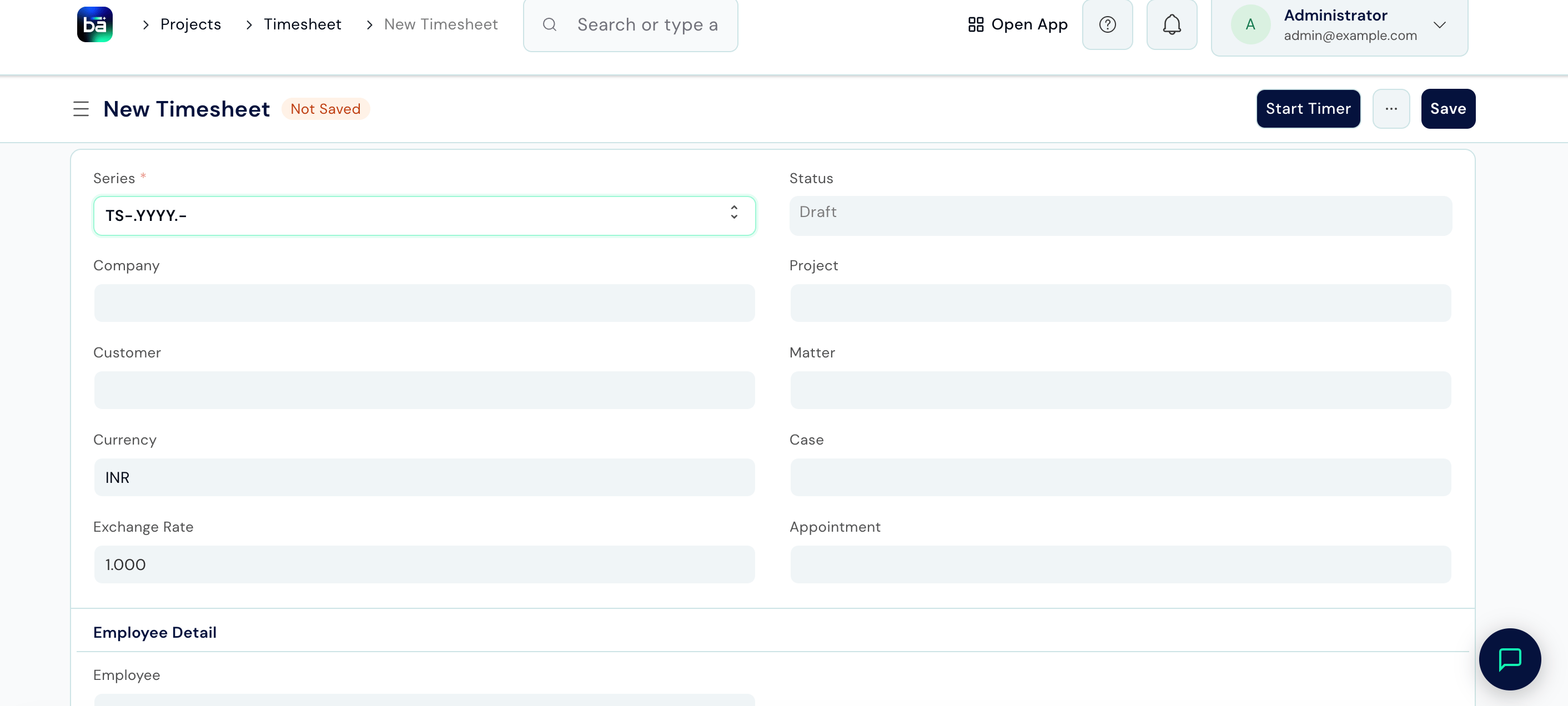
For payroll and invoicing processing, see the BAS documentation.
Document Request
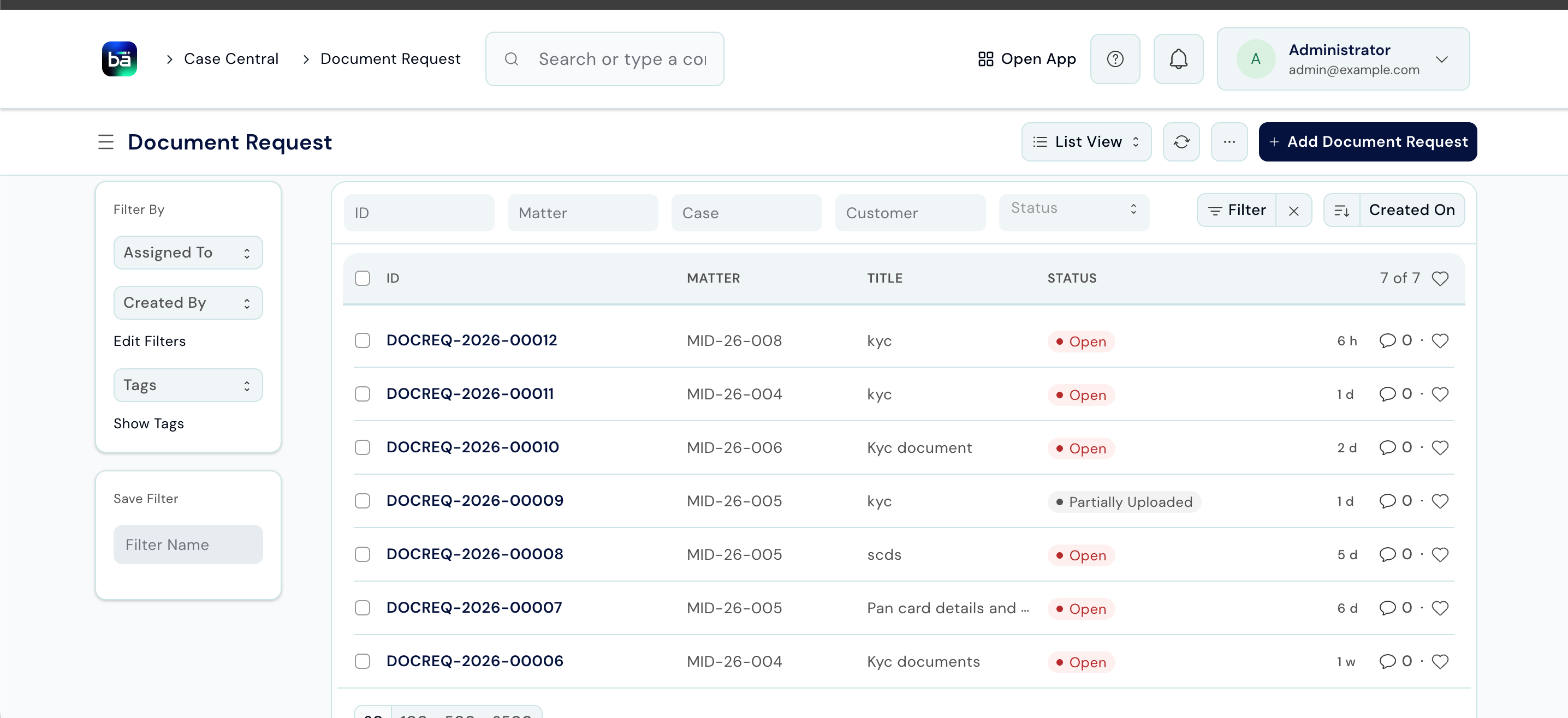
When you need documents from a client for a matter, create a Document Request to track what’s needed and by when. Path: Law Management → Operations → Document Request → New Requires: A matter must exist.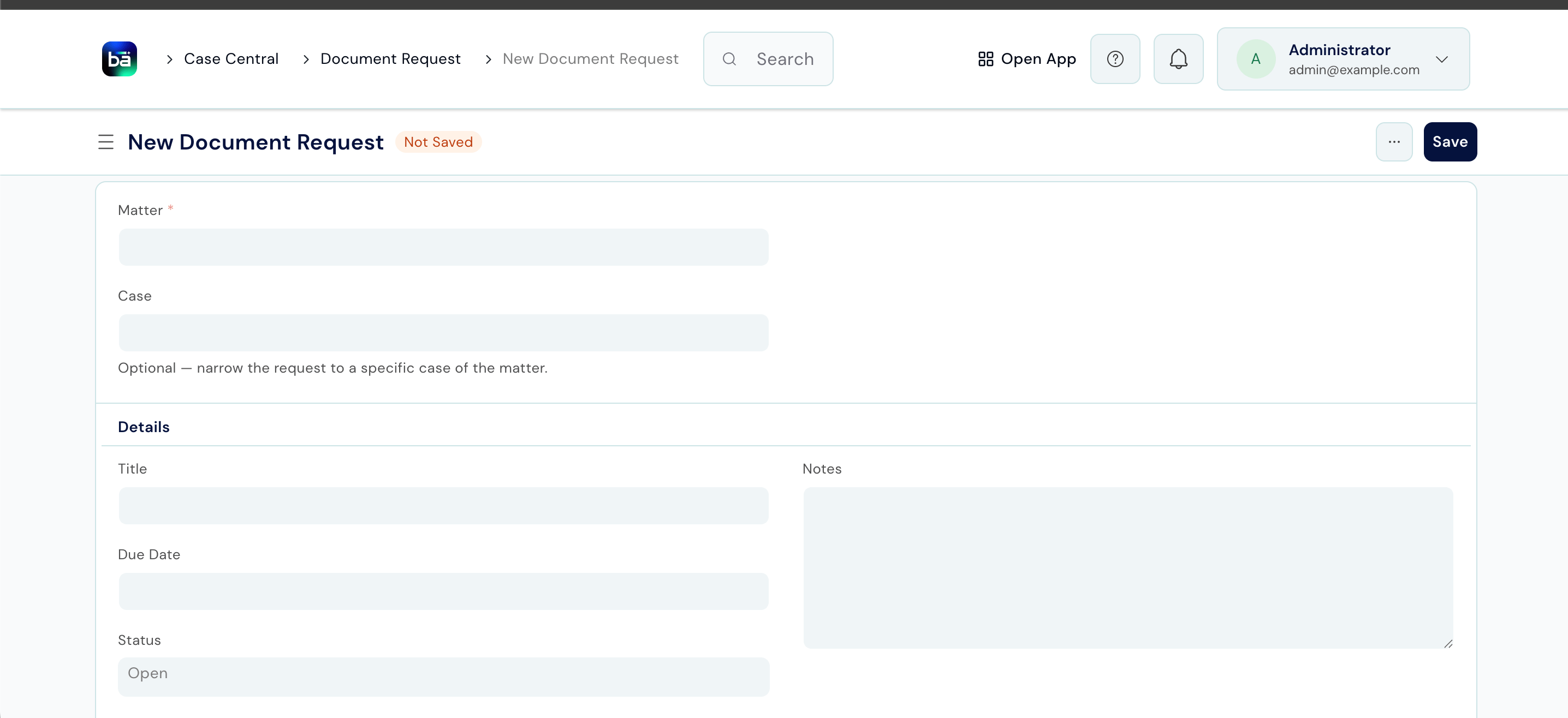
Tips
- Set up Lawyer Schedules before the team starts booking appointments. Attempting to book an appointment without a schedule results in no available slots showing.
- Use Appointment Type colours to distinguish meeting categories in the calendar - for example, red for urgent consultations and green for routine reviews.
- Log Timesheets daily, not weekly. Same-day entries are faster and far more accurate than reconstructing a week from memory.
- Set a Due Date on every Document Request. Without one, outstanding client documents are easy to lose track of.
- Update appointment Status to No Show if a client misses a meeting without cancelling. This keeps your booking record accurate and helps identify patterns.