

Who Manages This
Only an administrator sets outlets up. Counter and kitchen staff see their outlet as a fixed label in the sidebar and cannot switch away from it.
Setting Up an Outlet
1
Create the outlet
Open the outlet list from the BIZ Cafe workspace and create a record with the outlet’s name, its short code, and its contact details.
2
Choose the menu it serves
Set Menu to the full café menu, or to only the items listed for this outlet if it serves a shorter range.
3
Set its money rules
Enter the tax percent, the most a cashier may discount, and the parcel charge. Leave any of them blank to use the café-wide value from Café Settings.
4
Set its token series
Enter a Daily Token Start so this outlet’s pickup numbers do not collide with another outlet’s.
5
Add its counters
Create a counter for each till at the outlet and list the cashiers allowed to work it.
6
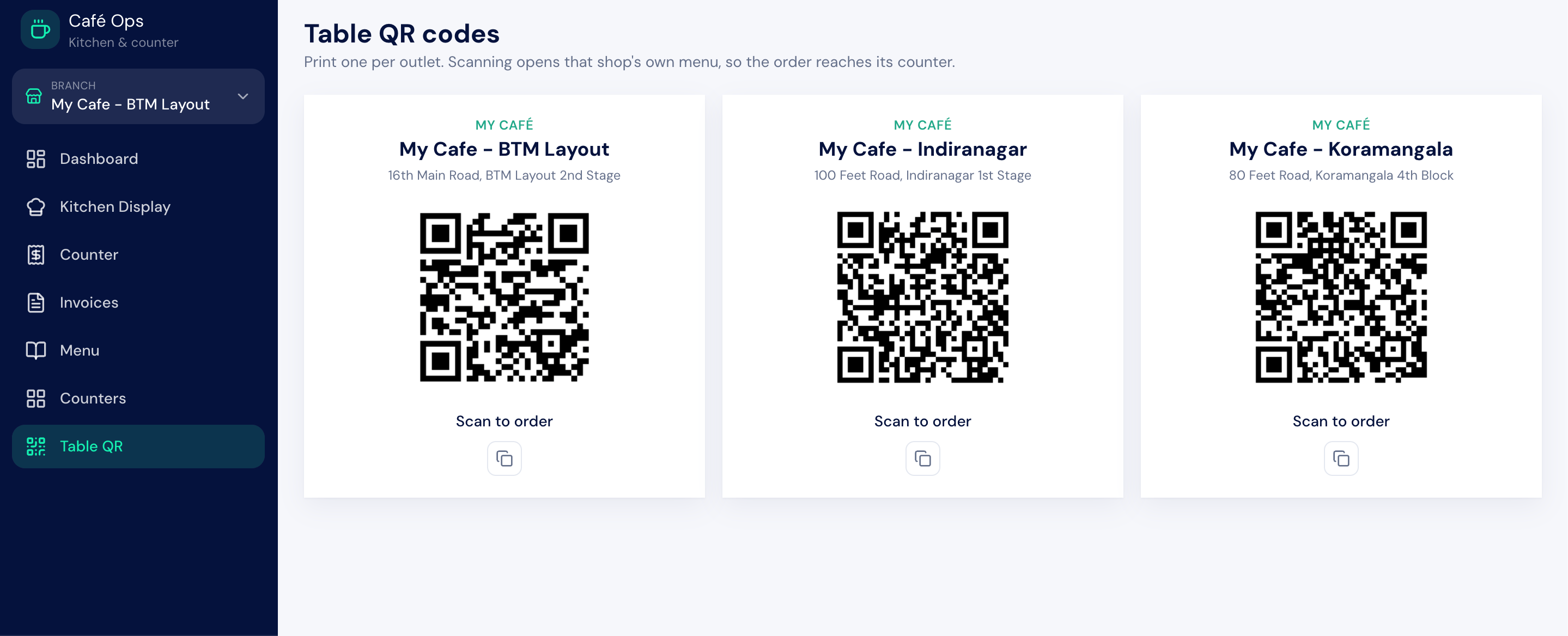
Print its QR code
Open the Table QR page and print the code for this outlet. It points at the outlet’s own ordering link.
Field Guide: Outlet
Field Guide: Counter
A cashier who is not listed on a counter cannot open it, and a counter that is already open cannot be opened a second time. This keeps one till session per counter and makes the end-of-shift cash count meaningful.
One Menu, Different Prices
The menu is maintained once for the whole café. What changes per outlet is which items appear and what they cost:- Availability. Set an outlet’s Menu to the items listed for it, then list the items it serves. Guests at that outlet see only those.
- Price. An item can carry a different price at a single outlet, so the same coffee can cost differently across town without a second menu.
How Guests Reach One Outlet
Each outlet has its own ordering link built from its Branch Code, and that is what its printed QR code points at. A guest who scans at one outlet sees that outlet’s menu, prices, and pickup token, and never sees another’s. A guest who opens the site root instead is shown a picker so they can choose which outlet they are ordering from. See QR Self-Ordering for the guest experience.Working Across Outlets
As an administrator you get an outlet switcher in the sidebar. Switching changes what every operations screen shows: the dashboard, the kitchen display, the counter, and the payments register all follow the outlet you are viewing. Counter and kitchen staff have no switcher; their outlet is fixed.Upstream and Downstream Dependencies
- An outlet must exist before its counters, its outlet-specific prices, and its QR code.
- A counter must list a cashier before that cashier can open a till on it. See Till Sessions.
- Orders, bills, and reports carry the outlet they belong to, so every figure can be read for one outlet or for the whole group. See Reports.
Best Practices
- Give each outlet a distinct token start. Two outlets calling out the same number on the same day confuses collection.
- Deactivate rather than delete. Switching an outlet or counter off keeps its trading history readable; deleting it does not.
- Only record the differences. Leave tax, discount, and parcel blank at an outlet that follows the café-wide values, so there is one place to change them later.
- Keep the cashier list on each counter current. Staff who have moved on should come off the counter they no longer work.
- Reprint the QR code after renaming an outlet. The printed code carries the outlet’s link, so check it still resolves after a change.