

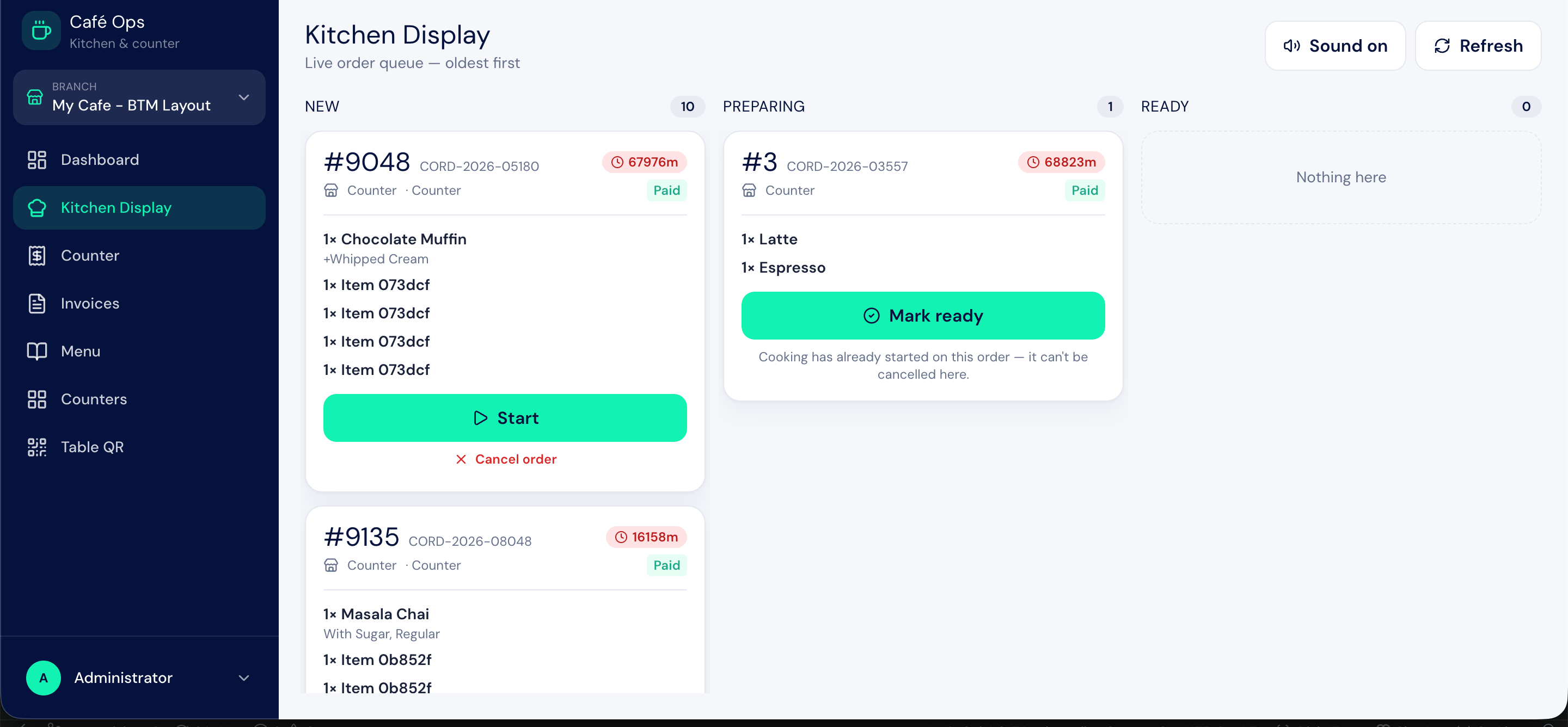
/cafe-ops/kitchen and updates as new orders come in from the storefront and the counter. This page covers how the kitchen works the board.
Who Uses This Feature
The Cafe Kitchen role is limited to the kitchen display only; it is the single screen this role needs.
What the Board Shows
Each order appears as a card with its token number, the items to prepare (including any modifier choices and add-ons the guest selected), and the order notes if the guest left any. The card shows the order’s current status and gives the kitchen the controls to advance it. Orders arrive on the board once they are confirmed:- Storefront orders paid online arrive when payment completes.
- Counter orders and pay-at-counter orders arrive when they are placed.
Working an Order
1
A new order appears
A confirmed order shows on the board with the status
New. The kitchen reads the items and notes.2
Start preparing
When the kitchen begins making the order, they advance it to
Preparing. This tells everyone the order is in progress.3
Mark it ready
When the order is made and ready to collect, the kitchen advances it to
Ready. The customer is automatically notified that their order is ready.Reaching
Ready is what triggers the customer notification, so only mark an order ready when it is genuinely ready to hand over.The Kitchen Ticket
If you prefer a printed docket alongside the screen, BIZ Cafe produces a Cafe Kitchen Ticket print format describing what to prepare. Use it where a physical ticket fits your kitchen workflow better than the screen alone.Upstream and Downstream Dependencies
- The kitchen display depends on orders being placed, from either the storefront or the counter.
- Advancing an order to
Readyfeeds the customer notification and signals the counter that the order can be handed over and billed.
Best Practices
- Keep the board on a dedicated screen. A wall-mounted display the whole kitchen can see beats checking a phone.
- Advance statuses in real time. The board is only useful if it reflects reality; move orders to
PreparingandReadyas they happen. - Read the order notes. Guests use notes for allergies and special requests, so check them before starting.
- Do not mark ready early. The customer is notified at
Ready, and an early notification means a guest arriving to wait.