

Menu
Your menu is the single source of truth for what you sell. You organise items into categories, set prices and tax rates, mark items vegetarian or popular, attach photos, and offer choices through modifier groups and add-ons. The same menu powers the guest storefront and the counter. See Menu Management.QR Self-Ordering
Guests scan a QR code, browse the menu on their phone, build a cart, and check out. They choose to pay online or at the counter, then track their order by a daily token number and download a receipt. No app and no login are needed. See QR Self-Ordering.Kitchen Display
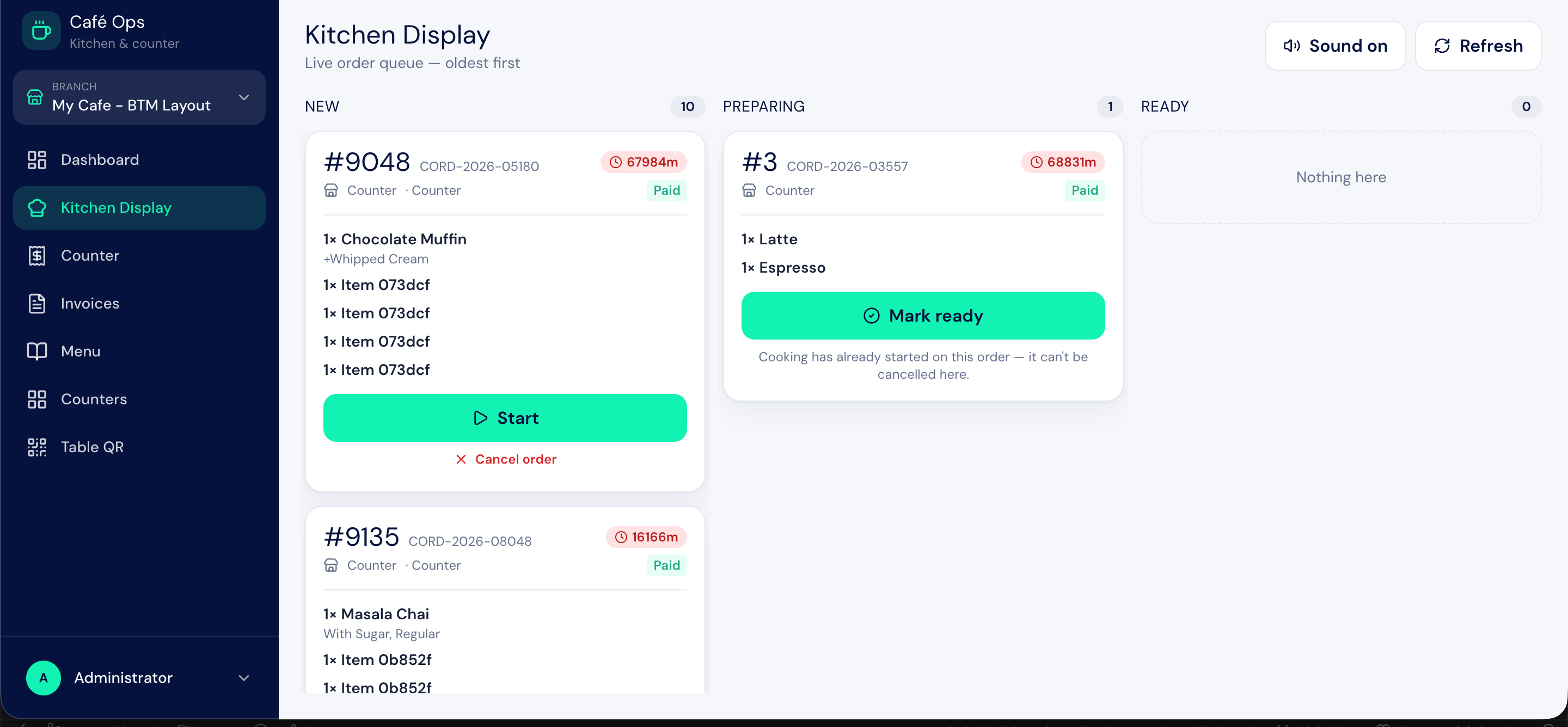
The kitchen team works from a live screen that shows incoming orders. They advance each order from new to preparing to ready. When an order is marked ready, the customer is notified that it is ready to collect. See Kitchen Display.Counter, Till, and Billing
At the counter, a cashier takes walk-in orders and bills them. Billing requires an open till session: the cashier opens the till with a starting cash amount, bills orders by Cash, Card, UPI, or a Split, and reconciles cash when closing the shift. Cashiers can also look up any submitted invoice and reprint a receipt. See Counter & Billing and Till Sessions.Accounting and Stock, in the Background
You do not maintain a separate ledger for the café. When a bill is submitted, the sale is mirrored into your accounting and stock records automatically: revenue is booked to the income account configured on each menu category, and items linked to a stock record draw down inventory. Cancelling a bill reverses the entry. When a till is closed, the cash reconciliation is posted in the background too. This means your books and inventory stay accurate without anyone re-keying café sales.Reports
Two reports give you the numbers that matter:- Cafe Daily Sales for a day-by-day view of what sold and how it was paid.
- Cafe Session Report, the shift Z-report, for the totals and cash reconciliation of each till session.
Printed Outputs
BIZ Cafe produces several print formats for day-to-day operations:Guest Feedback
Guests can rate an order and leave comments through the storefront after collecting it, so you can see how the day actually went rather than only what it sold. See Guest Feedback.Multiple Outlets
Run one café or a group. Each outlet has its own ordering link, its own menu and prices, its own tax and discount limits, its own daily pickup token series, and its own counters with assigned cashiers. Staff are fixed to their outlet; an administrator switches between them. See Outlets and Counters.Branding the Ordering Site
The logo, contact details, and the site’s six theme colours are set in Café Settings and are live on the ordering site as soon as you save. See Brand Your Ordering Site.Best Practices
- Keep the menu current. Mark items unavailable rather than deleting them so historical orders and reports stay intact.
- Always open the till before billing. Billing is blocked until a till session is open.
- Let the background do the books. Do not create separate accounting entries for café sales; submitting a bill already records them.
- Review the Z-report at every shift change. It is the fastest way to catch a cash discrepancy while it is still easy to explain.