

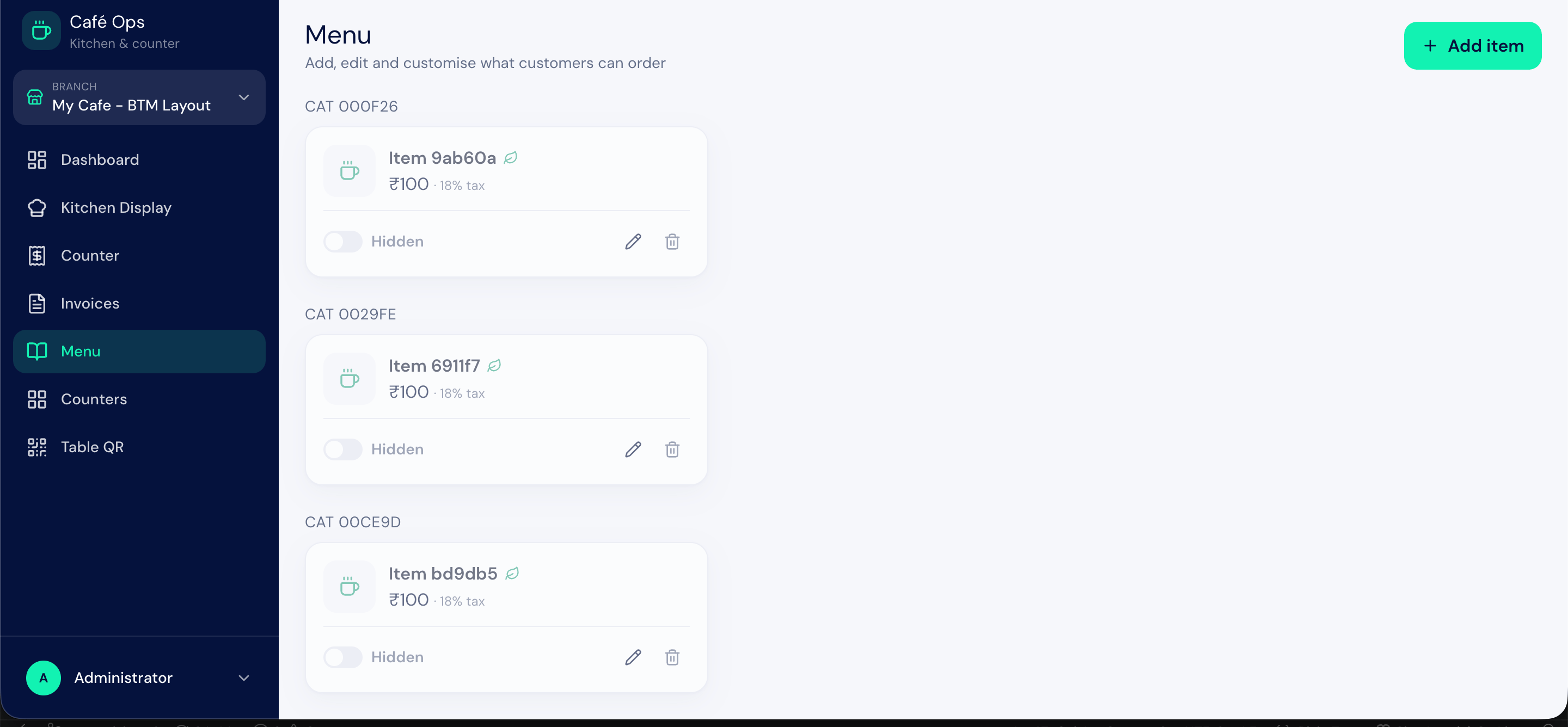
Who Manages the Menu
Menu management is restricted to the Cafe Admin. Cashiers and kitchen staff use the menu but do not change it. Administrators work from the Desk workspace or from Menu management at
/cafe-ops/menu.
Before You Start
The menu sits at the top of the dependency chain, so set it up first:- Income accounts must exist in your accounting setup before you assign one to a category. Your sales post against the income account on the category.
- Stock records must exist for any item you want to draw down from inventory before you link it.
Menu Category
A Menu Category groups related items (for example, Hot Drinks, Pastries, Sandwiches) and controls how they appear to guests. It also carries the income account that sales of its items are recorded under.Field Guide: Menu Category
Menu Item
A Menu Item is something you sell. It carries the price, the tax rate, kitchen and dietary information, and any choices a guest can make through modifier groups and add-ons. You can also link an item to a stock record so that selling it draws down inventory.Field Guide: Menu Item
The
Stock Item link is optional. Link it for items you track in stock (for example, packaged goods); leave it empty for items you do not (for example, a freshly poured coffee).Modifier Group
A Modifier Group is a set of choices a guest selects from when ordering an item. A common example is a milk choice (whole, skimmed, oat) or a size choice (small, regular, large). You define the group once and attach it to any items it applies to through the Menu Item’s Modifier Groups field. Use a modifier group when the guest must pick one option from a set that changes the item rather than adds to it.Cafe Add On
A Cafe Add On is an optional extra a guest can add to an item, such as an extra shot or a syrup. You attach add-ons to an item through the Menu Item’s Add-ons field. Use an add-on when the guest can optionally include an extra, often at an additional charge.How Categories, Items, Modifiers, and Add-ons Fit Together
1
Create your categories
Set up the categories your menu is grouped into and assign each an income account.
2
Create modifier groups and add-ons
Define reusable choice sets and optional extras you will attach to items.
3
Create your items
Add each item under a category, set its price and tax rate, and attach any modifier groups and add-ons.
4
Link stock where needed
For items you track in inventory, link the stock record so sales draw it down.
5
Publish to the storefront
Mark categories active and items available so guests can order them.
Upstream and Downstream Dependencies
- A Menu Item requires a Menu Category before it can be created.
- A category’s income account must already exist in accounting before you assign it.
- The menu feeds the storefront and the counter: orders, bills, and reports all draw on the prices, tax rates, and links you set here.
Best Practices
- Mark items unavailable rather than deleting them. Deleting an item can break the link from historical orders and reports; setting
Availableto off simply hides it. - Set the income account on every category. Sales of a category’s items book to its income account; a missing account makes the background accounting incomplete.
- Reuse modifier groups and add-ons. Define a choice set once and attach it to many items rather than recreating it.
- Keep prep times honest. They help the kitchen and set guest expectations on the storefront.
- Use tags to merchandise. Marking items
PopularandVegetarianhelps guests choose quickly.