

/cafe is what guests see when they scan a QR code, and you control how it looks without a developer. As the owner or administrator, you set the logo, the contact details, and the site’s six theme colours in Café Settings, and the change is live the moment you save. This page shows you which fields do what and how to change them.
Who Manages This
This is an administrator task. Cashiers and kitchen staff do not edit the site’s appearance.
What You Can Change
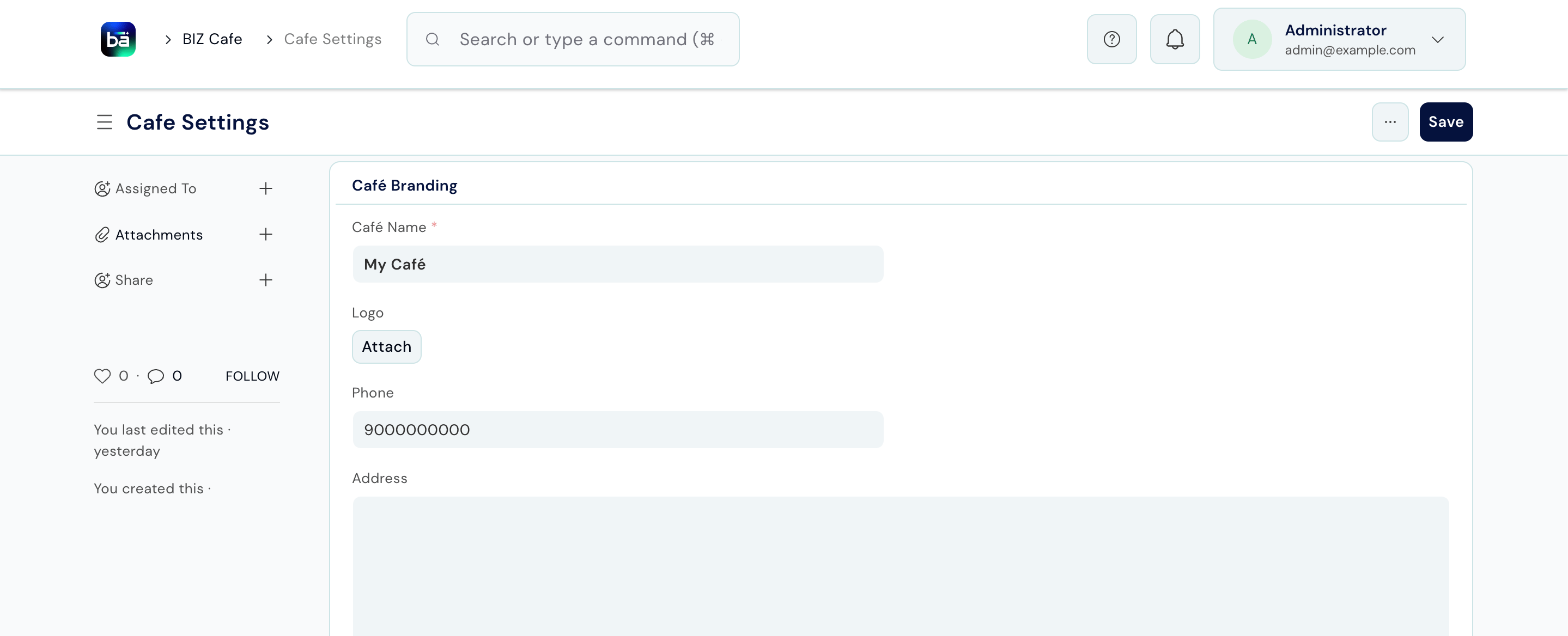
These fields live in Café Settings and update the ordering site as soon as you save.Field Guide: Café Branding
Field Guide: Storefront Theme
Change a Field
1
Open Café Settings
Open Café Settings from the BIZ Cafe workspace.
2
Find the right section
Use the Café Branding section for the name, logo, phone, and address, and the Storefront Theme section for the six colours.
3
Change a field
Edit the field you want, for example upload a new logo or pick a new Accent Color.
4
Save
Save Café Settings.
5
See it on the site
Open
/cafe to see the change applied. Guests see it on their next page load.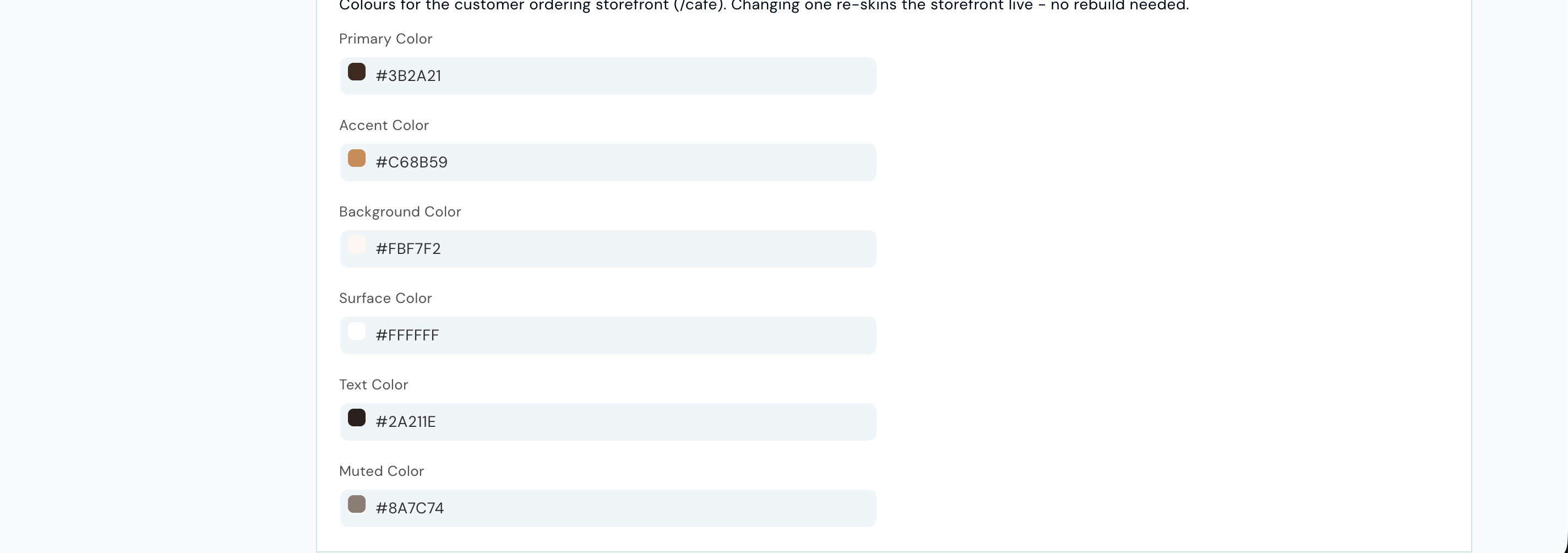
What Is Fixed
BIZ Cafe has no separate promotional or marketing page. The public site root is the ordering site, so a guest who visits your address lands straight on the menu.
Branding and Multiple Outlets
The branding and theme apply to the whole café, so every outlet’s ordering page shares one look. What differs per outlet is the content, not the styling: each outlet has its own contact details, its own menu and prices, and its own ordering link. See Outlets and Counters.Upstream and Downstream Dependencies
- The ordering site depends on Café Settings for its logo, contact details, and colours.
- The ordering site depends on the menu: only active categories and available items appear on it. See Menu Management.
Best Practices
- Keep contact details accurate. The phone and address are what guests act on, so update them whenever they change.
- Choose colours that read well together. After a colour change, open the site and check that text stays legible against the background and surface colours.
- Test on a phone. Almost every guest sees this site on a phone, so check your changes at that size rather than on a desktop.
- Upload a logo with a transparent background. It sits more cleanly on the header than a boxed image.