

- Your site address (for example,
your-company.bizaxl.org) - Your username and password, or access to your registered email for a magic link
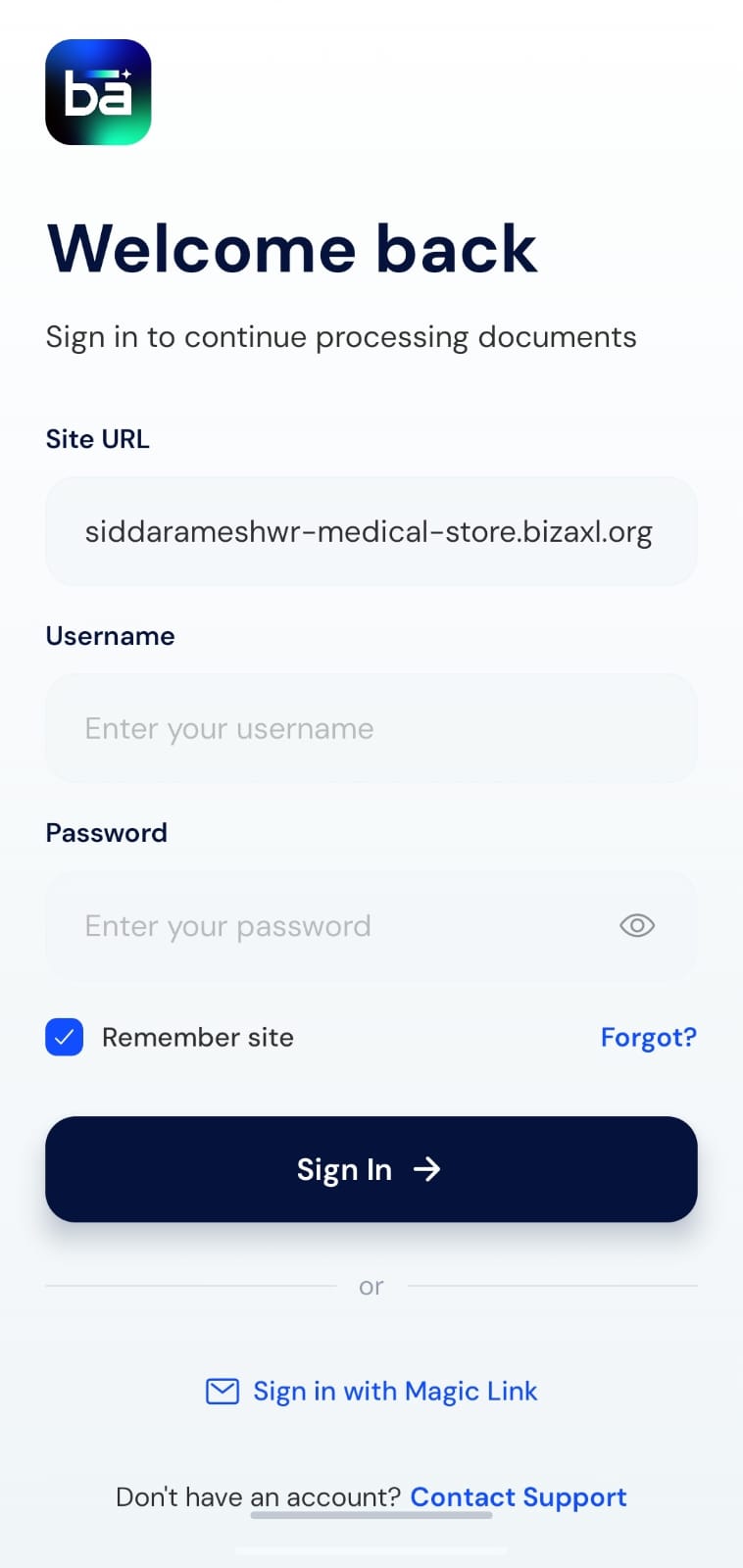
Sign in with a password
1
Enter your site address
Confirm or type your site address, for example
your-company.bizaxl.org. Turn on Remember site to skip re-entering it next time.2
Enter your credentials
Type your username and password. Use the eye icon to check what you typed.
3
Tap Sign In
The app signs you in and loads your workspace. The first time you sign in, you may be asked to choose your default company and warehouse (see Profile and settings).
Sign in with a magic link
If you would rather not type a password, use a magic link.1
Choose Sign in with Magic Link
On the sign-in screen, tap Sign in with Magic Link.
2
Enter your site and email
Enter your site address and the email registered to your account, then tap Send Magic Link.
3
Open the link from your email
Open the email on the same device and tap the link. If a resend timer is shown, you can request a new link once it counts down. Some accounts are asked to confirm a password after opening the link.
Reset a forgotten password
1
Tap Forgot
On the sign-in screen, tap Forgot? next to the password field.
2
Request a reset email
Enter your site address and email, then tap Send Reset Email.
3
Set a new password
Open the reset link from your email, enter a new password, and confirm. You are returned to the sign-in screen to sign in with the new password.
Do not have an account yet? Tap Contact Support on the sign-in screen to reach the team by email.