> ## Documentation Index
> Fetch the complete documentation index at: https://docs.bizaxl.com/llms.txt
> Use this file to discover all available pages before exploring further.
# Books and Library
> Manage your firm's in-house library of legal reference books, track copies, and record book lending to staff and guests.
**Role: Administrator and Legal Staff** - Book Types and initial cataloguing are typically done by an Administrator. Day-to-day lending and returns can be managed by any Legal Staff member.
**Upstream dependencies:** Book Types must exist before Books can be created. If the **Create Book on Purchase Invoice** setting is enabled in Law Management Settings, Books are created automatically from BAS purchase invoices - no manual entry needed for purchased books.
**Downstream:** Lend Book records provide a log of who has which book, useful for tracking overdue returns.
***
## How the Library Works
```mermaid theme={null}
%%{init: {'theme':'base','themeVariables':{'fontFamily':'DM Sans','primaryColor':'#e7fdf6','primaryBorderColor':'#14f1b1','primaryTextColor':'#0f172a','lineColor':'#14f1b1'}}}%%
flowchart LR
BT[Book Type] --> BK[Book] --> LB[Lend Book]
```
1. **Book Type** - categorises the collection.
2. **Book** - one record per title in the library.
3. **Lend Book** - a borrowing record created each time a book leaves the shelf.
***
## Set Up Book Types
Book Types let you organise your collection into categories.
**Path:** Law Management → Books and Journals → Book Type → New
| Field | Description |
| ---------------- | ---------------------------------------------------------------------------- |
| **Book Type** | Category name (e.g. Legislation, Commentary, Law Journal, Bare Act, Digest). |
| **Abbreviation** | A short code (e.g. LEG, COM, LJ). |
***
## Add a Book to the Library
**Path:** Law Management → Books and Journals → Book → New
**Requires:** Book Type must exist. If purchasing through BAS and the auto-create setting is on, this step happens automatically.
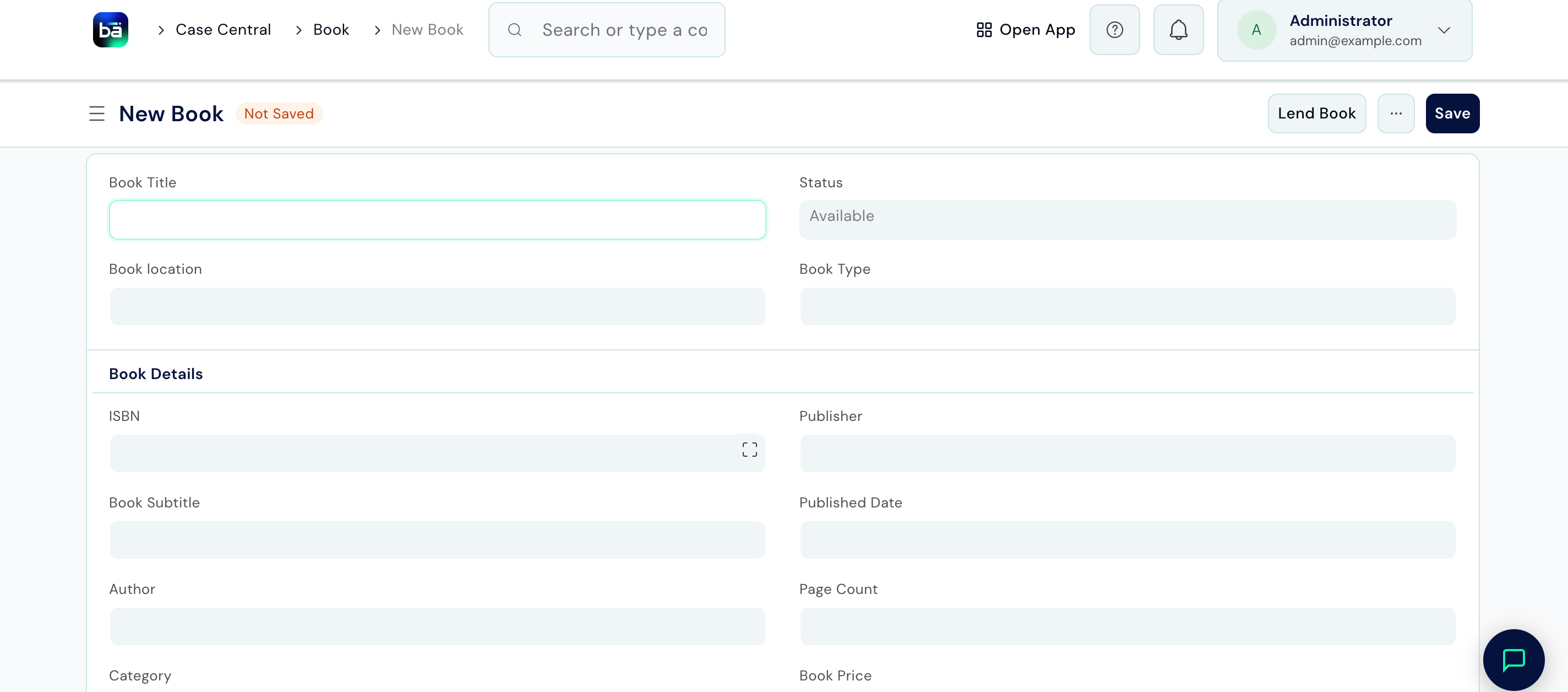 | Field | Description |
| ------------------ | --------------------------------------------------------------------------------- |
| **Book Title** | Title of the book. |
| **Status** | `Available` when on the shelf. Updated automatically to `Issued` when lent out. |
| **Book location** | Where the book is physically shelved (e.g. shelf number or room). |
| **Book Type** | Category this book belongs to. |
| **ISBN** | The book's ISBN for reference and re-ordering. |
| **Publisher** | The publishing house. |
| **Book Subtitle** | The book's subtitle, if any. |
| **Published Date** | The date the book was published. |
| **Author** | The author's name. |
| **Page Count** | Total number of pages in the book. |
| **Category** | An additional classification or subject tag for the book. |
| **Book Price** | The book's purchase or reference price. |
| **Item Code** | Links to a BAS item - populated automatically if created from a purchase invoice. |
| Field | Description |
| ------------------ | --------------------------------------------------------------------------------- |
| **Book Title** | Title of the book. |
| **Status** | `Available` when on the shelf. Updated automatically to `Issued` when lent out. |
| **Book location** | Where the book is physically shelved (e.g. shelf number or room). |
| **Book Type** | Category this book belongs to. |
| **ISBN** | The book's ISBN for reference and re-ordering. |
| **Publisher** | The publishing house. |
| **Book Subtitle** | The book's subtitle, if any. |
| **Published Date** | The date the book was published. |
| **Author** | The author's name. |
| **Page Count** | Total number of pages in the book. |
| **Category** | An additional classification or subject tag for the book. |
| **Book Price** | The book's purchase or reference price. |
| **Item Code** | Links to a BAS item - populated automatically if created from a purchase invoice. |
 ***
## Lend a Book
When a staff member or guest takes a book, create a Lend Book record immediately.
**Path:** Law Management → Books and Journals → Lend Book → New
**Requires:** The book must exist and have Status = Available.
***
## Lend a Book
When a staff member or guest takes a book, create a Lend Book record immediately.
**Path:** Law Management → Books and Journals → Lend Book → New
**Requires:** The book must exist and have Status = Available.
 | Field | Description |
| ---------------- | -------------------------------------------------------------------------------------------------------- |
| **Book** | The book being borrowed. |
| **Lending Date** | The date it is taken out. |
| **Return Date** | The expected return date. |
| **Lent To** | Select `Employee` for a staff member, or `Guest` for an external person. |
| **Employee ID** | If lent to a staff member, select them here. |
| **Guest Name** | If lent to an external person, enter their name. |
| **Status** | Set to `Issued` when the book leaves the shelf, and updates to `Returned` once the book is brought back. |
| Field | Description |
| ---------------- | -------------------------------------------------------------------------------------------------------- |
| **Book** | The book being borrowed. |
| **Lending Date** | The date it is taken out. |
| **Return Date** | The expected return date. |
| **Lent To** | Select `Employee` for a staff member, or `Guest` for an external person. |
| **Employee ID** | If lent to a staff member, select them here. |
| **Guest Name** | If lent to an external person, enter their name. |
| **Status** | Set to `Issued` when the book leaves the shelf, and updates to `Returned` once the book is brought back. |
 ***
## Record a Return
When a book comes back:
1. Open the Lend Book record for that borrowing.
2. Update **Status** to `Returned`.
3. Save.
The book's status on the Book record updates to `Available` automatically.
***
## Check Library Availability
To see which books are currently on the shelf:
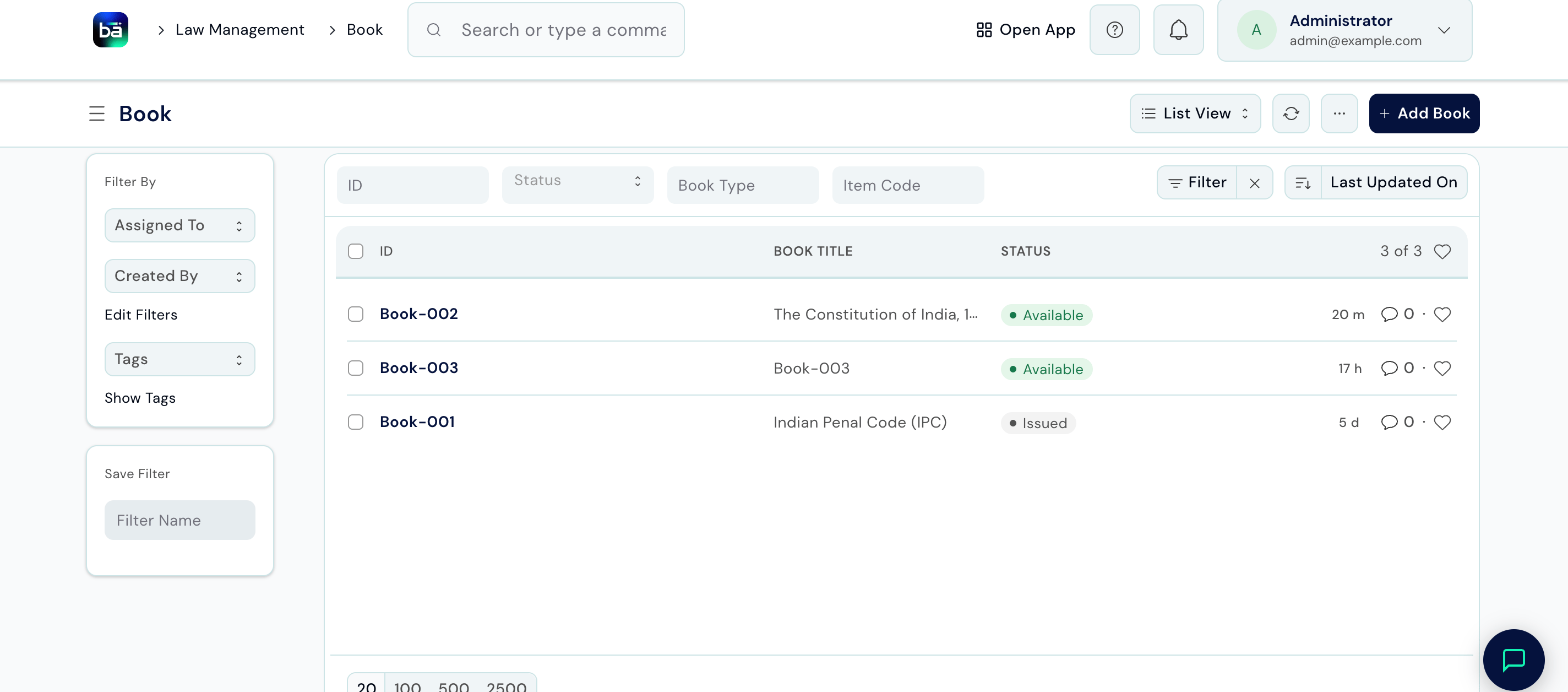
**Path:** Law Management → Books and Journals → Book → filter Status = Available
To see all books currently on loan:
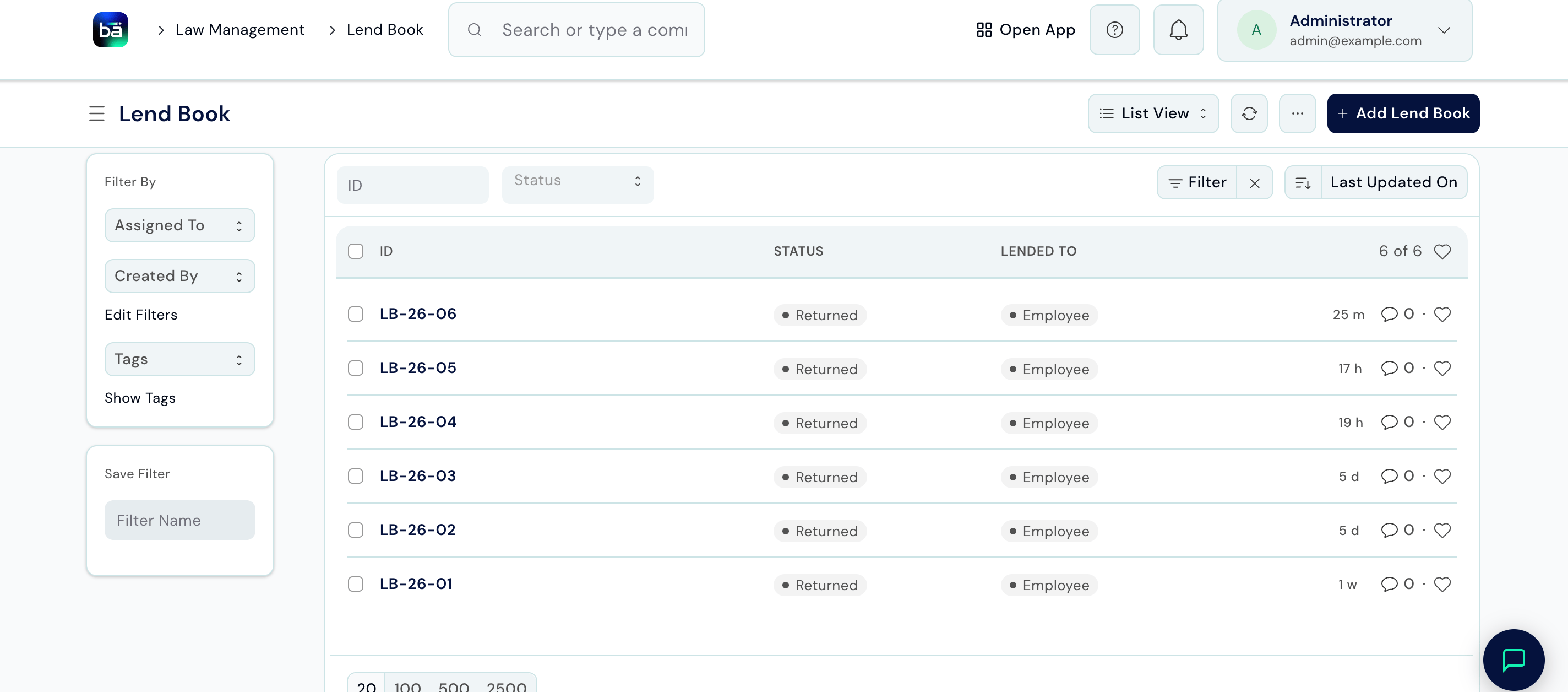
**Path:** Law Management → Books and Journals → Lend Book → filter Status = Issued
***
## Tips
* **Enable auto-create in Law Management Settings** if your firm buys books through BAS. This eliminates manual data entry for every purchase - the book record appears automatically.
* **Record Lend Book entries immediately**, not at the end of the day. A book taken without a record is a book that can't be located when someone else needs it.
* **Use the Return Date field** to set expectations. When a book is overdue, the Lend Book list filtered by Status = Issued and Return Date \< today makes it easy to follow up.
* **Add descriptions for rare or specialised editions** so staff can identify whether the specific edition they need is in the library before searching the shelf.
***
## Record a Return
When a book comes back:
1. Open the Lend Book record for that borrowing.
2. Update **Status** to `Returned`.
3. Save.
The book's status on the Book record updates to `Available` automatically.
***
## Check Library Availability
To see which books are currently on the shelf:
**Path:** Law Management → Books and Journals → Book → filter Status = Available
To see all books currently on loan:
**Path:** Law Management → Books and Journals → Lend Book → filter Status = Issued
***
## Tips
* **Enable auto-create in Law Management Settings** if your firm buys books through BAS. This eliminates manual data entry for every purchase - the book record appears automatically.
* **Record Lend Book entries immediately**, not at the end of the day. A book taken without a record is a book that can't be located when someone else needs it.
* **Use the Return Date field** to set expectations. When a book is overdue, the Lend Book list filtered by Status = Issued and Return Date \< today makes it easy to follow up.
* **Add descriptions for rare or specialised editions** so staff can identify whether the specific edition they need is in the library before searching the shelf.