> ## Documentation Index
> Fetch the complete documentation index at: https://docs.bizaxl.com/llms.txt
> Use this file to discover all available pages before exploring further.
# Clients and Matters
> Create client records, open matter files, manage tasks, and record billable services in Law Management.
**Role: Legal Staff** - Creating clients, opening matters, and recording service entries is done by Legal Staff (Advocates, Paralegals). The billing catalogue (Legal Services and rates) is configured by an Administrator - see [Setup](/professional-services/law-management/setup).
**Upstream dependencies:** Matter Types, Service Types, Services, and File Types must be configured in [Setup](/professional-services/law-management/setup) before you can open a matter.
**Downstream:** Matters feed into Cases, Appointments, Legal Service Entries, and Legal Notices. All billing flows from here into BAS invoices.
***
## Clients
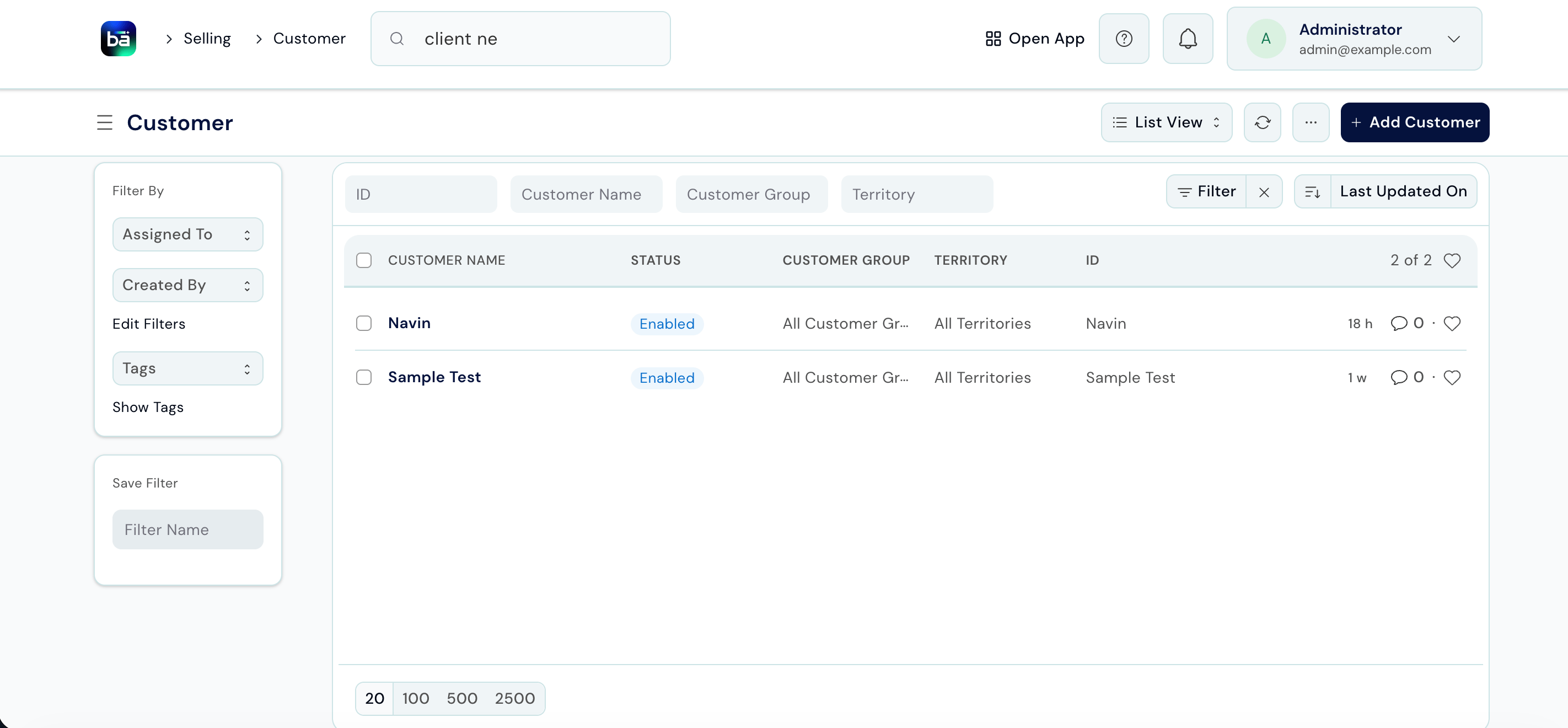
A client is the person or organisation the firm acts for. Client records are shared with BAS, so any invoice you raise later links back automatically.
### Create a Client
**Path:** Law Management → Matter Management → Client → New
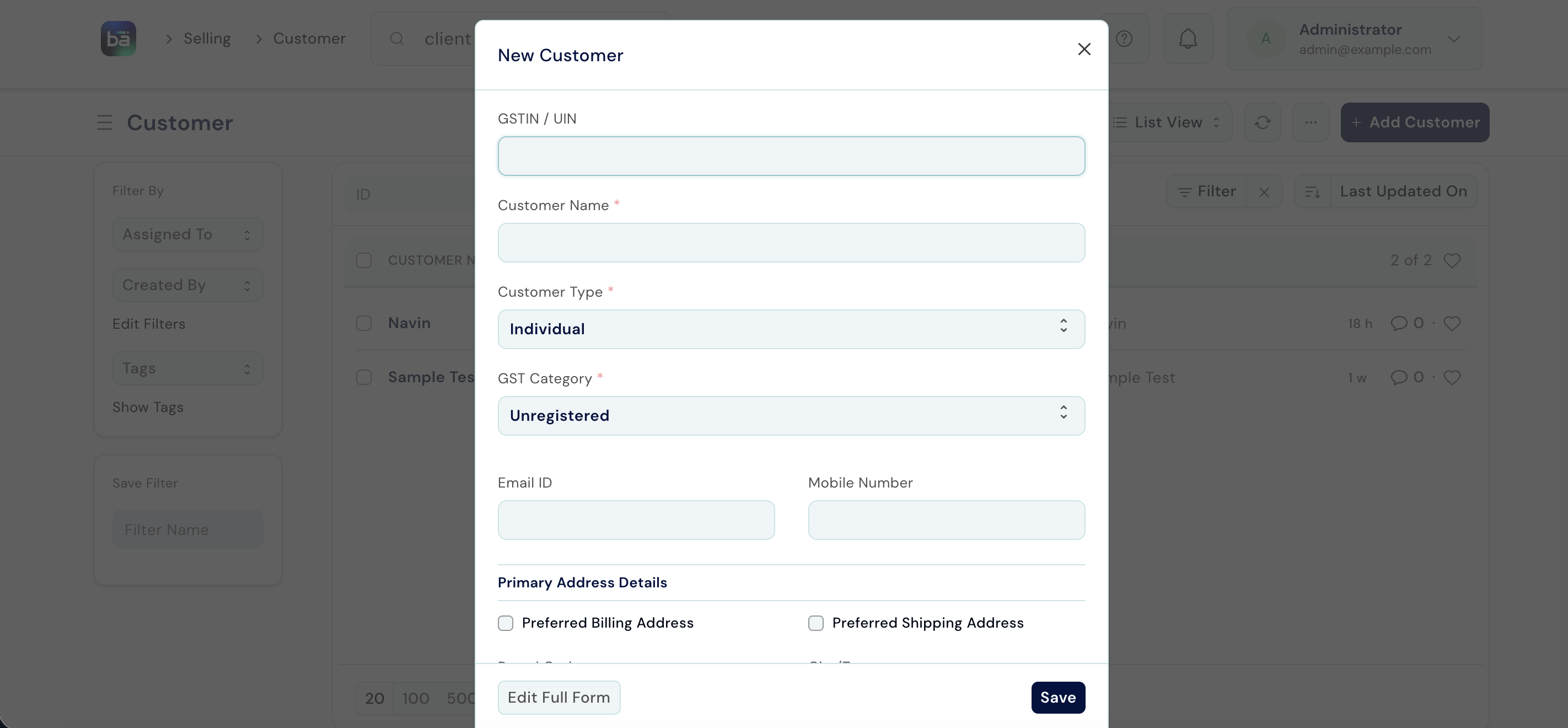 | Field | Description |
| ----------------- | ---------------------------------------------------------------------- |
| **Full Name** | The client's legal name as it should appear on documents and invoices. |
| **Mobile Number** | Primary contact number. |
| **Email Address** | Used for correspondence and portal access. |
Save the record. The client is now available to link to matters.
| Field | Description |
| ----------------- | ---------------------------------------------------------------------- |
| **Full Name** | The client's legal name as it should appear on documents and invoices. |
| **Mobile Number** | Primary contact number. |
| **Email Address** | Used for correspondence and portal access. |
Save the record. The client is now available to link to matters.
 ***
## Matters
A matter is a client's file - the main unit of work in Law Management. One client can have multiple matters running simultaneously (for example, a civil suit and a separate property dispute).
### Create a Matter
**Path:** Law Management → Matter Management → Matter → New
**Requires:** The client must already exist. Matter Type, Service Type, Service, and File Type must be configured in Setup.
***
## Matters
A matter is a client's file - the main unit of work in Law Management. One client can have multiple matters running simultaneously (for example, a civil suit and a separate property dispute).
### Create a Matter
**Path:** Law Management → Matter Management → Matter → New
**Requires:** The client must already exist. Matter Type, Service Type, Service, and File Type must be configured in Setup.
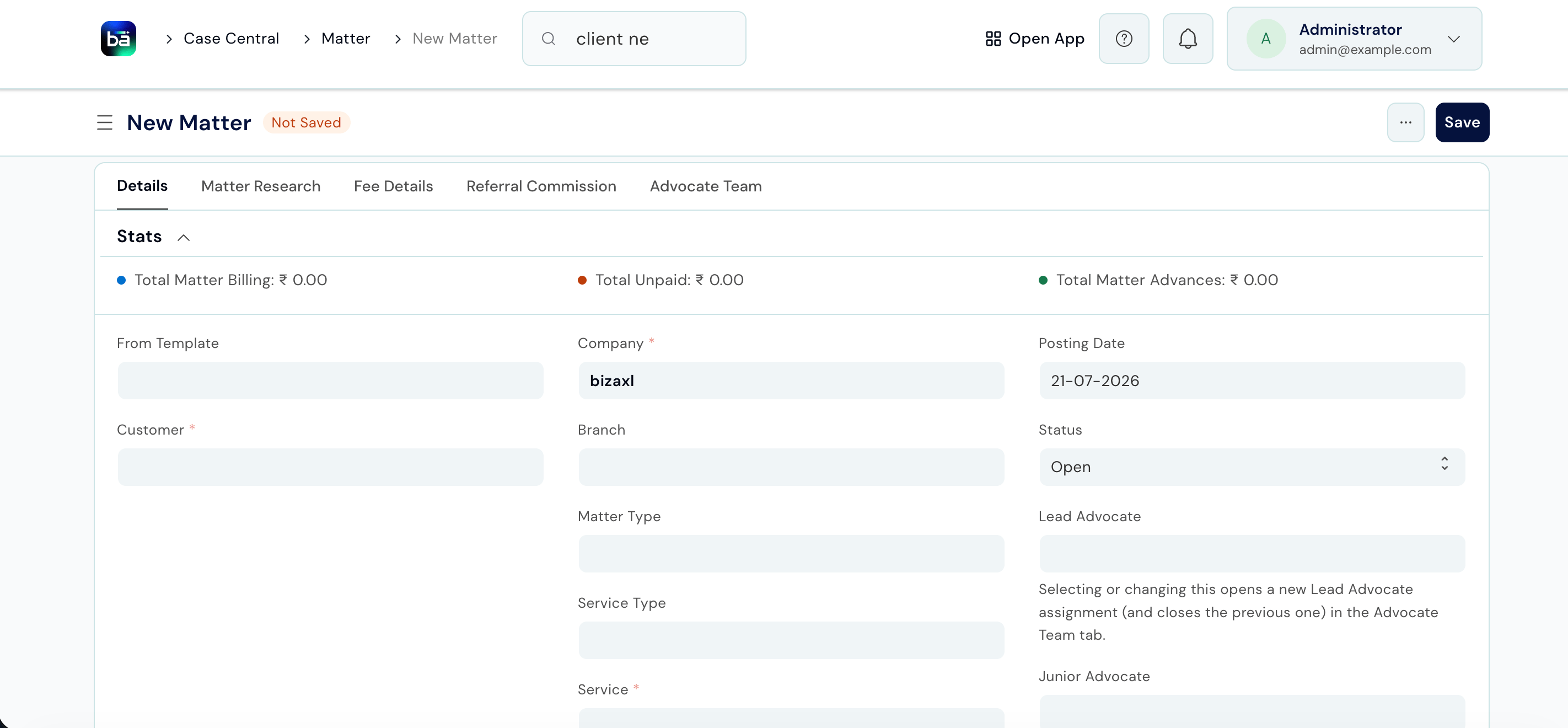 | Field | Description |
| ----------------------- | -------------------------------------------------------------------- |
| **Client** | The client this matter belongs to. |
| **Matter Type** | Top-level category of the legal work (e.g. Civil, Criminal, Family). |
| **Service Type** | Nature of the legal service being provided. |
| **Service** | The court or jurisdiction the matter falls under. |
| **File Type** | Classification code for the physical file. |
| **Status** | Set to `Open` when starting; update as the matter progresses. |
| **Expected Start Date** | When work on this matter is expected to begin. |
| **Expected End Date** | Target completion date. |
| Field | Description |
| ----------------------- | -------------------------------------------------------------------- |
| **Client** | The client this matter belongs to. |
| **Matter Type** | Top-level category of the legal work (e.g. Civil, Criminal, Family). |
| **Service Type** | Nature of the legal service being provided. |
| **Service** | The court or jurisdiction the matter falls under. |
| **File Type** | Classification code for the physical file. |
| **Status** | Set to `Open` when starting; update as the matter progresses. |
| **Expected Start Date** | When work on this matter is expected to begin. |
| **Expected End Date** | Target completion date. |
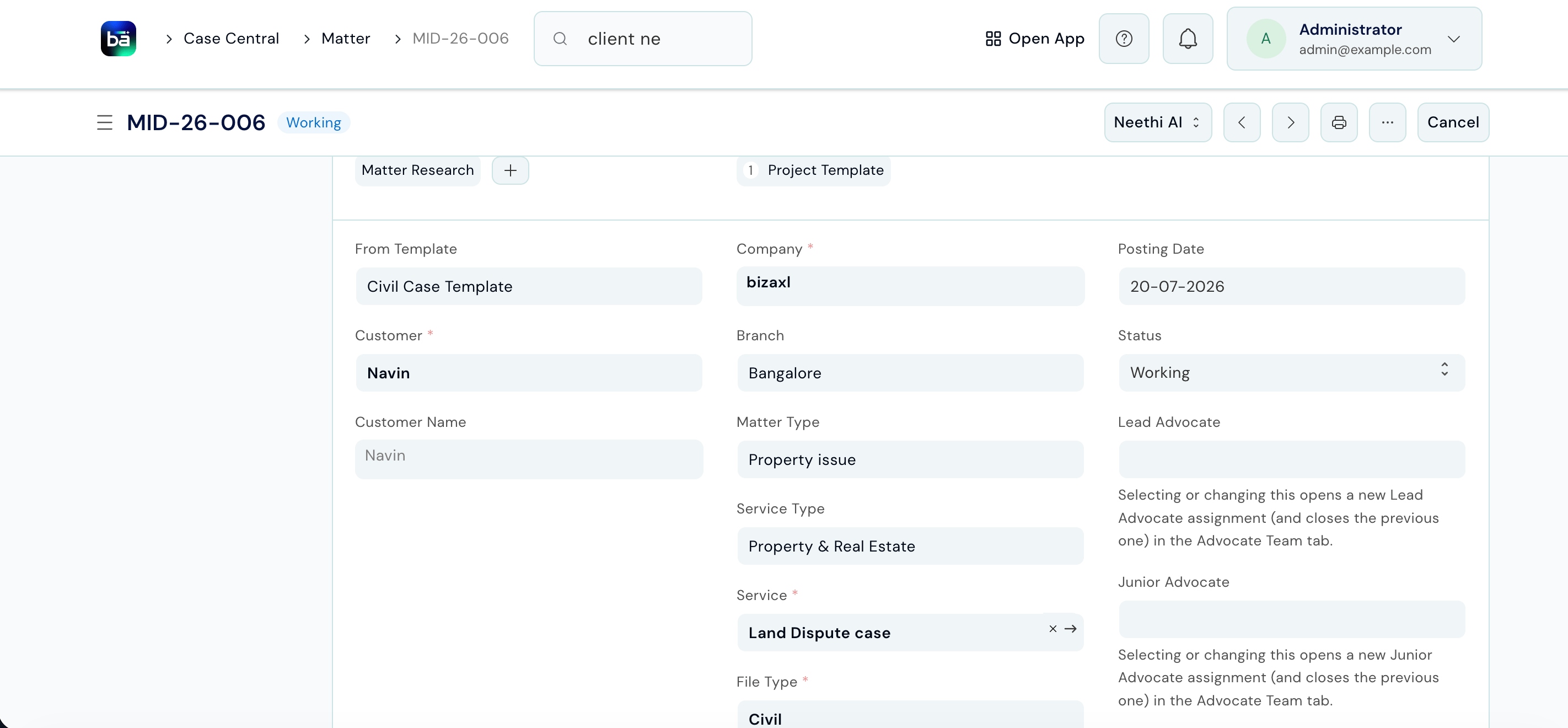 ### Matter Statuses
| Status | Meaning |
| ------------- | --------------------------------------------------------------------------------------------------------------------------- |
| **Open** | Work is ongoing. |
| **Completed** | The matter has concluded. |
| **Cancelled** | The matter was closed without completion. Cancelled matters are excluded from the Matter shortcut count on the home screen. |
### Link Related Matters
If two matters are connected - for example, a civil suit and a related execution petition for the same client - link them in the **Linked Matter** section on the matter record. This lets you navigate between related files quickly.
***
## Tasks
Each matter can have multiple tasks - specific actions the team needs to take (drafting, filing, research, court appearances, etc.).
**Path:** Open the Matter → Task section → New Task
### Matter Statuses
| Status | Meaning |
| ------------- | --------------------------------------------------------------------------------------------------------------------------- |
| **Open** | Work is ongoing. |
| **Completed** | The matter has concluded. |
| **Cancelled** | The matter was closed without completion. Cancelled matters are excluded from the Matter shortcut count on the home screen. |
### Link Related Matters
If two matters are connected - for example, a civil suit and a related execution petition for the same client - link them in the **Linked Matter** section on the matter record. This lets you navigate between related files quickly.
***
## Tasks
Each matter can have multiple tasks - specific actions the team needs to take (drafting, filing, research, court appearances, etc.).
**Path:** Open the Matter → Task section → New Task
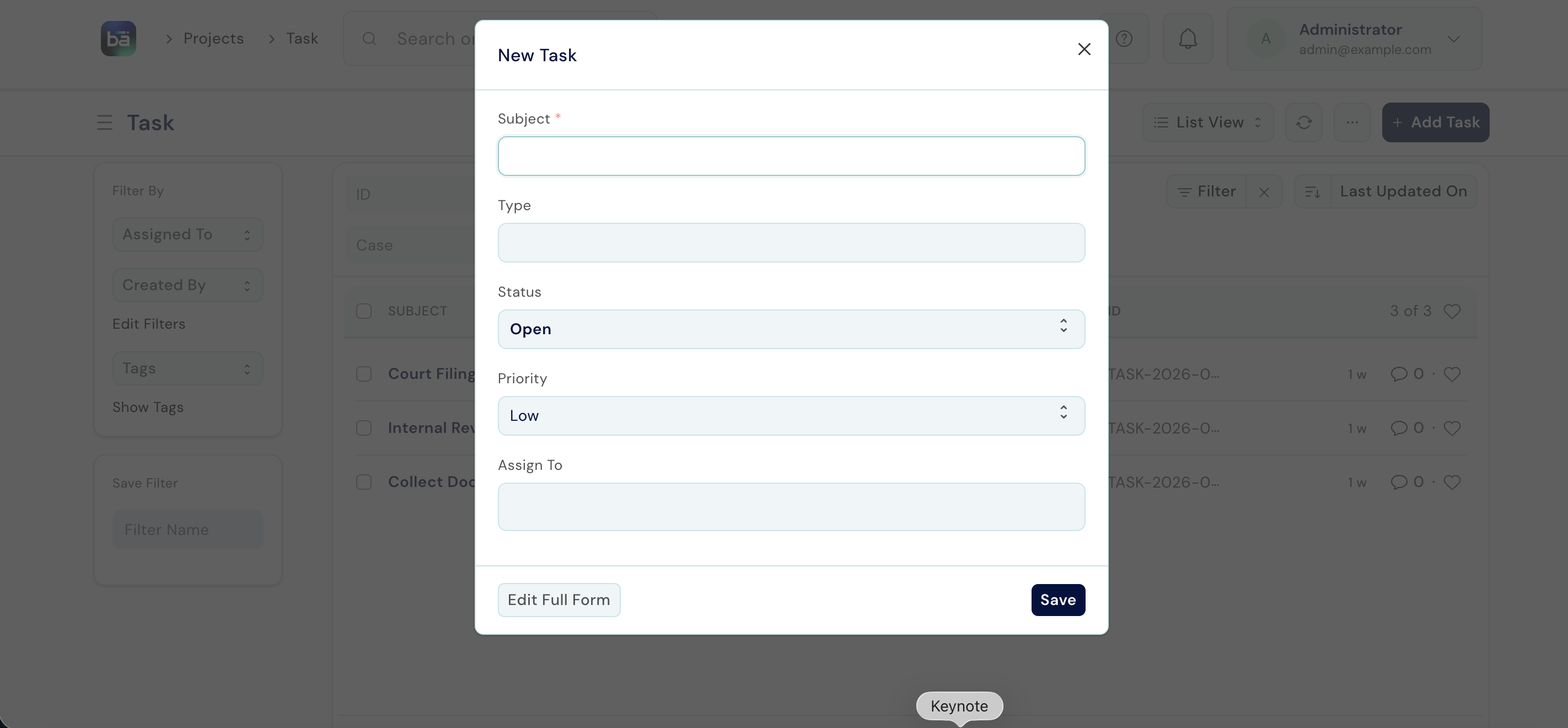 | Field | Description |
| --------------- | ------------------------------------------------------------- |
| **Subject** | Short description of what needs to be done. |
| **Task Type** | Category of work (e.g. Drafting, Research, Court Appearance). |
| **Assigned To** | The staff member responsible. |
| **Due Date** | When it must be completed. |
| **Status** | Open, Working, Pending Review, Overdue, or Completed. |
| **Description** | Additional instructions or context for the person assigned. |
You can view and filter all tasks across all matters from **Law Management → Matter Management → Task**.
***
## Billing Flow
Billing follows a four-step flow from service catalogue to BAS invoice:
```mermaid theme={null}
%%{init: {'theme':'base','themeVariables':{'fontFamily':'DM Sans','primaryColor':'#e7fdf6','primaryBorderColor':'#14f1b1','primaryTextColor':'#0f172a','lineColor':'#14f1b1'}}}%%
flowchart LR
LS[Legal Service] --> LR[Legal Service Rate] --> LE[Legal Service Entry] --> BI[BAS Invoice]
```
The first two steps are performed by an **Administrator** during Setup. The last two steps are performed by **Legal Staff** as work is done.
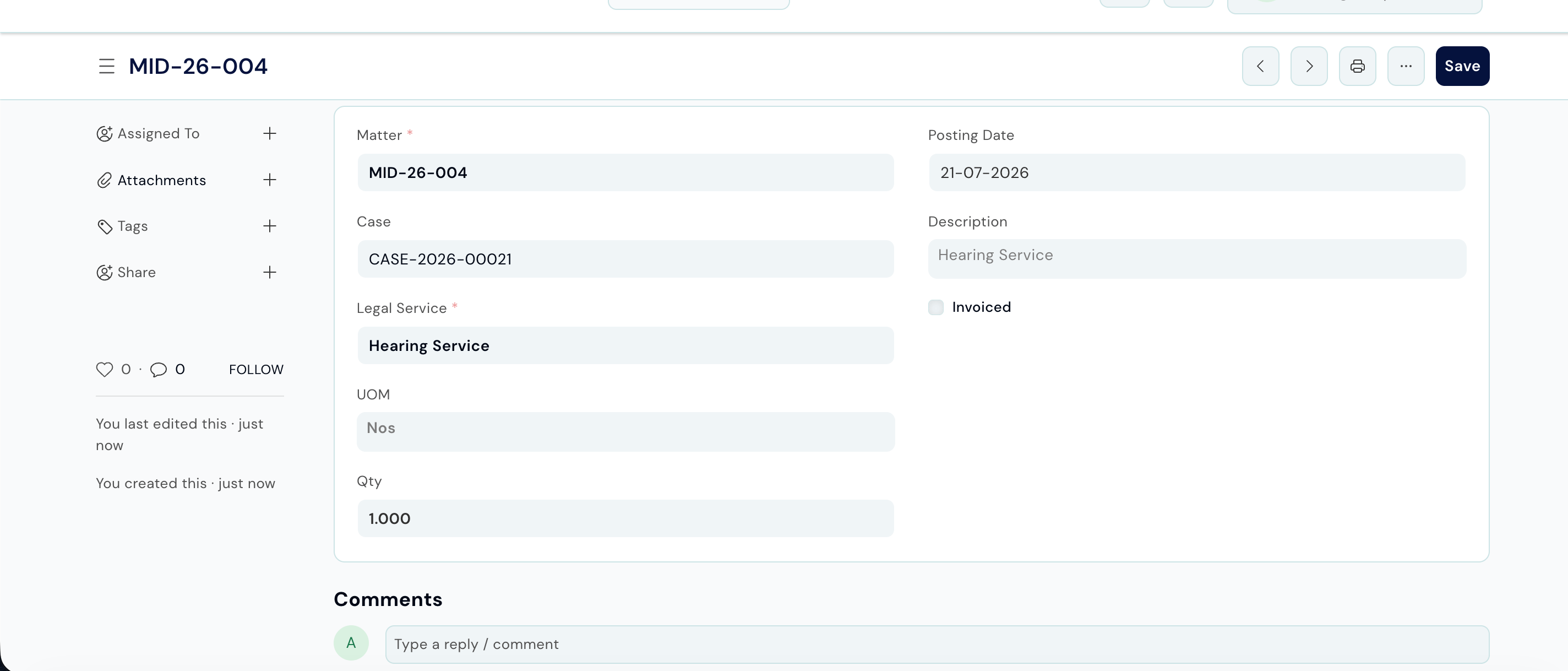
### Step 3 - Record a Legal Service Entry
After work is performed for a client, record it as a Legal Service Entry. This is the billable line item.
**Path:** Law Management → Matter Management → Legal Service Entry → New
**Requires:** The matter must exist. The Legal Service and its rate must be configured in [Setup](/professional-services/law-management/setup).
| Field | Description |
| --------------- | ------------------------------------------------------------- |
| **Subject** | Short description of what needs to be done. |
| **Task Type** | Category of work (e.g. Drafting, Research, Court Appearance). |
| **Assigned To** | The staff member responsible. |
| **Due Date** | When it must be completed. |
| **Status** | Open, Working, Pending Review, Overdue, or Completed. |
| **Description** | Additional instructions or context for the person assigned. |
You can view and filter all tasks across all matters from **Law Management → Matter Management → Task**.
***
## Billing Flow
Billing follows a four-step flow from service catalogue to BAS invoice:
```mermaid theme={null}
%%{init: {'theme':'base','themeVariables':{'fontFamily':'DM Sans','primaryColor':'#e7fdf6','primaryBorderColor':'#14f1b1','primaryTextColor':'#0f172a','lineColor':'#14f1b1'}}}%%
flowchart LR
LS[Legal Service] --> LR[Legal Service Rate] --> LE[Legal Service Entry] --> BI[BAS Invoice]
```
The first two steps are performed by an **Administrator** during Setup. The last two steps are performed by **Legal Staff** as work is done.
### Step 3 - Record a Legal Service Entry
After work is performed for a client, record it as a Legal Service Entry. This is the billable line item.
**Path:** Law Management → Matter Management → Legal Service Entry → New
**Requires:** The matter must exist. The Legal Service and its rate must be configured in [Setup](/professional-services/law-management/setup).
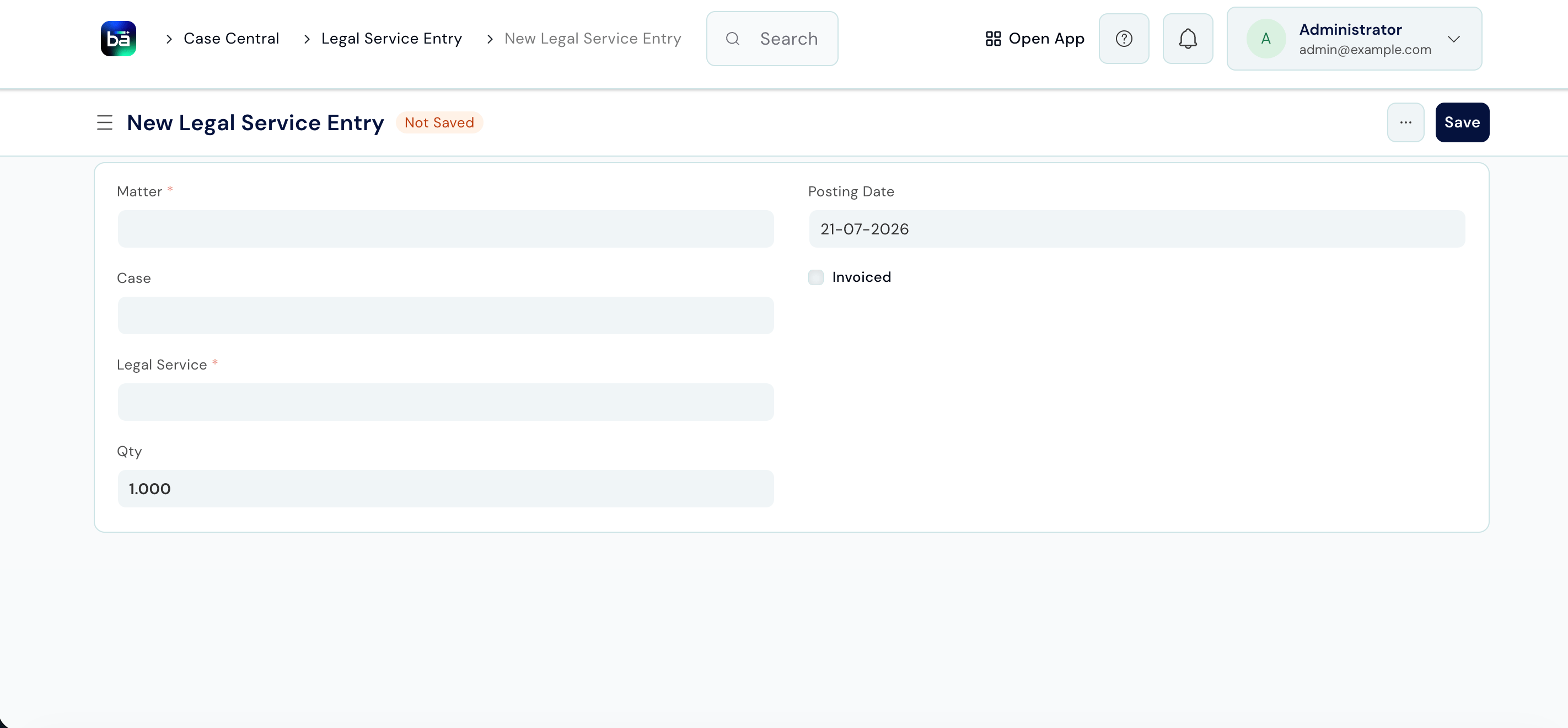 | Field | Description |
| ----------------- | ------------------------------------------------------------------------------------------------------------ |
| **Matter** | The client file this work belongs to. |
| **Legal Service** | The service that was performed (selected from the catalogue). |
| **Date** | The date the work was done. |
| **Rate** | Populated automatically from the rate card. Override only if this instance differs (e.g. outstation matter). |
| **Description** | Optional note about the specific work done. |
| Field | Description |
| ----------------- | ------------------------------------------------------------------------------------------------------------ |
| **Matter** | The client file this work belongs to. |
| **Legal Service** | The service that was performed (selected from the catalogue). |
| **Date** | The date the work was done. |
| **Rate** | Populated automatically from the rate card. Override only if this instance differs (e.g. outstation matter). |
| **Description** | Optional note about the specific work done. |
 ### Step 4 - Raise a BAS Invoice
Once you have recorded all Legal Service Entries for a billing period, raise a Sales Invoice against the client in BAS. The entries appear as line items on the invoice.
For full invoicing instructions, see the [BAS documentation](/bas/introduction).
***
## Tips
* **One client, many matters** - always check if the client already exists before creating a new one. Duplicate client records cause confusion when raising invoices.
* **Set the Status to Completed** when a matter concludes - this keeps your active matter count accurate on the home screen.
* **Use Matter Templates** (configured in Setup) to auto-create standard tasks when opening common matter types. This ensures nothing is missed and saves setup time.
* **Record Legal Service Entries as you go**, not at the end of the month. Entries recorded near the time of work are more accurate and less likely to be missed.
* **Link related matters** - if a client has a connected follow-up matter (e.g. an appeal from an earlier case), use Linked Matter so the team can navigate between files without searching.
### Step 4 - Raise a BAS Invoice
Once you have recorded all Legal Service Entries for a billing period, raise a Sales Invoice against the client in BAS. The entries appear as line items on the invoice.
For full invoicing instructions, see the [BAS documentation](/bas/introduction).
***
## Tips
* **One client, many matters** - always check if the client already exists before creating a new one. Duplicate client records cause confusion when raising invoices.
* **Set the Status to Completed** when a matter concludes - this keeps your active matter count accurate on the home screen.
* **Use Matter Templates** (configured in Setup) to auto-create standard tasks when opening common matter types. This ensures nothing is missed and saves setup time.
* **Record Legal Service Entries as you go**, not at the end of the month. Entries recorded near the time of work are more accurate and less likely to be missed.
* **Link related matters** - if a client has a connected follow-up matter (e.g. an appeal from an earlier case), use Linked Matter so the team can navigate between files without searching.