> ## Documentation Index
> Fetch the complete documentation index at: https://docs.bizaxl.com/llms.txt
> Use this file to discover all available pages before exploring further.
# AI Assistant
> Upload case documents for AI analysis, ask questions in plain language, and generate structured reports using the built-in AI assistant.
**Roles:** Uploading documents and running conversations is done by **Legal Staff**. Enabling the integration and managing settings is done by an **Administrator**.
**Upstream dependencies:** The AI assistant must be enabled by an Administrator before it can be used. A Case must exist before documents can be uploaded for AI analysis.
**Downstream:** AI-generated reports and conversation transcripts are stored against the case record and can be referenced during matter review.
***
## What the AI Assistant Does
The AI assistant lets your team interact with case documents in plain language - without reading every page manually.
Upload any case document and the AI reads, indexes, and makes it queryable.
Ask questions about your documents in plain language. The AI cites the exact source text in its answers.
Generate structured reports - case summaries, key issue analysis - directly from your documents.
Case data is synchronised to the AI backend automatically so the assistant always has current context.
***
## Enable the AI Assistant
**Role: Administrator**
Before anyone can use the AI assistant, it must be turned on.
**Path:** AI Assistant → AI Assistant Settings
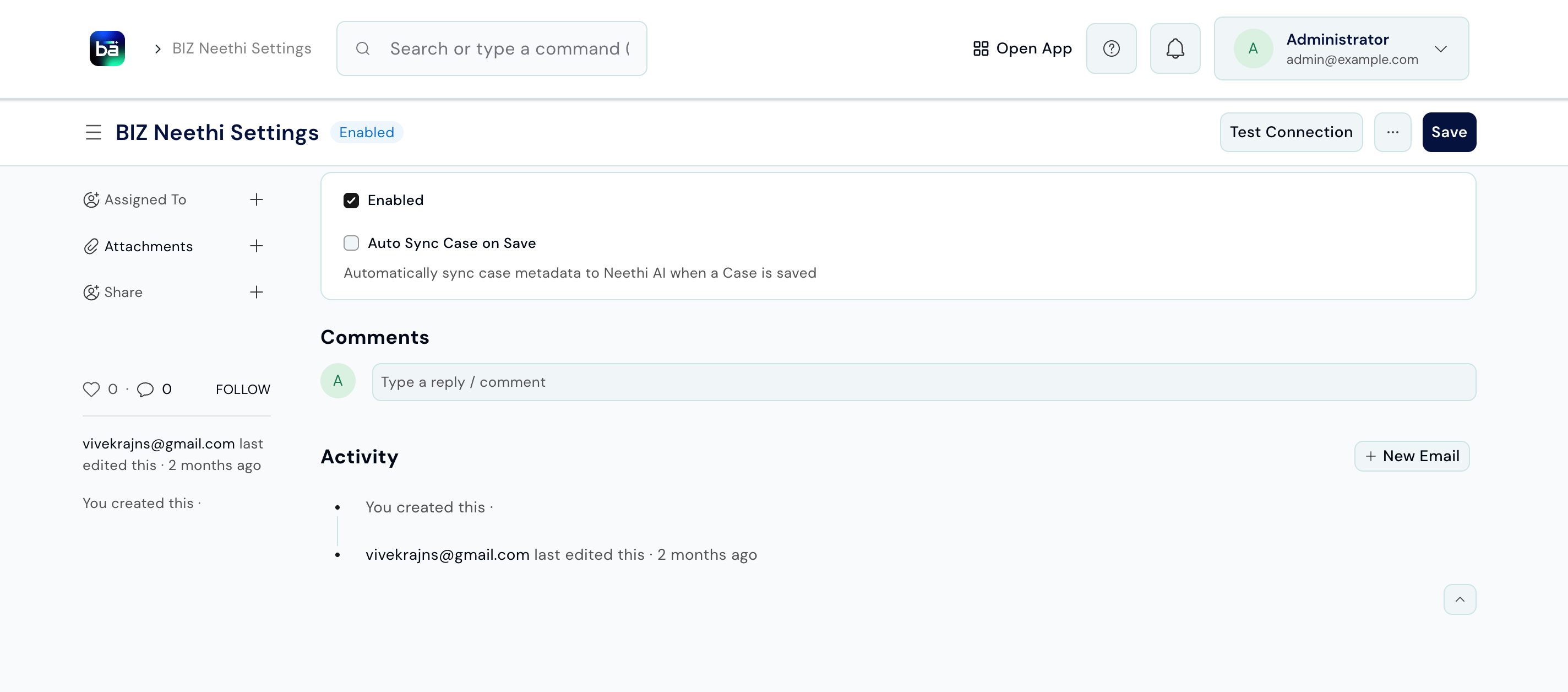 | Field | Description |
| -------------------------- | ------------------------------------------------------------------------------------------------------------------------- |
| **Enabled** | Turns the AI integration on for the whole system. |
| **Auto Sync Case on Save** | When on, case data is sent to the AI backend automatically every time a case record is saved. Recommended for most firms. |
After saving, click **Test Connection** to verify the integration is reachable before relying on it.
***
## Upload a Document
To analyse a document, upload it to the AI first. The AI processes it in the background - this can take a few minutes for large files.
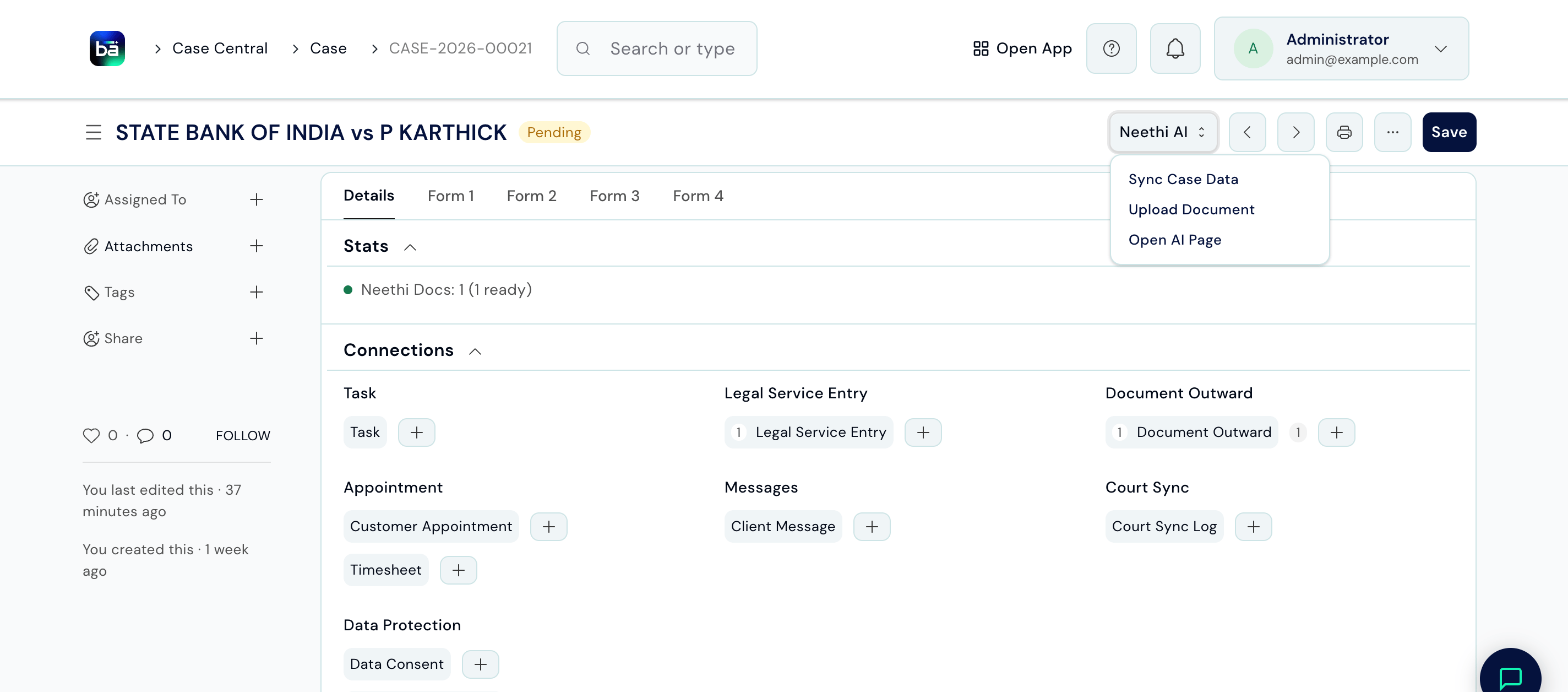
**Path:** Open the Case → AI Assistant menu (top right) → Upload Document
**Requires:** The AI assistant must be enabled. The case must exist.
| Field | Description |
| -------------------------- | ------------------------------------------------------------------------------------------------------------------------- |
| **Enabled** | Turns the AI integration on for the whole system. |
| **Auto Sync Case on Save** | When on, case data is sent to the AI backend automatically every time a case record is saved. Recommended for most firms. |
After saving, click **Test Connection** to verify the integration is reachable before relying on it.
***
## Upload a Document
To analyse a document, upload it to the AI first. The AI processes it in the background - this can take a few minutes for large files.
**Path:** Open the Case → AI Assistant menu (top right) → Upload Document
**Requires:** The AI assistant must be enabled. The case must exist.
 | Field | Description |
| ----------------- | ------------------------------------------------------------------------------------------------------ |
| **Case** | Auto-populated from the case you opened this from. |
| **Document Name** | A label to identify this document (e.g. "Plaint", "Lease Agreement", "Court Order dated 12-Jan-2025"). |
| **File** | Attach the document. PDF format is recommended for best results. |
After saving, monitor the **Ingestion Status** field. Once processing completes, the document appears under **Documents** in the AI Assistant workspace, ready to reference in a conversation:
| Field | Description |
| ----------------- | ------------------------------------------------------------------------------------------------------ |
| **Case** | Auto-populated from the case you opened this from. |
| **Document Name** | A label to identify this document (e.g. "Plaint", "Lease Agreement", "Court Order dated 12-Jan-2025"). |
| **File** | Attach the document. PDF format is recommended for best results. |
After saving, monitor the **Ingestion Status** field. Once processing completes, the document appears under **Documents** in the AI Assistant workspace, ready to reference in a conversation:
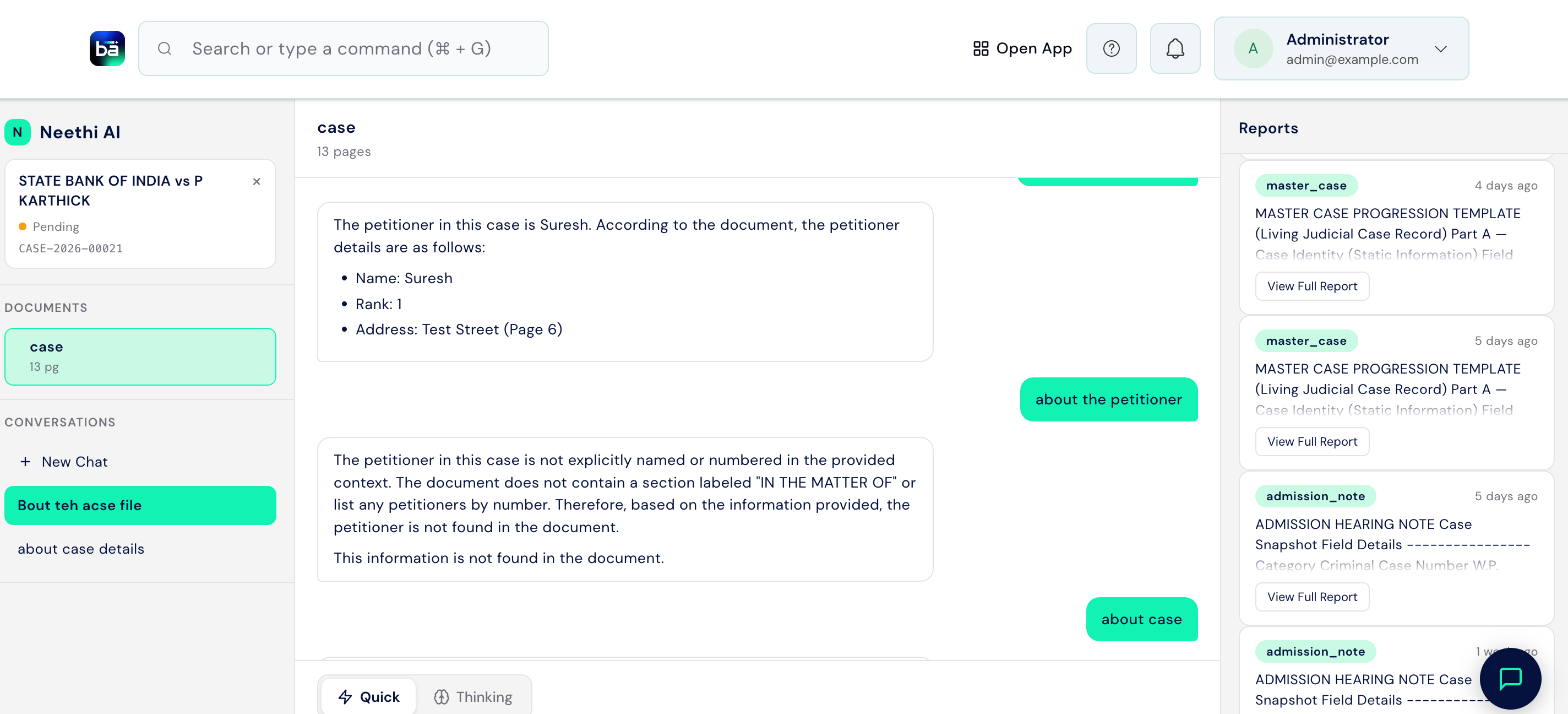 | Status | What it means |
| -------------- | -------------------------------------------------------------------------------------------------- |
| **Pending** | Queued - waiting to be sent to the AI backend. |
| **Processing** | The AI is currently reading and indexing the document. |
| **Completed** | The document is ready to query. |
| **Failed** | Something went wrong. Check the **Error Message** field for details and try re-saving to resubmit. |
***
## Ask the AI a Question
Once at least one document has been successfully ingested, start a conversation.
**Path:** Open the Case → AI Assistant menu (top right) → Open AI Page → New Chat
**Requires:** At least one document for this case must have Ingestion Status = Completed.
Click **New Chat**, then choose a mode before typing your question:
| Mode | Description |
| ------------ | --------------------------------------------------------------------- |
| **Quick** | A faster response, suited for straightforward lookups. |
| **Thinking** | Deeper analysis - may take longer, suited for more complex questions. |
| Status | What it means |
| -------------- | -------------------------------------------------------------------------------------------------- |
| **Pending** | Queued - waiting to be sent to the AI backend. |
| **Processing** | The AI is currently reading and indexing the document. |
| **Completed** | The document is ready to query. |
| **Failed** | Something went wrong. Check the **Error Message** field for details and try re-saving to resubmit. |
***
## Ask the AI a Question
Once at least one document has been successfully ingested, start a conversation.
**Path:** Open the Case → AI Assistant menu (top right) → Open AI Page → New Chat
**Requires:** At least one document for this case must have Ingestion Status = Completed.
Click **New Chat**, then choose a mode before typing your question:
| Mode | Description |
| ------------ | --------------------------------------------------------------------- |
| **Quick** | A faster response, suited for straightforward lookups. |
| **Thinking** | Deeper analysis - may take longer, suited for more complex questions. |
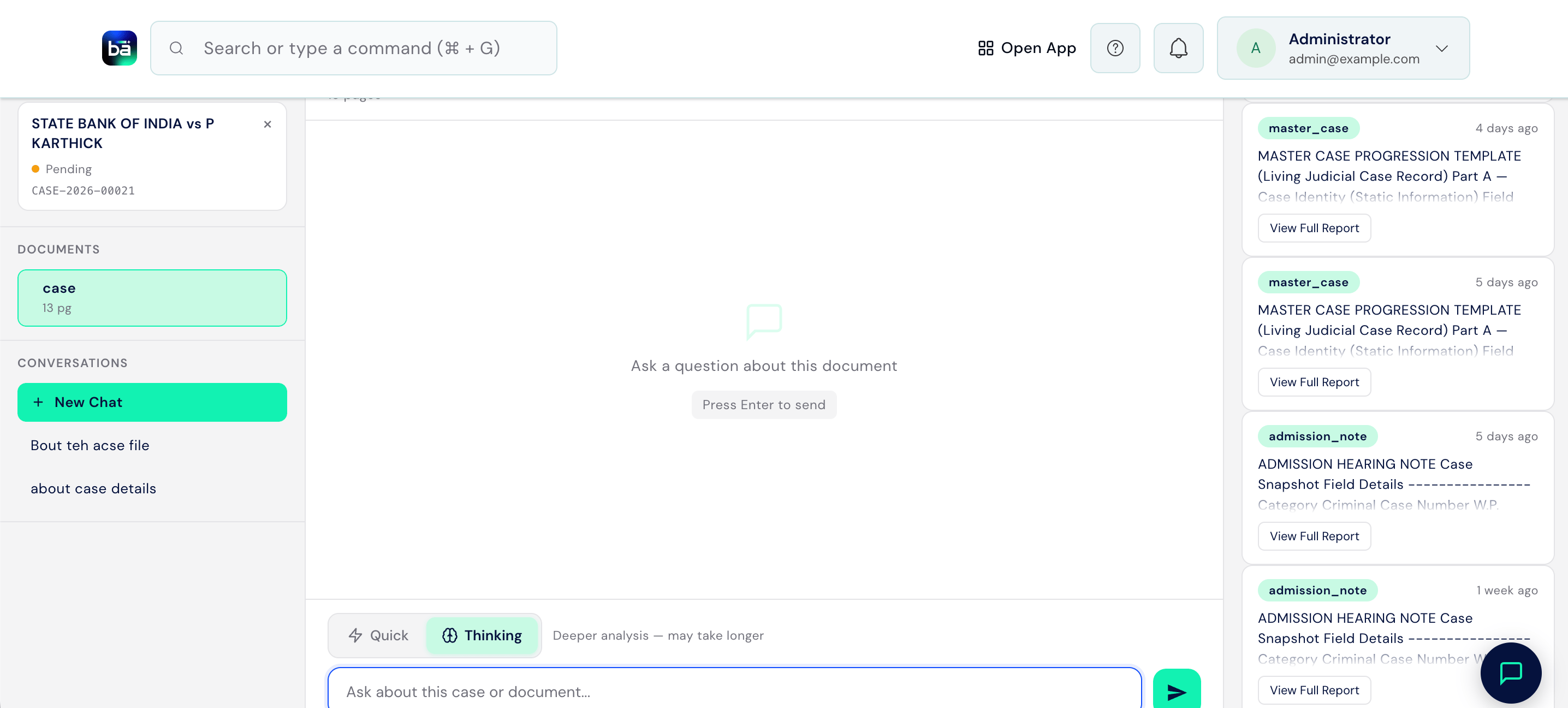 Type your question in the message box and press Enter to send. The AI responds with an answer and highlights the exact source text it drew from.
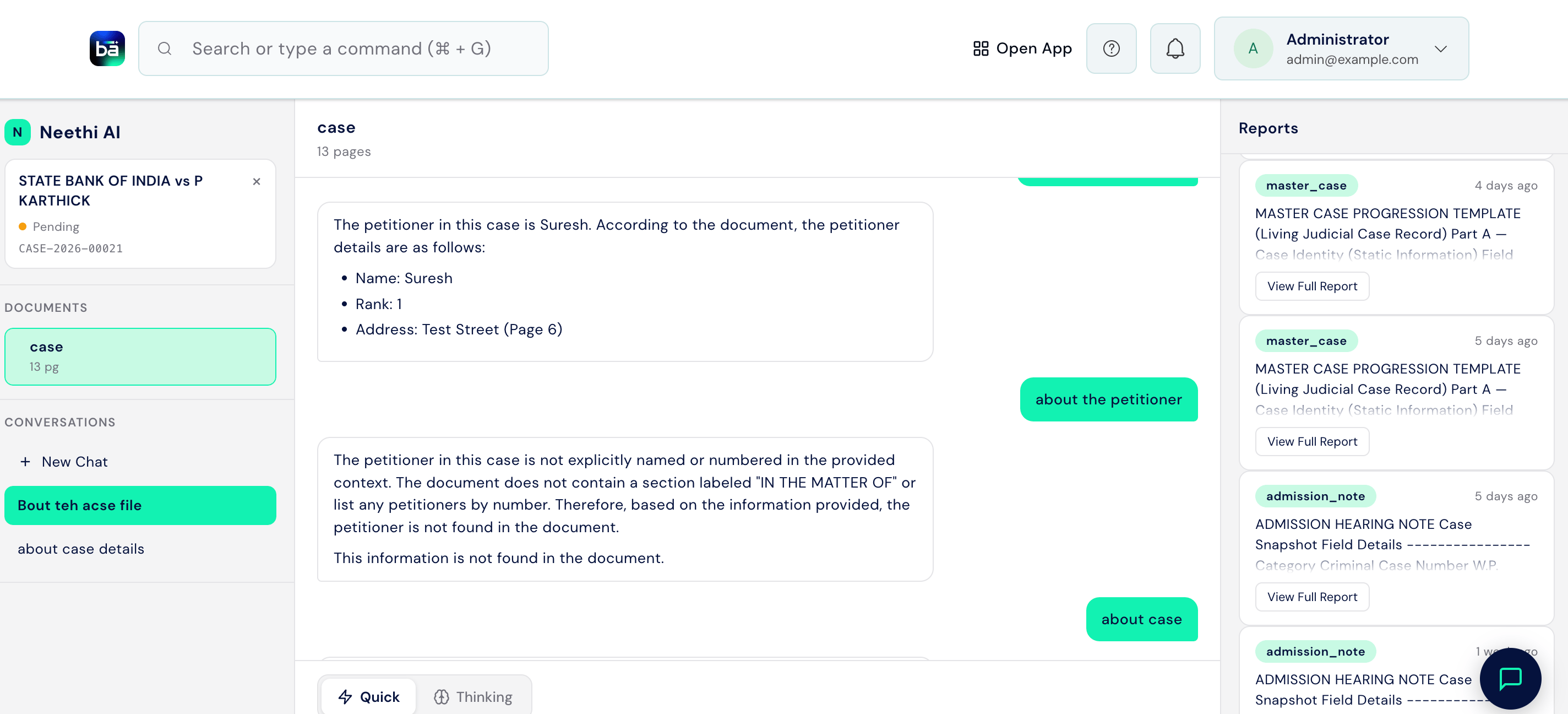 **Example questions:**
* "What are the key obligations of the defendant under this agreement?"
* "Summarise the relief claimed in the plaint."
* "Are there any limitation period issues in this case?"
* "What conditions must be met before the lease can be terminated?"
***
## Generate a Report
The AI can produce a structured written report from your case documents - for example, a case summary or an analysis of key legal issues.
**Path:** Open the Case → AI Assistant menu (top right) → Open AI Page → Reports panel
Select a report template card, then click **Generate Report**:
* **Master Case Template**
* **Case Background Note**
* **Admission Hearing Note**
**Example questions:**
* "What are the key obligations of the defendant under this agreement?"
* "Summarise the relief claimed in the plaint."
* "Are there any limitation period issues in this case?"
* "What conditions must be met before the lease can be terminated?"
***
## Generate a Report
The AI can produce a structured written report from your case documents - for example, a case summary or an analysis of key legal issues.
**Path:** Open the Case → AI Assistant menu (top right) → Open AI Page → Reports panel
Select a report template card, then click **Generate Report**:
* **Master Case Template**
* **Case Background Note**
* **Admission Hearing Note**
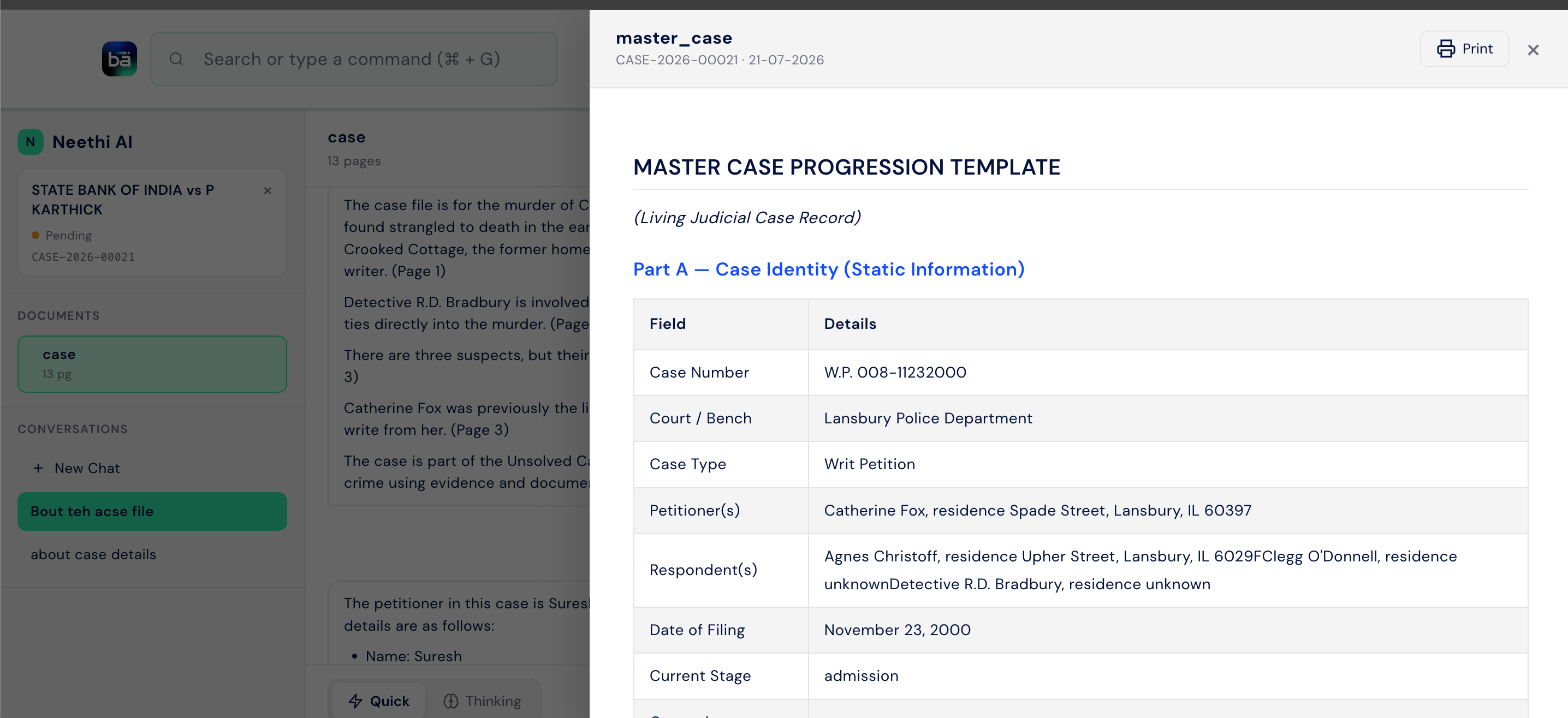
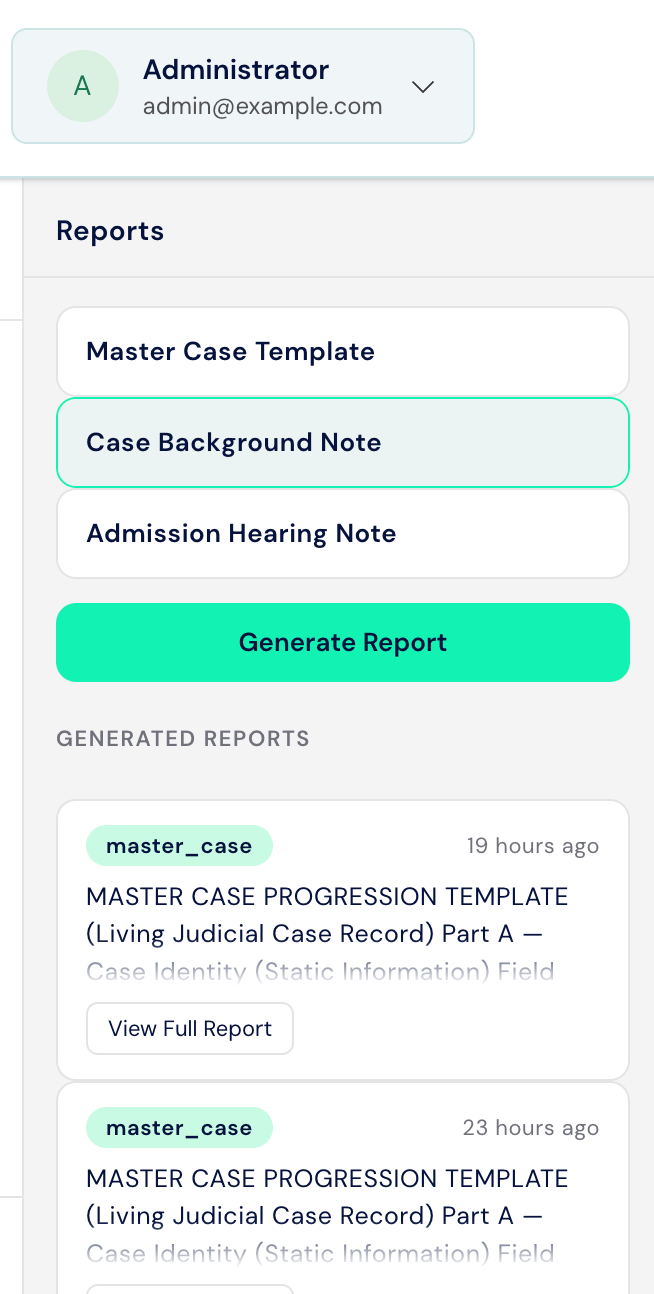 Once complete, the new report appears under **Generated Reports** with a **View Full Report** link.
 ***
## Tips
* **PDF format gives the best results.** Scanned images or image-only PDFs cannot be read by the AI - use text-based PDFs where possible. If you only have a scanned copy, run it through an OCR tool first.
* **Name documents clearly.** "Court Order dated 12-Jan-2025" is far more useful than "Document1.pdf" when choosing which document to query in a conversation.
* **Keep conversations focused.** A conversation linked to a specific document gives more precise answers than querying all documents at once for a complex case.
* **AI reports are a starting point, not a final product.** Always review generated summaries and analysis before using them in a filing or presenting them to a client.
* **Enable Auto Sync Case on Save** so the AI backend always reflects your latest case data. Without it, newly added case information won't be available until a manual sync is triggered.
***
## Tips
* **PDF format gives the best results.** Scanned images or image-only PDFs cannot be read by the AI - use text-based PDFs where possible. If you only have a scanned copy, run it through an OCR tool first.
* **Name documents clearly.** "Court Order dated 12-Jan-2025" is far more useful than "Document1.pdf" when choosing which document to query in a conversation.
* **Keep conversations focused.** A conversation linked to a specific document gives more precise answers than querying all documents at once for a complex case.
* **AI reports are a starting point, not a final product.** Always review generated summaries and analysis before using them in a filing or presenting them to a client.
* **Enable Auto Sync Case on Save** so the AI backend always reflects your latest case data. Without it, newly added case information won't be available until a manual sync is triggered.