> ## Documentation Index
> Fetch the complete documentation index at: https://docs.bizaxl.com/llms.txt
> Use this file to discover all available pages before exploring further.
# Customer self-service
> The customer portal: view policies, download invoices and policy PDFs, manage nominees, submit KYC, raise service requests, leave feedback, and see your assigned advisor.
If you are a policyholder, the customer portal is your own space in Insurance Advisor.
You only ever see your own records, and everything here is about your policies: viewing
them, downloading their documents, keeping your details current, and reaching your
advisor. This page walks through what you can do.
## Viewing your policies
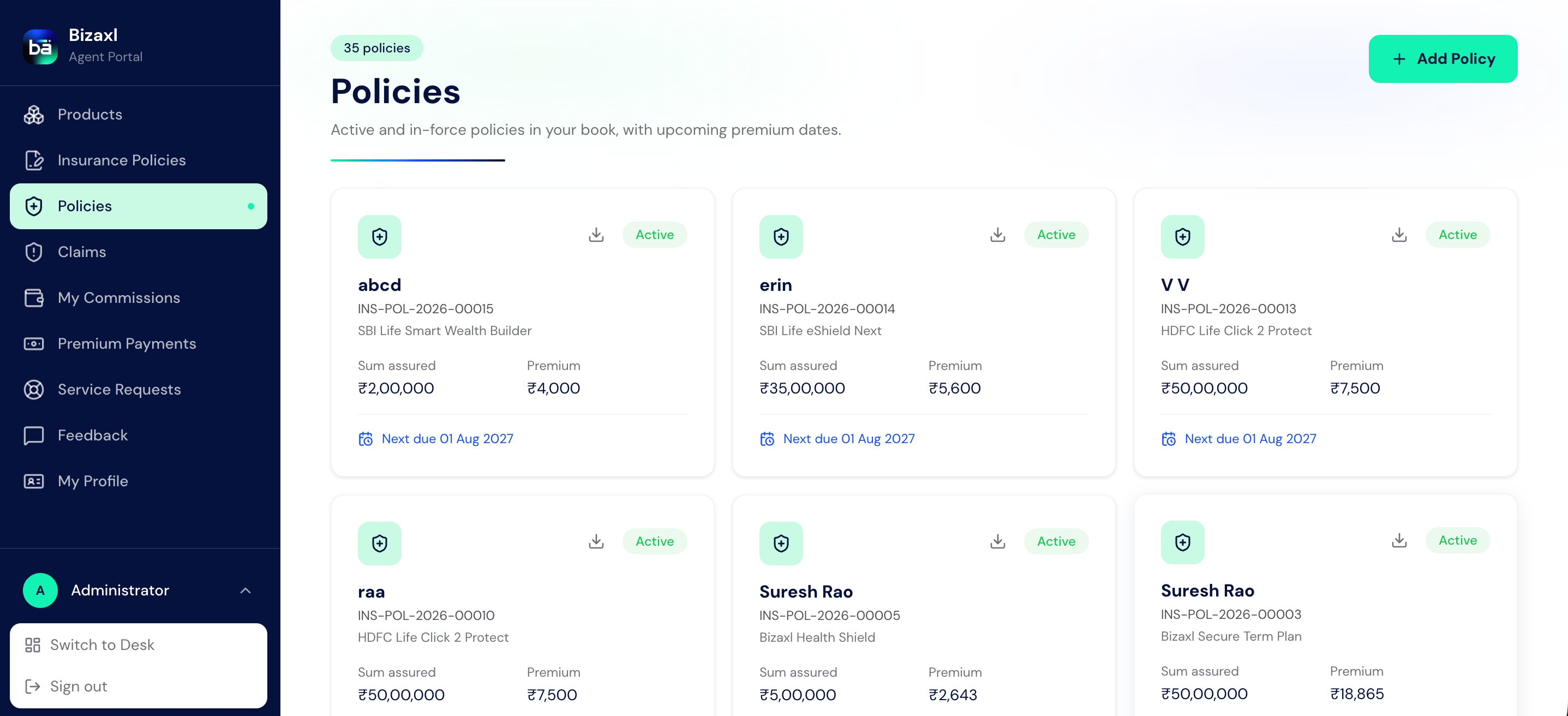
Open **My Policies** to see every policy you hold. Select one to see its full detail:
the cover, the premium, the key dates, and the nominees.
 Some fields are managed by your advisor for compliance and appear as read-only on your
side, such as your KYC verification status and your assigned advisor. You can always
update your own contact details.
## Downloading invoices and policy PDFs
Open **Invoices** to see every premium you have paid, each with its GST breakup.
Download any of them as a PDF receipt for your records.
From **My Policies**, download a policy's statement as a PDF once the policy has been
issued.
Download a single portfolio PDF that summarizes all your cover. It is available once
you hold at least one issued policy.
Your agency can also print formal copies of your documents on agency letterhead, including
your **Policy Certificate** and a **Premium Receipt** for each payment. Ask your advisor if
you need a printed or signed copy.
## Staying updated on WhatsApp
If your agency has WhatsApp updates switched on, you can get short messages on your
registered mobile number when something happens on your policies:
| Update | When you get it |
| ---------------------- | ------------------------------------------------------------------ |
| Policy issued | Your policy becomes active, with its number and sum assured. |
| Payment received | A premium payment is recorded, with the amount and receipt number. |
| Service request update | Your request moves to a new status. |
| Premium due reminder | A premium is coming up for renewal, with the due date and amount. |
WhatsApp updates are opt-in. Nothing is sent unless you have given consent, which your
advisor records against your client record as **WhatsApp Opt-In**. Ask your advisor to
turn it on, or to turn it off again if you would rather not receive messages. Your
portal notifications and emailed documents continue either way.
## Managing nominees
Open **Nominees** to see who is nominated on each policy. To change them, request a
nominee change: your advisor reviews it and applies it once approved.
Choose the policy whose nominees you want to change.
Add each nominee with their name, relationship, and share. The shares must total
exactly 100%. If a nominee is a minor, you must name an appointee for them.
Send the request. Your advisor reviews it, and the change is applied on approval.
Nominee shares must add up to 100%, and every minor nominee needs an appointee. The
portal checks both before it lets you submit.
## Submitting KYC
Open **KYC Verification** to submit or update your identity details. You enter your PAN
and only the last four digits of your Aadhaar, and you can attach supporting documents.
| Field | What it means |
| ---------------- | ---------------------------------------------------------------------------------------- |
| PAN Number | Your PAN, in the format ABCDE1234F. |
| Aadhaar (last 4) | Only the last four digits of your Aadhaar are ever entered or stored. |
| KYC Method | How your identity is being verified: PAN, Aadhaar e-KYC, Video-KYC, CKYC, or Manual. |
| Documents | Supporting files such as PAN, a masked Aadhaar, a photo, address proof, or income proof. |
Only the last four digits of your Aadhaar are ever stored, never the full number. When
you submit your KYC, your advisor is notified to verify it, and your verification
status is shown as read-only.
## Raising a service request
Open **Service Requests** to ask for a change and track it through to completion.
| Field | What it means |
| --------------- | -------------------------------------------------------------------------------------------------- |
| Service Type | What you are requesting: Nominee Change, Address Change, Contact Change, Profile Update, or Other. |
| Policy | The policy the request relates to, if any. |
| Requested Value | What you want it changed to. |
| Reason | Why you are requesting the change. |
| Status | Where the request stands: Open, In Review, Approved, Rejected, or Completed. |
An approved request is applied for you once it is completed, so you do not have to make
the change yourself.
## Leaving feedback
Open **Feedback** to send your advisor a compliment, complaint, or suggestion, with a
rating and your comments. You can see the status of what you have sent and any response.
| Field | What it means |
| ------------- | ----------------------------------------------- |
| Feedback Type | Compliment, Complaint, or Suggestion. |
| Rating | Your star rating. |
| Comments | What you want to say. Required. |
| Status | New, Reviewed, or Resolved. |
| Response | Your advisor's reply, once they have responded. |
## Seeing your assigned advisor
Your assigned advisor is shown on your records and is who handles your KYC, your service
requests, and your feedback. You cannot change your advisor yourself; the agency assigns
and manages it.
## Who does what
| Action | Responsible |
| ----------------------------------------- | -------------------------------------------- |
| View policies, download invoices and PDFs | You (the customer) |
| Request a nominee change | You submit; your advisor reviews and applies |
| Submit KYC | You submit; your advisor verifies |
| Raise a service request | You submit; the agency reviews and completes |
| Leave feedback | You submit; your advisor responds |
## Dependencies
* **Before you can log in:** the agency converts your lead into a client with a portal
login and sends you a link to set your password. See
[Leads and conversion](./leads-and-conversion).
* **What documents need:** a policy must be issued before its statement is available,
and you need at least one issued policy for the portfolio PDF.
* **What your requests feed:** nominee changes and service requests go to your advisor,
and your KYC submission prompts them to verify you.
## Best practices
* **Keep your details current.** Update your contact information so your advisor can
reach you and your documents stay accurate.
* **Complete KYC early.** A verified KYC keeps your policies running smoothly and avoids
delays on new applications.
* **Use service requests for changes.** For an address, contact, or nominee change, a
service request creates a tracked, reviewable record rather than an informal ask.
* **Download and keep your receipts.** Save the PDF invoice for each premium you pay so
you always have proof of payment.
Some fields are managed by your advisor for compliance and appear as read-only on your
side, such as your KYC verification status and your assigned advisor. You can always
update your own contact details.
## Downloading invoices and policy PDFs
Open **Invoices** to see every premium you have paid, each with its GST breakup.
Download any of them as a PDF receipt for your records.
From **My Policies**, download a policy's statement as a PDF once the policy has been
issued.
Download a single portfolio PDF that summarizes all your cover. It is available once
you hold at least one issued policy.
Your agency can also print formal copies of your documents on agency letterhead, including
your **Policy Certificate** and a **Premium Receipt** for each payment. Ask your advisor if
you need a printed or signed copy.
## Staying updated on WhatsApp
If your agency has WhatsApp updates switched on, you can get short messages on your
registered mobile number when something happens on your policies:
| Update | When you get it |
| ---------------------- | ------------------------------------------------------------------ |
| Policy issued | Your policy becomes active, with its number and sum assured. |
| Payment received | A premium payment is recorded, with the amount and receipt number. |
| Service request update | Your request moves to a new status. |
| Premium due reminder | A premium is coming up for renewal, with the due date and amount. |
WhatsApp updates are opt-in. Nothing is sent unless you have given consent, which your
advisor records against your client record as **WhatsApp Opt-In**. Ask your advisor to
turn it on, or to turn it off again if you would rather not receive messages. Your
portal notifications and emailed documents continue either way.
## Managing nominees
Open **Nominees** to see who is nominated on each policy. To change them, request a
nominee change: your advisor reviews it and applies it once approved.
Choose the policy whose nominees you want to change.
Add each nominee with their name, relationship, and share. The shares must total
exactly 100%. If a nominee is a minor, you must name an appointee for them.
Send the request. Your advisor reviews it, and the change is applied on approval.
Nominee shares must add up to 100%, and every minor nominee needs an appointee. The
portal checks both before it lets you submit.
## Submitting KYC
Open **KYC Verification** to submit or update your identity details. You enter your PAN
and only the last four digits of your Aadhaar, and you can attach supporting documents.
| Field | What it means |
| ---------------- | ---------------------------------------------------------------------------------------- |
| PAN Number | Your PAN, in the format ABCDE1234F. |
| Aadhaar (last 4) | Only the last four digits of your Aadhaar are ever entered or stored. |
| KYC Method | How your identity is being verified: PAN, Aadhaar e-KYC, Video-KYC, CKYC, or Manual. |
| Documents | Supporting files such as PAN, a masked Aadhaar, a photo, address proof, or income proof. |
Only the last four digits of your Aadhaar are ever stored, never the full number. When
you submit your KYC, your advisor is notified to verify it, and your verification
status is shown as read-only.
## Raising a service request
Open **Service Requests** to ask for a change and track it through to completion.
| Field | What it means |
| --------------- | -------------------------------------------------------------------------------------------------- |
| Service Type | What you are requesting: Nominee Change, Address Change, Contact Change, Profile Update, or Other. |
| Policy | The policy the request relates to, if any. |
| Requested Value | What you want it changed to. |
| Reason | Why you are requesting the change. |
| Status | Where the request stands: Open, In Review, Approved, Rejected, or Completed. |
An approved request is applied for you once it is completed, so you do not have to make
the change yourself.
## Leaving feedback
Open **Feedback** to send your advisor a compliment, complaint, or suggestion, with a
rating and your comments. You can see the status of what you have sent and any response.
| Field | What it means |
| ------------- | ----------------------------------------------- |
| Feedback Type | Compliment, Complaint, or Suggestion. |
| Rating | Your star rating. |
| Comments | What you want to say. Required. |
| Status | New, Reviewed, or Resolved. |
| Response | Your advisor's reply, once they have responded. |
## Seeing your assigned advisor
Your assigned advisor is shown on your records and is who handles your KYC, your service
requests, and your feedback. You cannot change your advisor yourself; the agency assigns
and manages it.
## Who does what
| Action | Responsible |
| ----------------------------------------- | -------------------------------------------- |
| View policies, download invoices and PDFs | You (the customer) |
| Request a nominee change | You submit; your advisor reviews and applies |
| Submit KYC | You submit; your advisor verifies |
| Raise a service request | You submit; the agency reviews and completes |
| Leave feedback | You submit; your advisor responds |
## Dependencies
* **Before you can log in:** the agency converts your lead into a client with a portal
login and sends you a link to set your password. See
[Leads and conversion](./leads-and-conversion).
* **What documents need:** a policy must be issued before its statement is available,
and you need at least one issued policy for the portfolio PDF.
* **What your requests feed:** nominee changes and service requests go to your advisor,
and your KYC submission prompts them to verify you.
## Best practices
* **Keep your details current.** Update your contact information so your advisor can
reach you and your documents stay accurate.
* **Complete KYC early.** A verified KYC keeps your policies running smoothly and avoids
delays on new applications.
* **Use service requests for changes.** For an address, contact, or nominee change, a
service request creates a tracked, reviewable record rather than an informal ask.
* **Download and keep your receipts.** Save the PDF invoice for each premium you pay so
you always have proof of payment.