> ## Documentation Index
> Fetch the complete documentation index at: https://docs.bizaxl.com/llms.txt
> Use this file to discover all available pages before exploring further.
# Uploading Documents
> Capture documents by scanning, choosing from your gallery, or attaching files, then let OCR read them and classify the document type.
Uploading is the start of the OCR workflow. You capture one or more documents, the app uploads them, and OCR reads the key fields automatically. You can upload several files at once.
**Before you start**, make sure each document is well lit, flat, and fully in frame. Clearer images give more accurate OCR results.
## Start an upload
Tap the **+** button (on the Home or Uploads screen) to open the capture menu. It has three options:
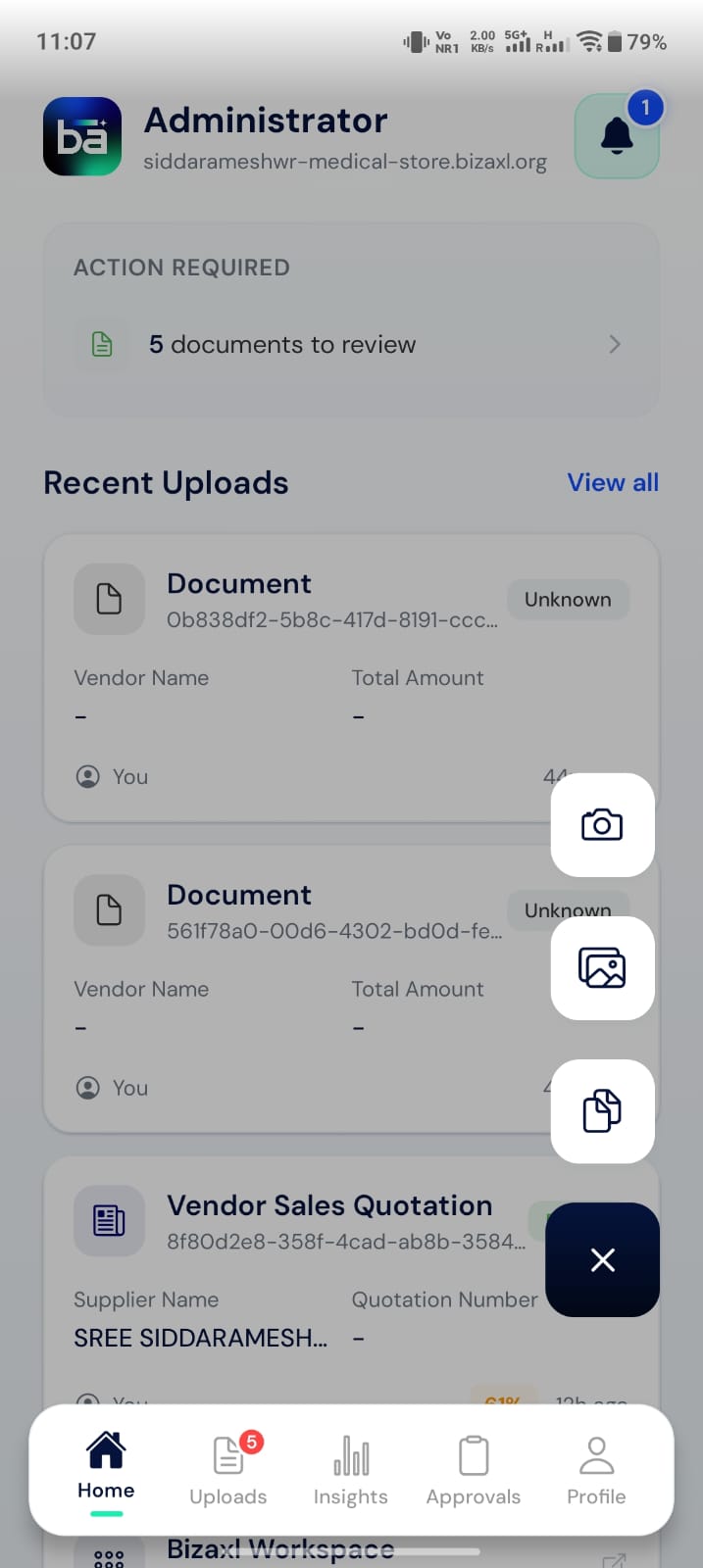 | Option | What it does |
| ------------- | ------------------------------------------------------------------------------------------------------------------------------------------------------------------------------------------- |
| **Scan** | Opens the built-in document scanner. It detects edges, lets you adjust the crop, and can capture **multiple pages** (up to 20). Multiple pages are combined into a single PDF automatically |
| **Gallery** | Lets you pick one or more existing photos from your device |
| **Documents** | Lets you attach files (such as PDFs or images) from your device storage |
The capture buttons show icons only. The camera icon is the multi-page **Scan** option, not a single-photo camera. Use it to scan physical documents page by page.
## Uploading and processing
Once you choose your files, the app uploads them and begins processing. Each file shows its own status and a progress bar, and the header shows overall progress such as **0/1 complete**.
| Option | What it does |
| ------------- | ------------------------------------------------------------------------------------------------------------------------------------------------------------------------------------------- |
| **Scan** | Opens the built-in document scanner. It detects edges, lets you adjust the crop, and can capture **multiple pages** (up to 20). Multiple pages are combined into a single PDF automatically |
| **Gallery** | Lets you pick one or more existing photos from your device |
| **Documents** | Lets you attach files (such as PDFs or images) from your device storage |
The capture buttons show icons only. The camera icon is the multi-page **Scan** option, not a single-photo camera. Use it to scan physical documents page by page.
## Uploading and processing
Once you choose your files, the app uploads them and begins processing. Each file shows its own status and a progress bar, and the header shows overall progress such as **0/1 complete**.
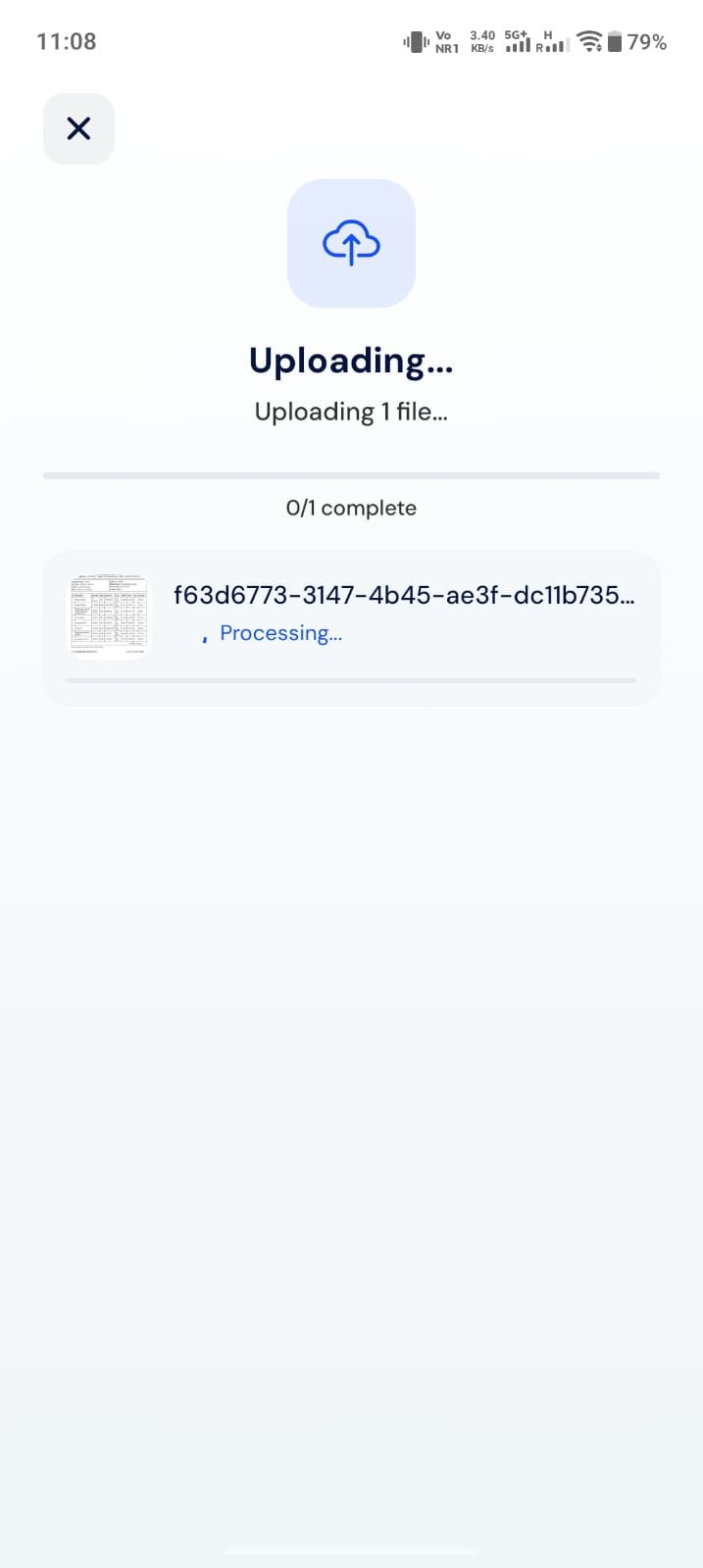 Processing continues automatically after the upload finishes. Statuses update live, so you do not need to refresh.
| Status | What it means |
| ------------------------ | -------------------------------------------------------------------------------------------------------------- |
| **Pending** | Waiting to upload |
| **Uploading** | The file is being sent, with a progress bar |
| **Processing** | OCR is reading the document |
| **Select Type** | The app needs you to choose the document type (see below) |
| **Submitting to Bizaxl** | The document is being submitted automatically (see [Submitting and drafts](/mobile-app/submitting-and-drafts)) |
| **Ready for Review** | OCR is done and the document is ready for you to check |
| **Submitted as Draft** | The document was submitted and is now a draft to finalize |
| **Duplicate** | The app detected this document was uploaded before |
| **Failed** | Processing did not complete. Tap **View details** to see why, then retry |
If a file fails, open it and use **Retry** to reprocess it. Common causes are a blurry image or a missing required field.
## Classifying the document type
If the app cannot determine the document type on its own, the file shows **Select Type** and the **Select Document Type** sheet appears. If a single file needs classification, the sheet opens for you automatically.
Processing continues automatically after the upload finishes. Statuses update live, so you do not need to refresh.
| Status | What it means |
| ------------------------ | -------------------------------------------------------------------------------------------------------------- |
| **Pending** | Waiting to upload |
| **Uploading** | The file is being sent, with a progress bar |
| **Processing** | OCR is reading the document |
| **Select Type** | The app needs you to choose the document type (see below) |
| **Submitting to Bizaxl** | The document is being submitted automatically (see [Submitting and drafts](/mobile-app/submitting-and-drafts)) |
| **Ready for Review** | OCR is done and the document is ready for you to check |
| **Submitted as Draft** | The document was submitted and is now a draft to finalize |
| **Duplicate** | The app detected this document was uploaded before |
| **Failed** | Processing did not complete. Tap **View details** to see why, then retry |
If a file fails, open it and use **Retry** to reprocess it. Common causes are a blurry image or a missing required field.
## Classifying the document type
If the app cannot determine the document type on its own, the file shows **Select Type** and the **Select Document Type** sheet appears. If a single file needs classification, the sheet opens for you automatically.
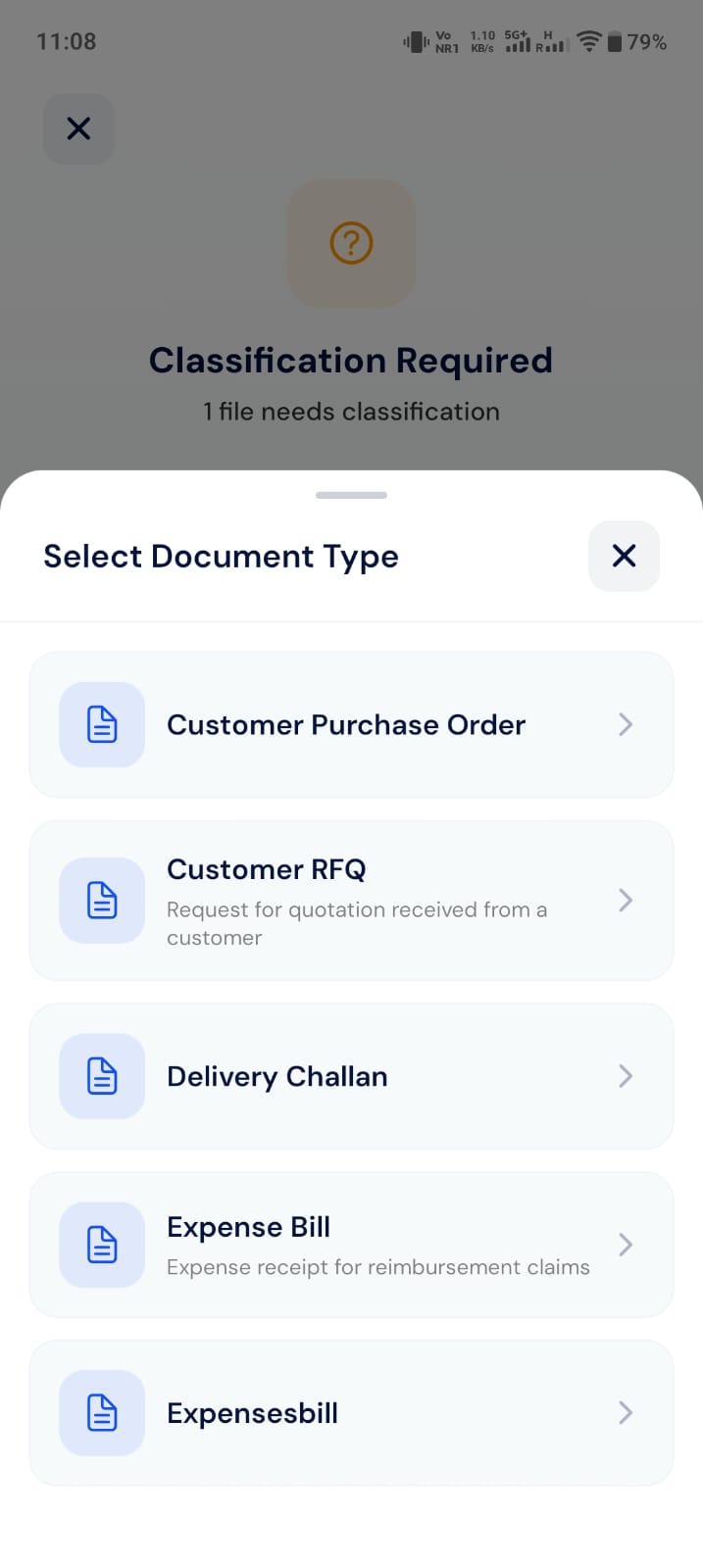 Scroll the list, then tap the type that matches your document (for example, **Vendor Sales Invoice**). After you choose, the app resumes and extracts the fields specific to that type.
The document types you see come from your workspace configuration, so the exact list can differ from one workspace to another.
## Related pages
* [Reviewing and editing](/mobile-app/reviewing-and-editing)
* [Submitting and drafts](/mobile-app/submitting-and-drafts)
* [Uploads and search](/mobile-app/uploads-and-search)
Scroll the list, then tap the type that matches your document (for example, **Vendor Sales Invoice**). After you choose, the app resumes and extracts the fields specific to that type.
The document types you see come from your workspace configuration, so the exact list can differ from one workspace to another.
## Related pages
* [Reviewing and editing](/mobile-app/reviewing-and-editing)
* [Submitting and drafts](/mobile-app/submitting-and-drafts)
* [Uploads and search](/mobile-app/uploads-and-search)