> ## Documentation Index
> Fetch the complete documentation index at: https://docs.bizaxl.com/llms.txt
> Use this file to discover all available pages before exploring further.
# Reviewing and Editing
> Check OCR confidence, review the extracted fields, and correct any values before you submit a document.
Once OCR finishes, the document opens on its detail screen with an overall confidence score and the fields the app extracted. This is where you check the results and fix anything the OCR got wrong or missed.
 ## Understanding the review screen
| Element | What it tells you |
| -------------------- | ------------------------------------------------------------------------------------------------------------------------ |
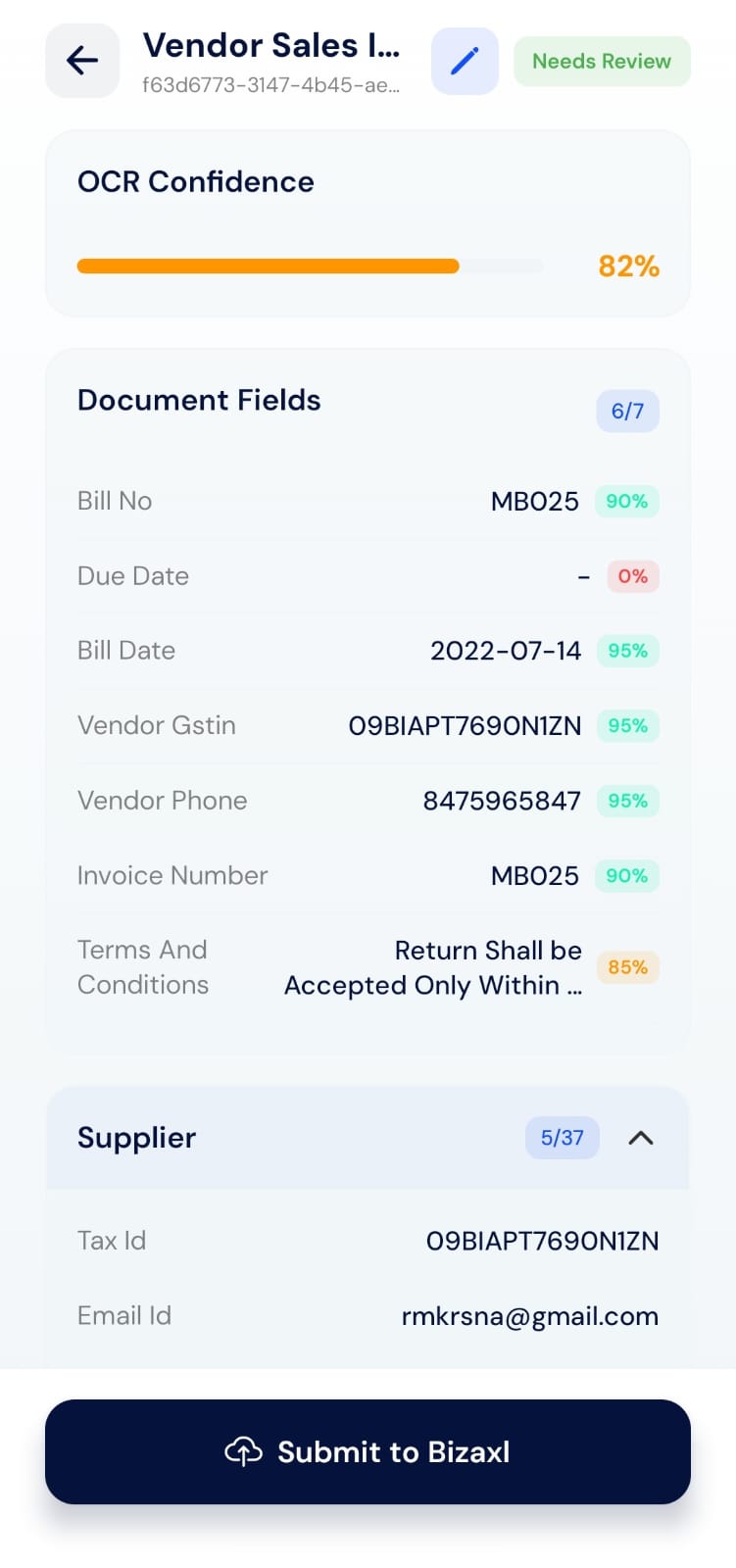
| **OCR Confidence** | An overall accuracy score for the extraction, for example 82%. Green is high, orange is medium, red is low |
| **Document Fields** | How many fields were detected out of the total expected, for example 6/7. Each field also shows its own confidence score |
| **Status badge** | Whether the document still **Needs Review** or is otherwise ready |
| **Supplier section** | Vendor details such as Tax ID and email, with a count of how many were captured |
Fields with **low or 0% confidence** (such as a missing date) are the ones to check first. A 0% score usually means the value was not found and you should fill it in.
Always review low-confidence and missing fields before submitting. Submitting unchecked values can create incorrect records in your workspace.
## Editing fields
Tap the **pencil** icon at the top of the review screen to open **Edit Document**. Every field appears in an editable box next to its confidence score.
## Understanding the review screen
| Element | What it tells you |
| -------------------- | ------------------------------------------------------------------------------------------------------------------------ |
| **OCR Confidence** | An overall accuracy score for the extraction, for example 82%. Green is high, orange is medium, red is low |
| **Document Fields** | How many fields were detected out of the total expected, for example 6/7. Each field also shows its own confidence score |
| **Status badge** | Whether the document still **Needs Review** or is otherwise ready |
| **Supplier section** | Vendor details such as Tax ID and email, with a count of how many were captured |
Fields with **low or 0% confidence** (such as a missing date) are the ones to check first. A 0% score usually means the value was not found and you should fill it in.
Always review low-confidence and missing fields before submitting. Submitting unchecked values can create incorrect records in your workspace.
## Editing fields
Tap the **pencil** icon at the top of the review screen to open **Edit Document**. Every field appears in an editable box next to its confidence score.
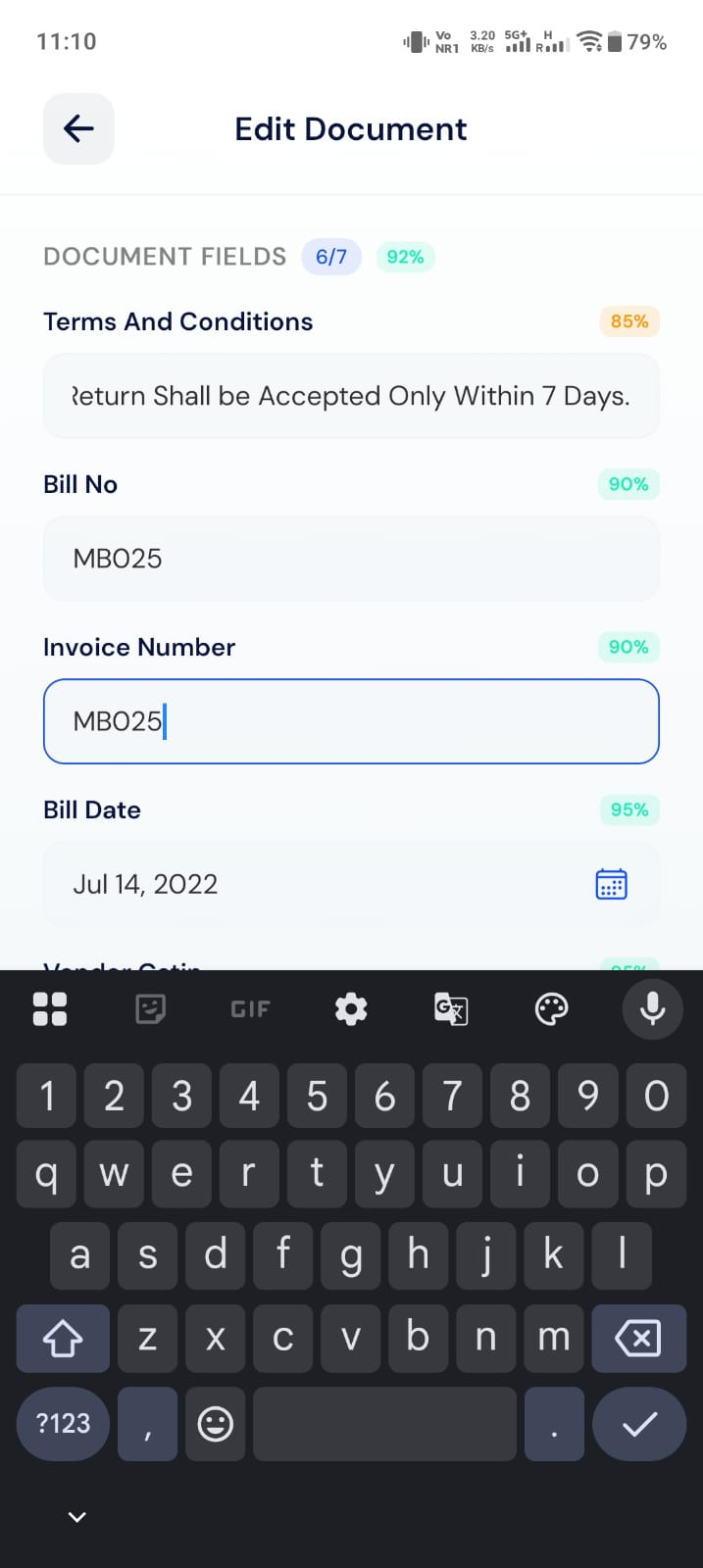 Tap into any field (for example, **Invoice Number**) and fix the value.
For date fields such as **Bill Date**, tap the calendar icon and choose the correct date.
For fields that link to workspace records (such as an item, supplier, or customer), start typing to search and select the correct match.
Review long fields such as **Terms and Conditions** carefully. OCR confidence is often lower on paragraphs.
When every field looks right, go back to the review screen.
## Line items
For documents such as purchase orders and invoices, line items appear in a table. Expand a row to see and edit all fields for that line, including item, quantity, rate, and amount.
## If processing failed
If a document shows **Failed**, its detail screen explains why, listing any failed validation rules. Use **Retry Processing** to run OCR again once you have addressed the cause (for example, re-uploading a clearer image).
## Related pages
* [Submitting and drafts](/mobile-app/submitting-and-drafts)
* [Uploading documents](/mobile-app/uploading-documents)
Tap into any field (for example, **Invoice Number**) and fix the value.
For date fields such as **Bill Date**, tap the calendar icon and choose the correct date.
For fields that link to workspace records (such as an item, supplier, or customer), start typing to search and select the correct match.
Review long fields such as **Terms and Conditions** carefully. OCR confidence is often lower on paragraphs.
When every field looks right, go back to the review screen.
## Line items
For documents such as purchase orders and invoices, line items appear in a table. Expand a row to see and edit all fields for that line, including item, quantity, rate, and amount.
## If processing failed
If a document shows **Failed**, its detail screen explains why, listing any failed validation rules. Use **Retry Processing** to run OCR again once you have addressed the cause (for example, re-uploading a clearer image).
## Related pages
* [Submitting and drafts](/mobile-app/submitting-and-drafts)
* [Uploading documents](/mobile-app/uploading-documents)