> ## Documentation Index
> Fetch the complete documentation index at: https://docs.bizaxl.com/llms.txt
> Use this file to discover all available pages before exploring further.
# QR Self-Ordering
> How guests order from the BIZ Cafe storefront - scan a QR code, browse the menu, build a cart, check out, track the order by token, and leave feedback, all without logging in.
QR self-ordering lets your guests order from their own phone. They scan the QR code at the table, browse the menu, build a cart, and check out, all without downloading an app or creating an account. This page walks through the guest experience on the storefront at `/cafe`.
***
## Who Uses This Feature
| Role | What They Do Here |
| ------------------ | ------------------------------------------------------------------------ |
| **Guest customer** | Scans the QR code, orders, pays, and tracks the order. No login required |
| **Cafe Admin** | Sets up the menu that the storefront displays |
The storefront is built for the guest. There is no staff role on these pages; the kitchen and counter pick the order up from their own screens once it is placed.
***
## Before a Guest Can Order
* The **menu** must be set up, with categories active and items available. See [Menu Management](/hospitality-leisure/cafe/menu-management).
* A **QR code** for the storefront should be placed where guests can scan it (for example, on the table or counter). If you run more than one outlet, print each outlet's own code so a guest sees the menu and prices of the outlet they are standing in. See [Outlets and Counters](/hospitality-leisure/cafe/outlets-and-counters).
***
## The Guest Flow
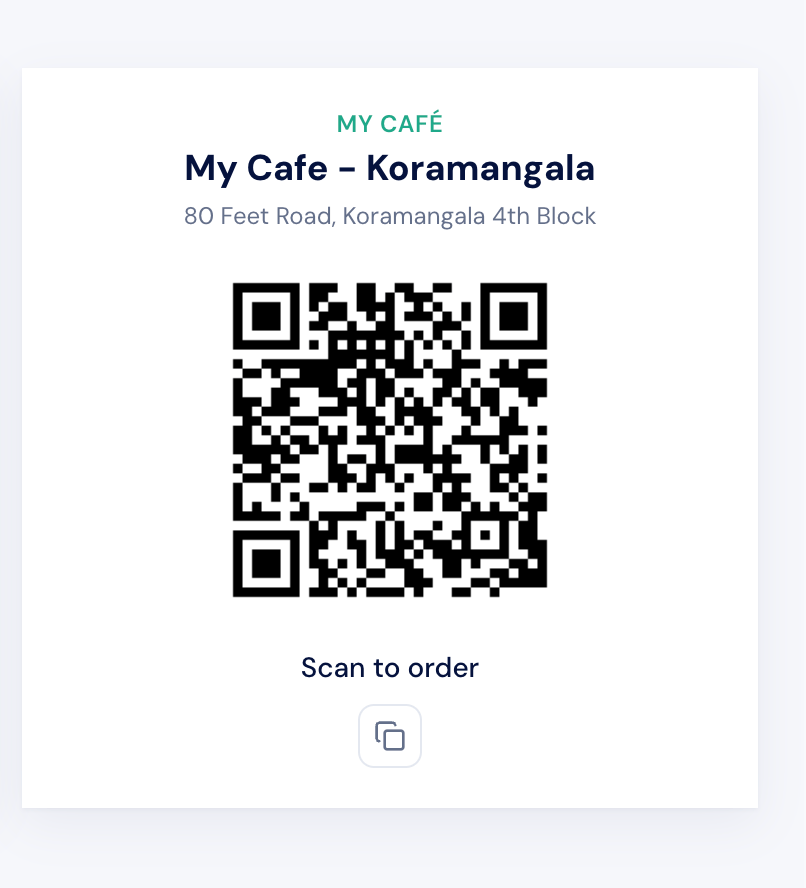
The guest scans the QR code and lands on the menu at `/cafe`. No login is needed.
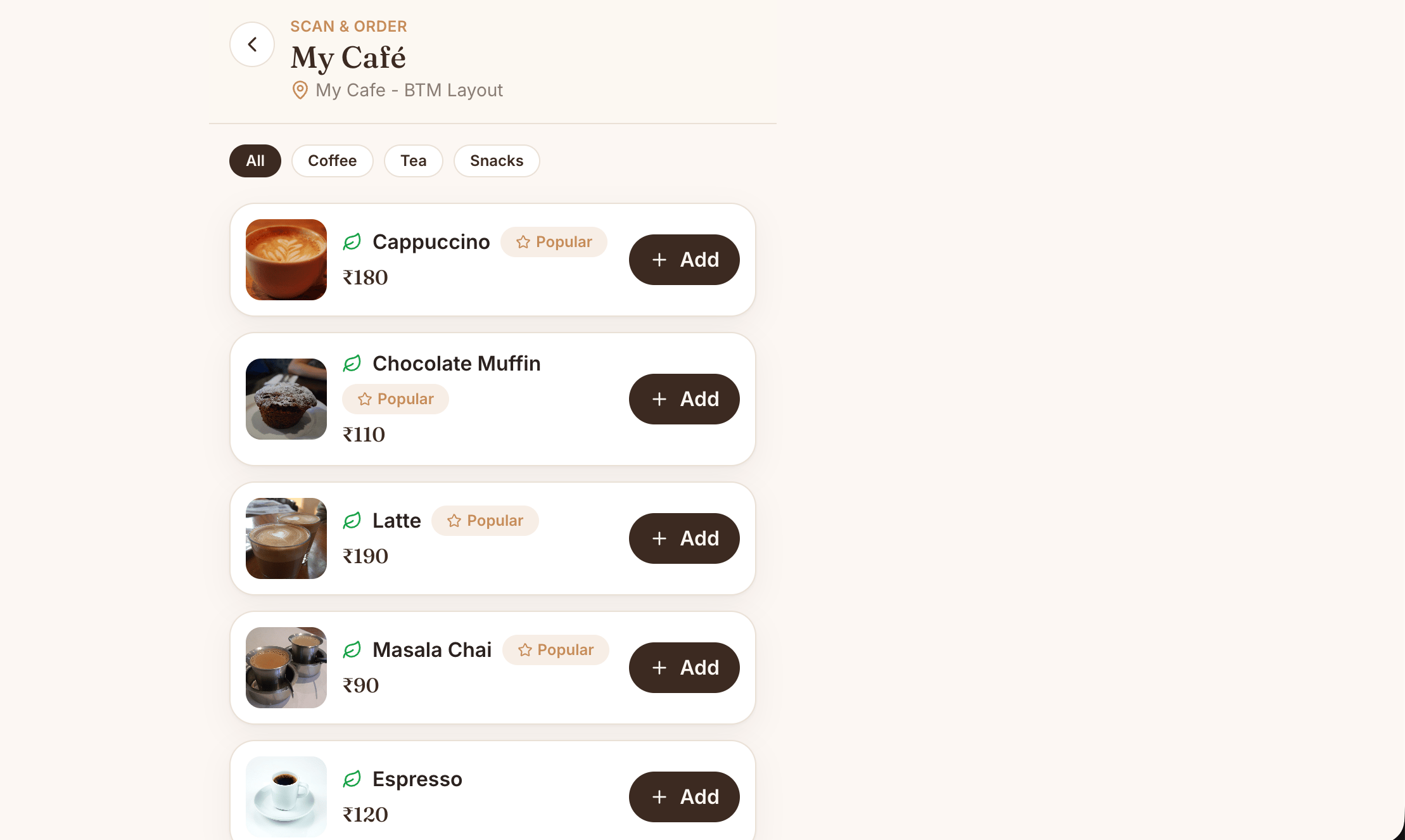
 Items are grouped by category with photos, prices, prep times, and tags such as vegetarian and popular. The guest taps an item, picks any required choices from its modifier groups, and adds any optional add-ons.
 On the cart page at `/cafe/cart`, the guest checks the items, adjusts quantities, and sees the running total with tax.
On checkout at `/cafe/checkout`, the guest enters their name and phone, adds any order notes, and chooses how to pay: online now, or at the counter.
The guest is taken to the order status page at `/cafe/order/`, where they see a daily token number, watch the order move from new to preparing to ready, and can download a receipt.
After collecting the order, the guest can rate it and leave comments on the feedback page at `/cafe/feedback`.
***
## Paying Online or at the Counter
At checkout the guest chooses a payment method:
* **Pay online.** The guest pays immediately. Until the online payment completes, the order sits at `Pending Payment`; once it succeeds, the order becomes `New` and reaches the kitchen.
* **Pay at the counter.** The order is placed and the guest settles the bill with a cashier when collecting it.
See [The Order Journey](/hospitality-leisure/cafe/workflow) for what each status means.
***
## The Token and the Receipt
When an order is placed, it is given a **daily token number**, a simple pickup number that resets each day and runs per outlet. The guest uses the token to track the order and to identify themselves at the counter. The order status page also lets the guest **download a receipt** (the Cafe Receipt) for their records.
When the order reaches `Ready`, the guest is notified that it is ready to collect, so they do not have to keep watching the screen.
***
## Upstream and Downstream Dependencies
* The storefront **depends on the menu**: only active categories and available items appear.
* A placed order **feeds the kitchen display** so the team can prepare it, and **feeds the counter** so it can be billed.
* Feedback left by the guest **feeds** the Cafe Feedback records. See [Guest Feedback](/hospitality-leisure/cafe/guest-feedback).
***
## Best Practices
* **Keep item photos and descriptions current.** Guests order with their eyes, so good imagery lifts the average order.
* **Mark sold-out items unavailable promptly.** An item left available but out of stock leads to disappointed guests at collection.
* **Place the QR code where it is easy to scan.** A clear, well-lit code on the table reduces friction at the start of the order.
* **Encourage guests to keep the token handy.** It speeds up collection and counter payment.
On the cart page at `/cafe/cart`, the guest checks the items, adjusts quantities, and sees the running total with tax.
On checkout at `/cafe/checkout`, the guest enters their name and phone, adds any order notes, and chooses how to pay: online now, or at the counter.
The guest is taken to the order status page at `/cafe/order/`, where they see a daily token number, watch the order move from new to preparing to ready, and can download a receipt.
After collecting the order, the guest can rate it and leave comments on the feedback page at `/cafe/feedback`.
***
## Paying Online or at the Counter
At checkout the guest chooses a payment method:
* **Pay online.** The guest pays immediately. Until the online payment completes, the order sits at `Pending Payment`; once it succeeds, the order becomes `New` and reaches the kitchen.
* **Pay at the counter.** The order is placed and the guest settles the bill with a cashier when collecting it.
See [The Order Journey](/hospitality-leisure/cafe/workflow) for what each status means.
***
## The Token and the Receipt
When an order is placed, it is given a **daily token number**, a simple pickup number that resets each day and runs per outlet. The guest uses the token to track the order and to identify themselves at the counter. The order status page also lets the guest **download a receipt** (the Cafe Receipt) for their records.
When the order reaches `Ready`, the guest is notified that it is ready to collect, so they do not have to keep watching the screen.
***
## Upstream and Downstream Dependencies
* The storefront **depends on the menu**: only active categories and available items appear.
* A placed order **feeds the kitchen display** so the team can prepare it, and **feeds the counter** so it can be billed.
* Feedback left by the guest **feeds** the Cafe Feedback records. See [Guest Feedback](/hospitality-leisure/cafe/guest-feedback).
***
## Best Practices
* **Keep item photos and descriptions current.** Guests order with their eyes, so good imagery lifts the average order.
* **Mark sold-out items unavailable promptly.** An item left available but out of stock leads to disappointed guests at collection.
* **Place the QR code where it is easy to scan.** A clear, well-lit code on the table reduces friction at the start of the order.
* **Encourage guests to keep the token handy.** It speeds up collection and counter payment.