> ## Documentation Index
> Fetch the complete documentation index at: https://docs.bizaxl.com/llms.txt
> Use this file to discover all available pages before exploring further.
# BIZ Cafe
> Run your café end to end on Bizaxl - QR self-ordering, a kitchen display, and counter billing with till sessions, with accounting and stock handled in the background.
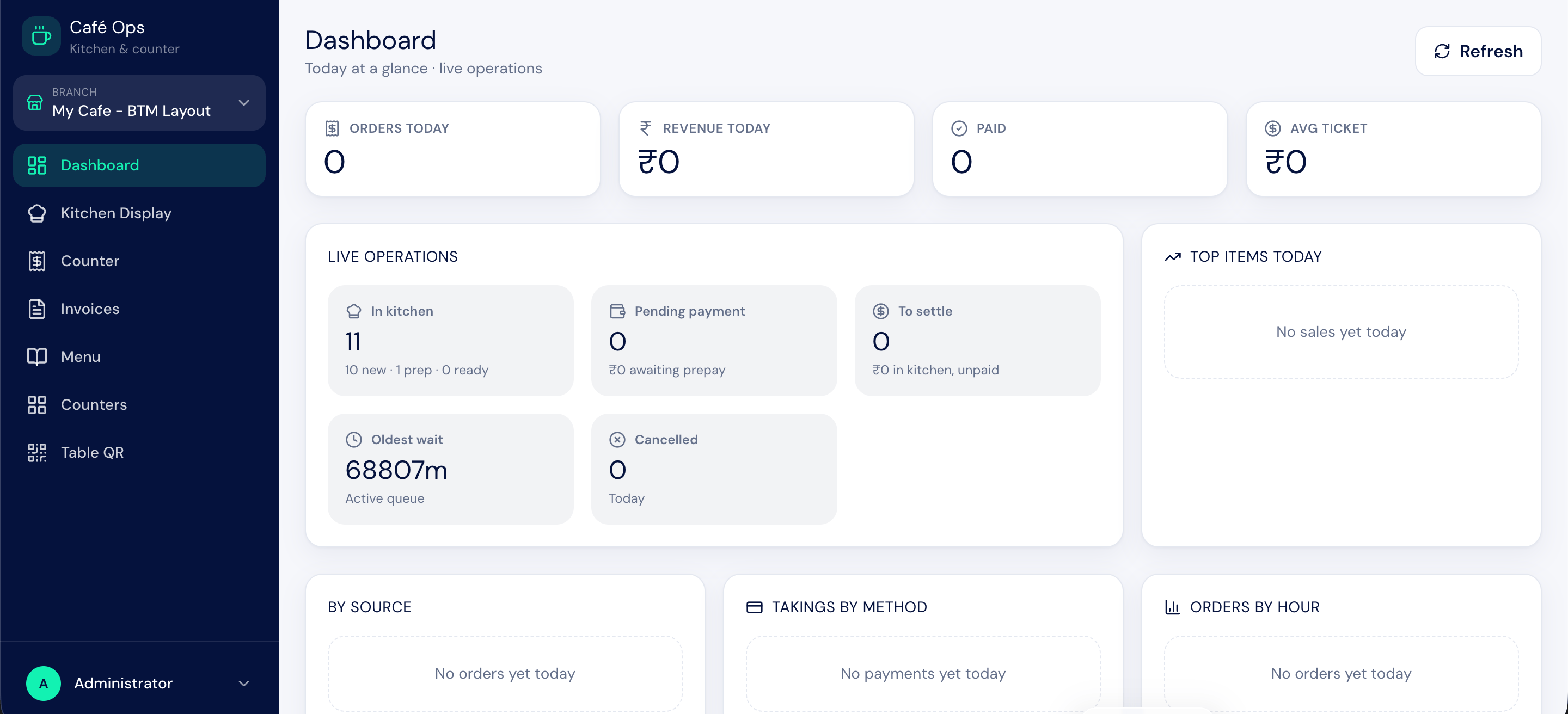
BIZ Cafe gives your café everything it needs to take orders, serve them, bill them, and account for them from a single platform. A guest scans a QR code at the table and orders from their phone, the kitchen sees the order on a live screen, the counter bills it, and the sale flows into your books and stock automatically. No double entry, no spreadsheets at the end of the day.
 ***
## What BIZ Cafe Does
BIZ Cafe connects three surfaces around one menu and one set of records:
* **A guest storefront** where customers scan a QR code, browse the menu, and order without logging in. The owner can re-skin its logo, contact details, and theme colours.
* **A kitchen display** that shows live orders for the kitchen team to prepare and mark ready.
* **A counter and till** where cashiers take walk-in orders, bill them, and reconcile cash at the end of the shift.
Behind all of this, every paid bill is mirrored to your accounting and stock records in the background, so your sales, taxes, and inventory stay accurate without anyone re-keying them.
***
## The Three Surfaces
Guests scan, browse the menu, add to a cart, pay online or at the counter, and track their order by token.
A live board for the kitchen team to advance orders from new to preparing to ready.
Take counter orders, bill by Cash, Card, UPI, or Split, and reprint receipts.
Re-skin the storefront with your logo, contact details, and six theme colours.
***
## Who Works in BIZ Cafe
Each person sees only the parts of the system they need.
| Role | What They Do |
| ------------------ | ---------------------------------------------------------------------------------------------------------------------------------------- |
| **Cafe Admin** | Full access: the Desk workspace, the dashboard, menu management, invoices, both reports, and every operations page |
| **Cafe Cashier** | Takes counter orders, works the kitchen and invoices pages, and opens and closes the till. No access to the dashboard or menu management |
| **Cafe Kitchen** | Sees the kitchen display only, to prepare and mark orders ready |
| **Guest customer** | Orders from the storefront with no login required |
***
## How an Order Flows
A typical order moves through this sequence:
A customer scans the table QR code, browses the menu, and submits an order from their phone, or a cashier takes the order at the counter.
The order appears on the kitchen display. The kitchen team starts preparing it and marks it ready when done.
The cashier bills the order, taking payment by Cash, Card, UPI, or a split across methods.
Submitting the bill mirrors the sale into accounting and stock automatically.
The customer can rate the order and leave comments after collecting it.
***
## Next Steps
A tour of every capability in one place.
Learn the workspace and the two web apps.
See the full lifecycle and every status value.
Set up categories, items, modifiers, and add-ons.
***
## What BIZ Cafe Does
BIZ Cafe connects three surfaces around one menu and one set of records:
* **A guest storefront** where customers scan a QR code, browse the menu, and order without logging in. The owner can re-skin its logo, contact details, and theme colours.
* **A kitchen display** that shows live orders for the kitchen team to prepare and mark ready.
* **A counter and till** where cashiers take walk-in orders, bill them, and reconcile cash at the end of the shift.
Behind all of this, every paid bill is mirrored to your accounting and stock records in the background, so your sales, taxes, and inventory stay accurate without anyone re-keying them.
***
## The Three Surfaces
Guests scan, browse the menu, add to a cart, pay online or at the counter, and track their order by token.
A live board for the kitchen team to advance orders from new to preparing to ready.
Take counter orders, bill by Cash, Card, UPI, or Split, and reprint receipts.
Re-skin the storefront with your logo, contact details, and six theme colours.
***
## Who Works in BIZ Cafe
Each person sees only the parts of the system they need.
| Role | What They Do |
| ------------------ | ---------------------------------------------------------------------------------------------------------------------------------------- |
| **Cafe Admin** | Full access: the Desk workspace, the dashboard, menu management, invoices, both reports, and every operations page |
| **Cafe Cashier** | Takes counter orders, works the kitchen and invoices pages, and opens and closes the till. No access to the dashboard or menu management |
| **Cafe Kitchen** | Sees the kitchen display only, to prepare and mark orders ready |
| **Guest customer** | Orders from the storefront with no login required |
***
## How an Order Flows
A typical order moves through this sequence:
A customer scans the table QR code, browses the menu, and submits an order from their phone, or a cashier takes the order at the counter.
The order appears on the kitchen display. The kitchen team starts preparing it and marks it ready when done.
The cashier bills the order, taking payment by Cash, Card, UPI, or a split across methods.
Submitting the bill mirrors the sale into accounting and stock automatically.
The customer can rate the order and leave comments after collecting it.
***
## Next Steps
A tour of every capability in one place.
Learn the workspace and the two web apps.
See the full lifecycle and every status value.
Set up categories, items, modifiers, and add-ons.